
Table of Contents
How to Align Your Laser Projector
One of the most common but unfortunately confusing aspects about maintaining your laser is that the colors can get misaligned. In this guide, we will discuss what kinds of misalignment can happen, how to best avoid misalignment, and then show you how to re-align each type of alignment mount.
What is Alignment?
When we talk about alignment of a laser projector, there are actually two things we may be talking about, Module Alignment, which pertains to the diode arrays and how tight the individual beams are from each other, or Color Convergence, where the different colors in your laser projector are not lined up with each other creating split colors.
Before we can align our laser, we need to first understand what alignment issue is causing your laser's misalignment.
Module Alignment
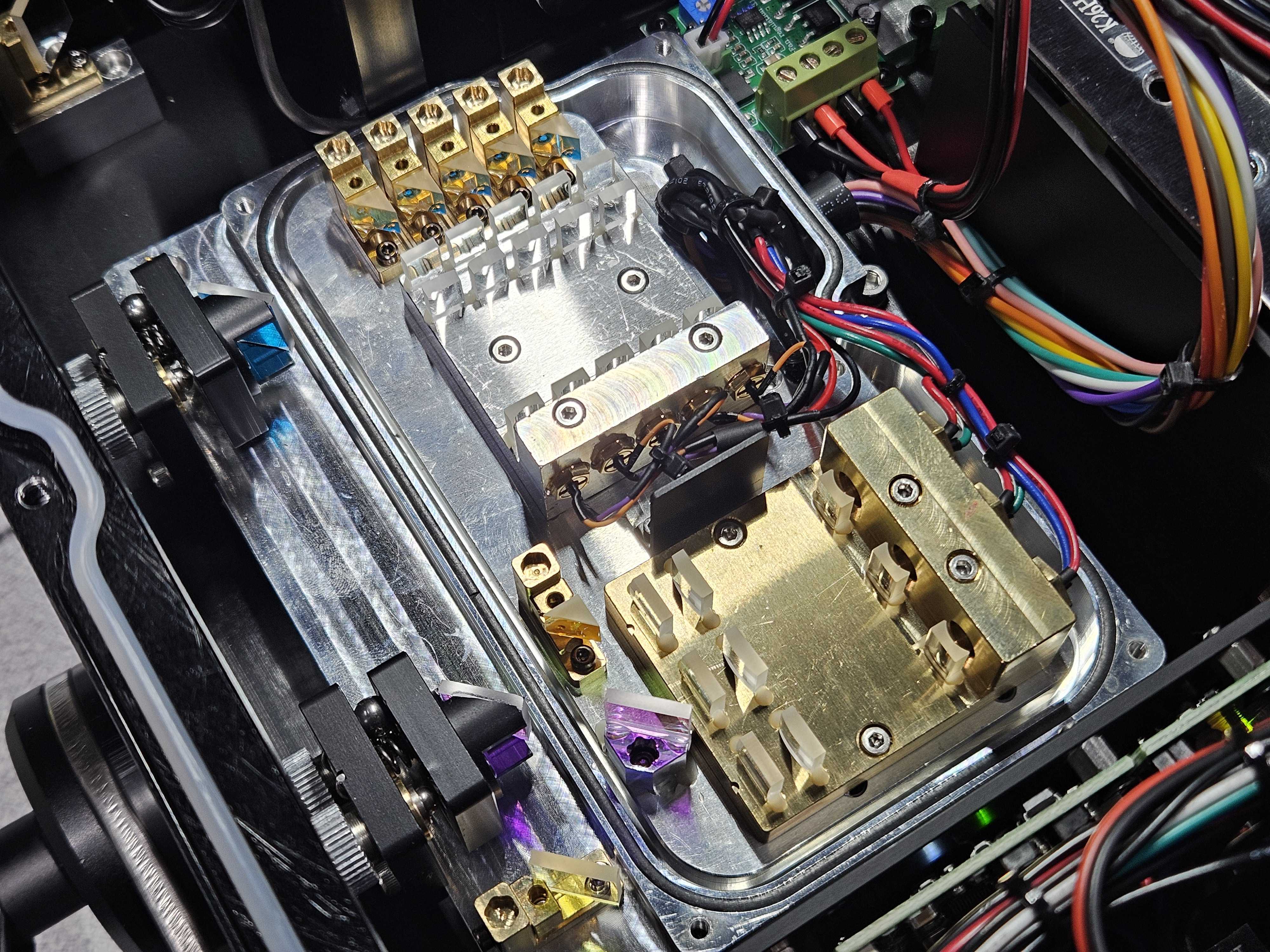
The way modern lasers work is by combining large arrays of diodes into tight grid arrays. This uses several techniques, but the result is that a single laser beam could have hundreds of individual laser diodes and beams all combined.
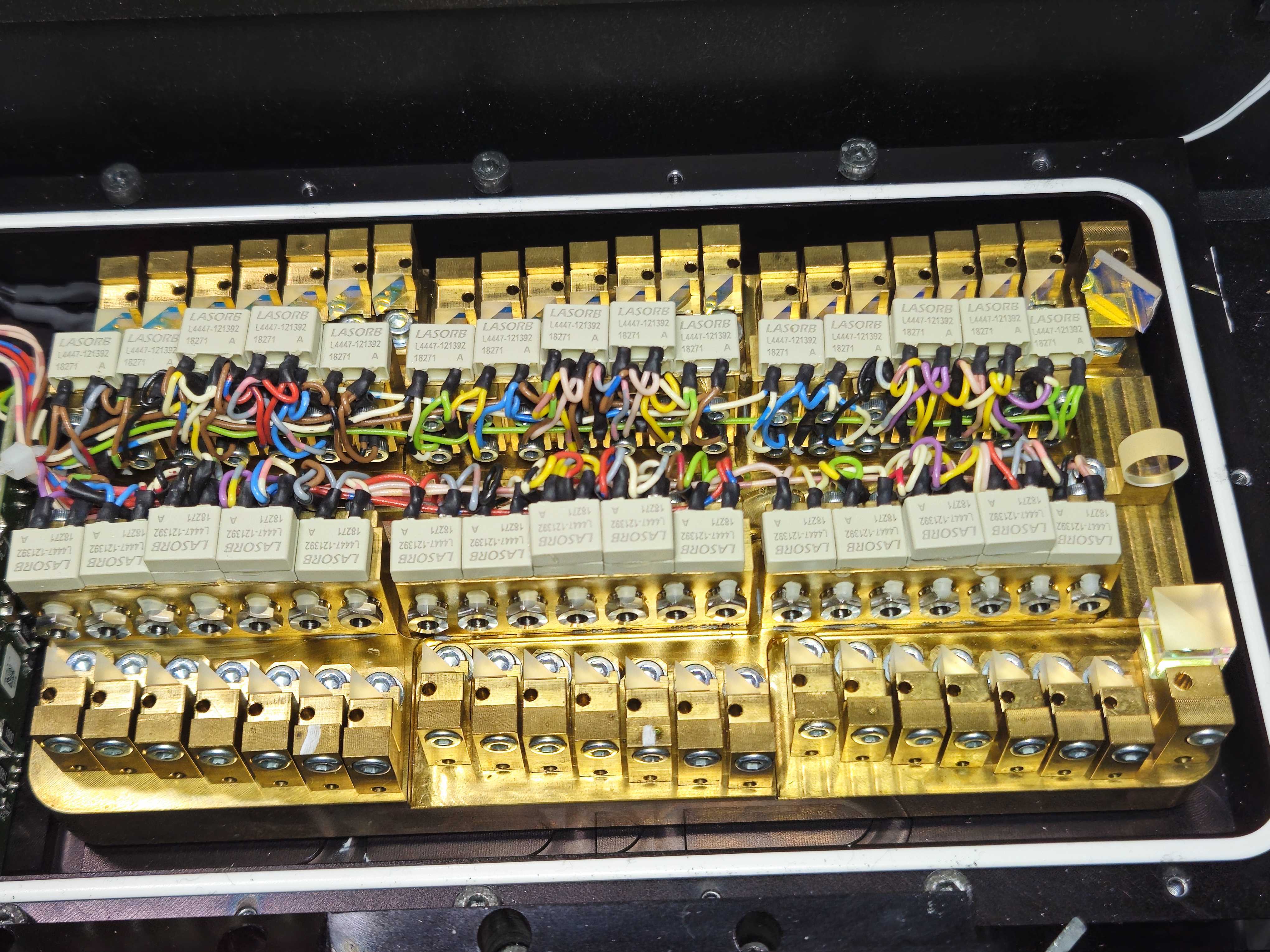
Often the techniques are things like Knife-Edging, where very small mirrors are slightly offset from diode to diode and reflect the beams from each diode and line them up into the grid array. There are some other optics like PBS (Polarizing Beamsplitter) Cubes used in the reverse, to combine two oppositely polarized arrays into one.
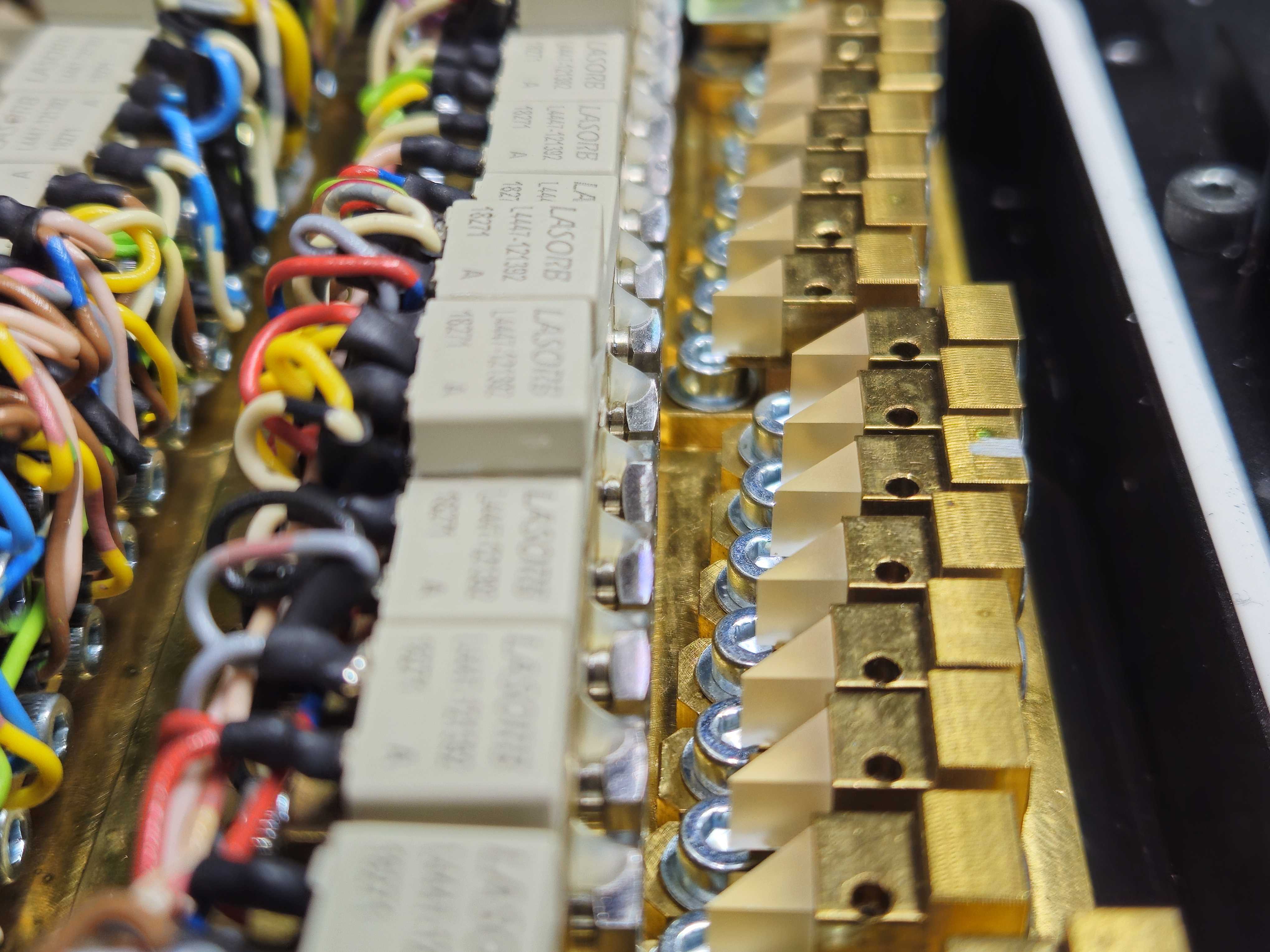
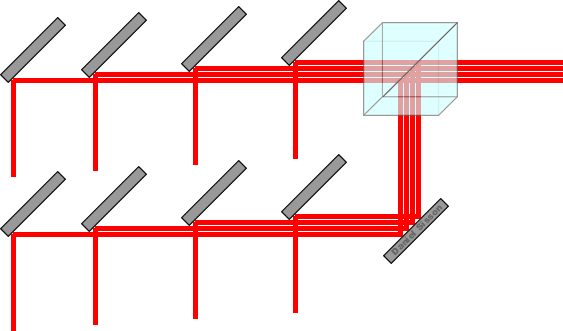
Generally, these diode arrays are combined into what we call Laser Modules. These modules are generally separated by color inside of your laser projector and are housed in a secondary enclosure inside the laser itself protecting the diodes, and combination optics that create the diode arrays.
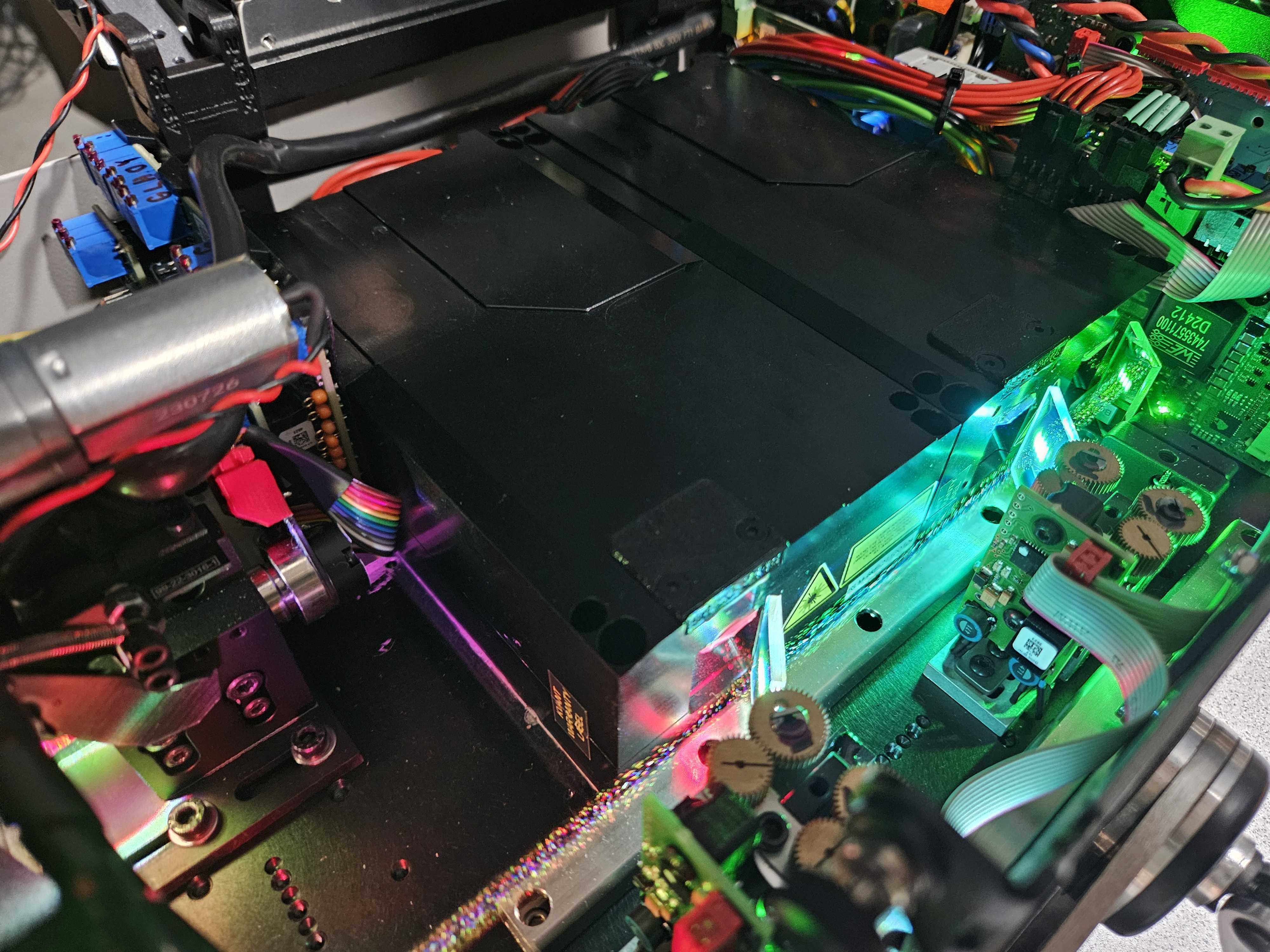
In some cases, all colors could be built into a single module, sometimes reducing weight and size. Each knife-edged mirror may have its own alignment to it to bring it into the correct place. These are most commonly Friction Mounts where a specific amount of torque is applied to the two screws holding the mirror in place, and force is used to slightly shift the mirror into the correct place, and sometimes PBS cubes are mounted and adjusted the same way. The exact angles are often baked into the solid block of brass that modules are cut out of to keep everything square. Brass is used as it's good at not expanding and contracting with heat.
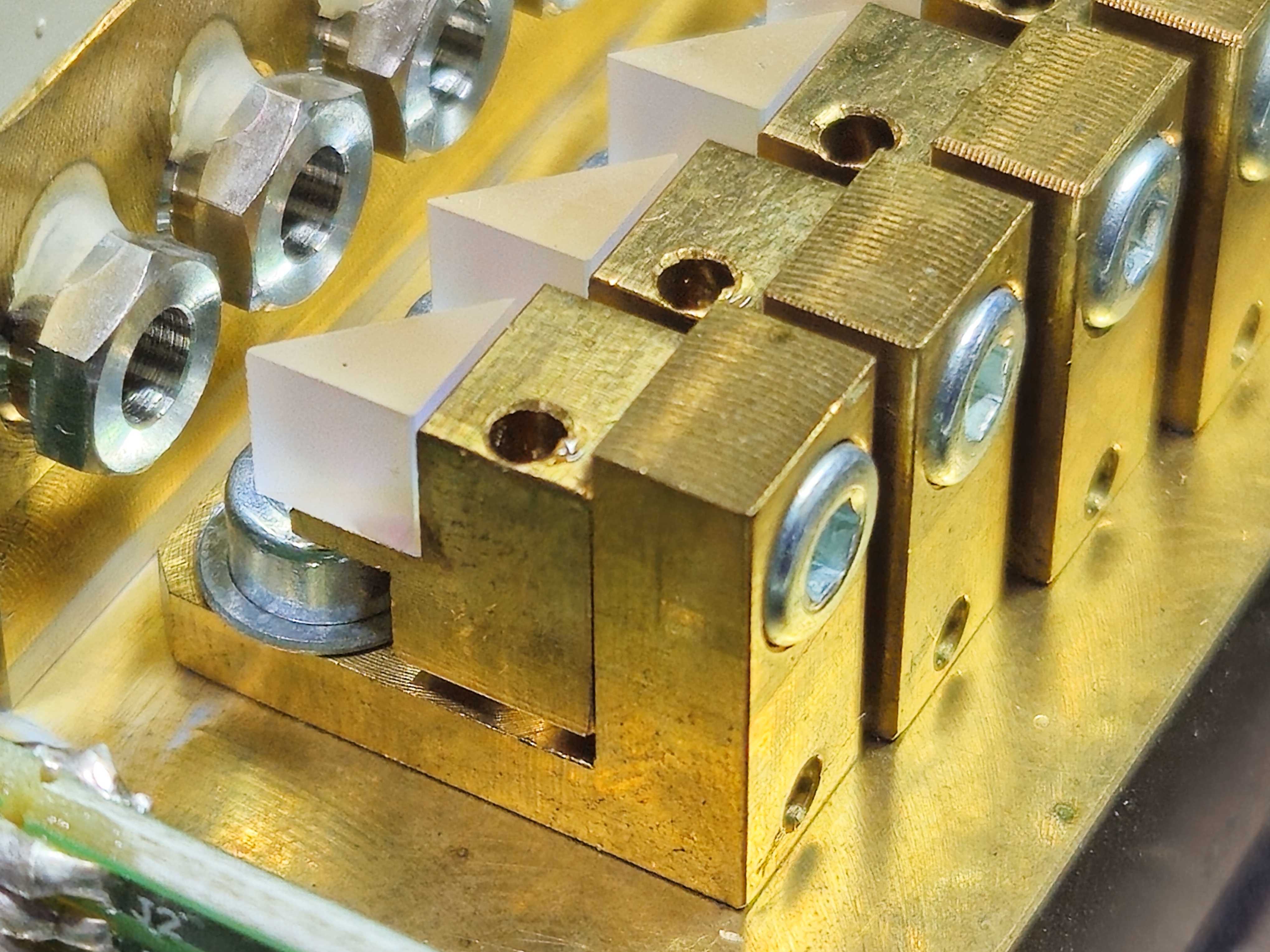
There are a few different designs of mounts which we will discuss later.
Color Convergence
To create our “full color” lasers that we use today in our industry, we most commonly use lasers that have separate red, green, and blue laser modules and combine them together into single beams laid on top of each other. We call this type of alignment Color Convergence.
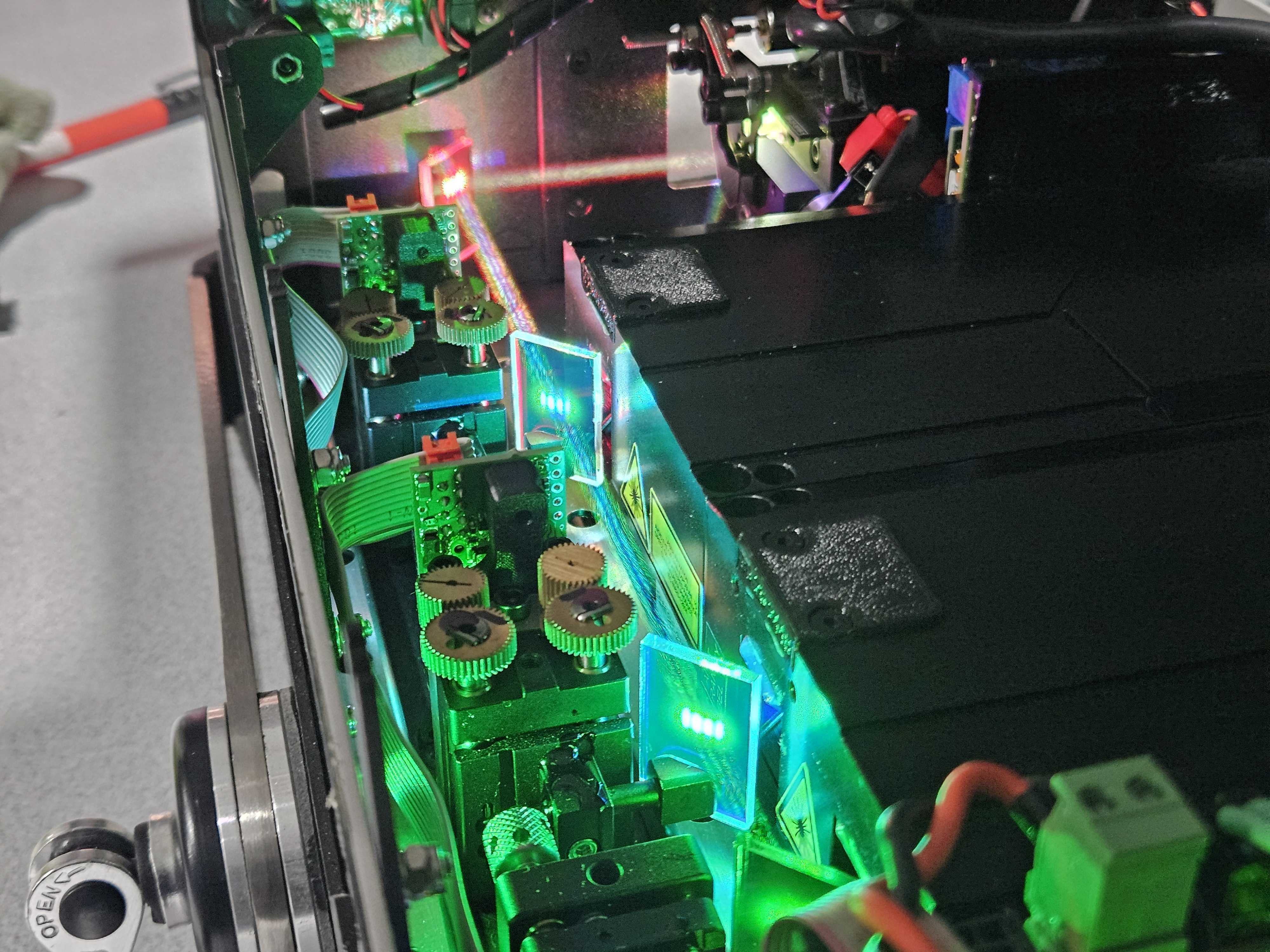
To combine the beams, the modules are placed perfectly parallel or perpendicularly to each other on a Base Plate in the laser projector that all the other optics are mounted to. We refer to this series of optics as the Optical Train.
Each module's beams are combined using a combination of Mirrors and what are known as Dichroic Filters.
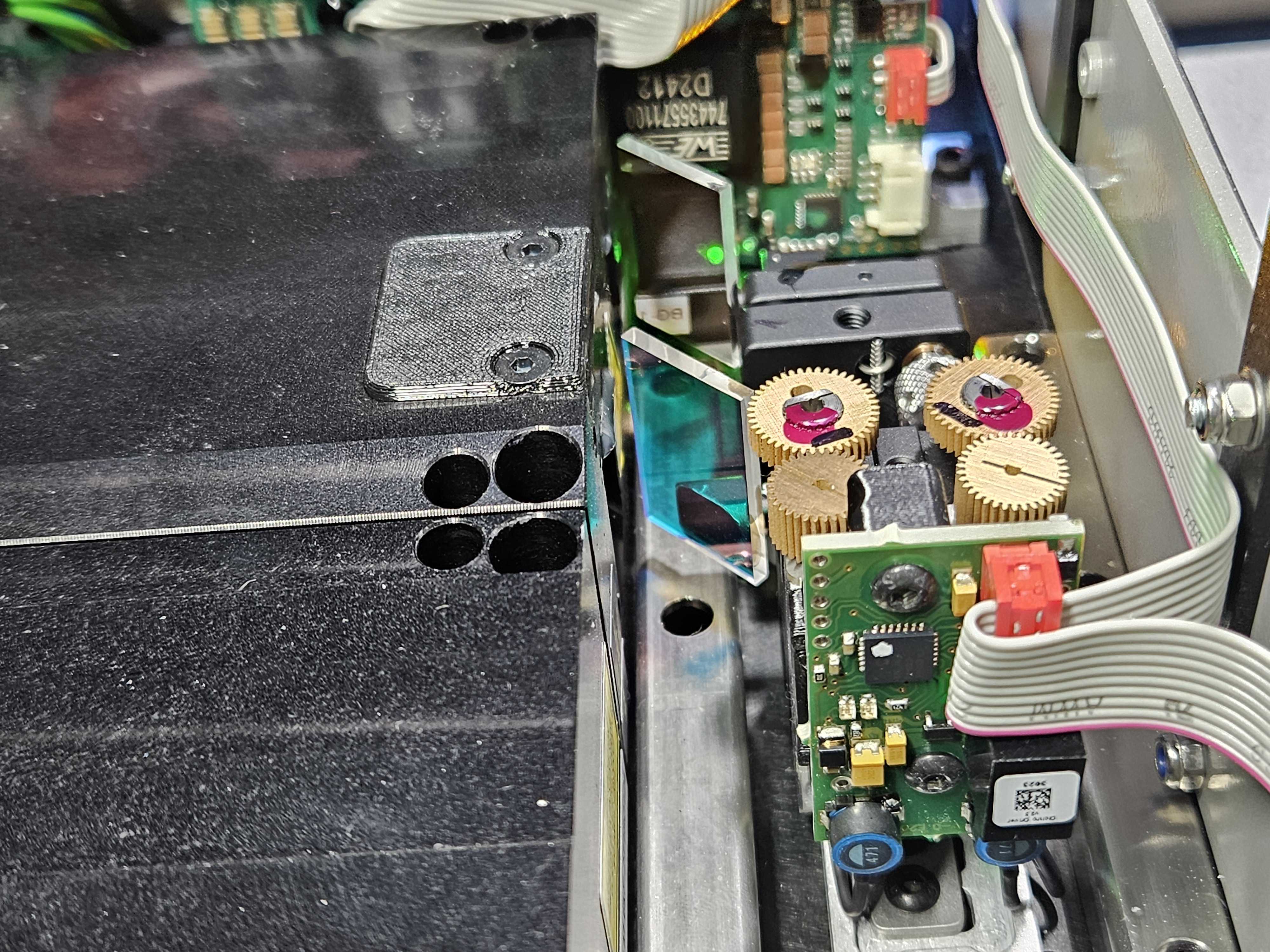
These dichroics are special optics that allow some color wavelengths to pass, and some to reflect.
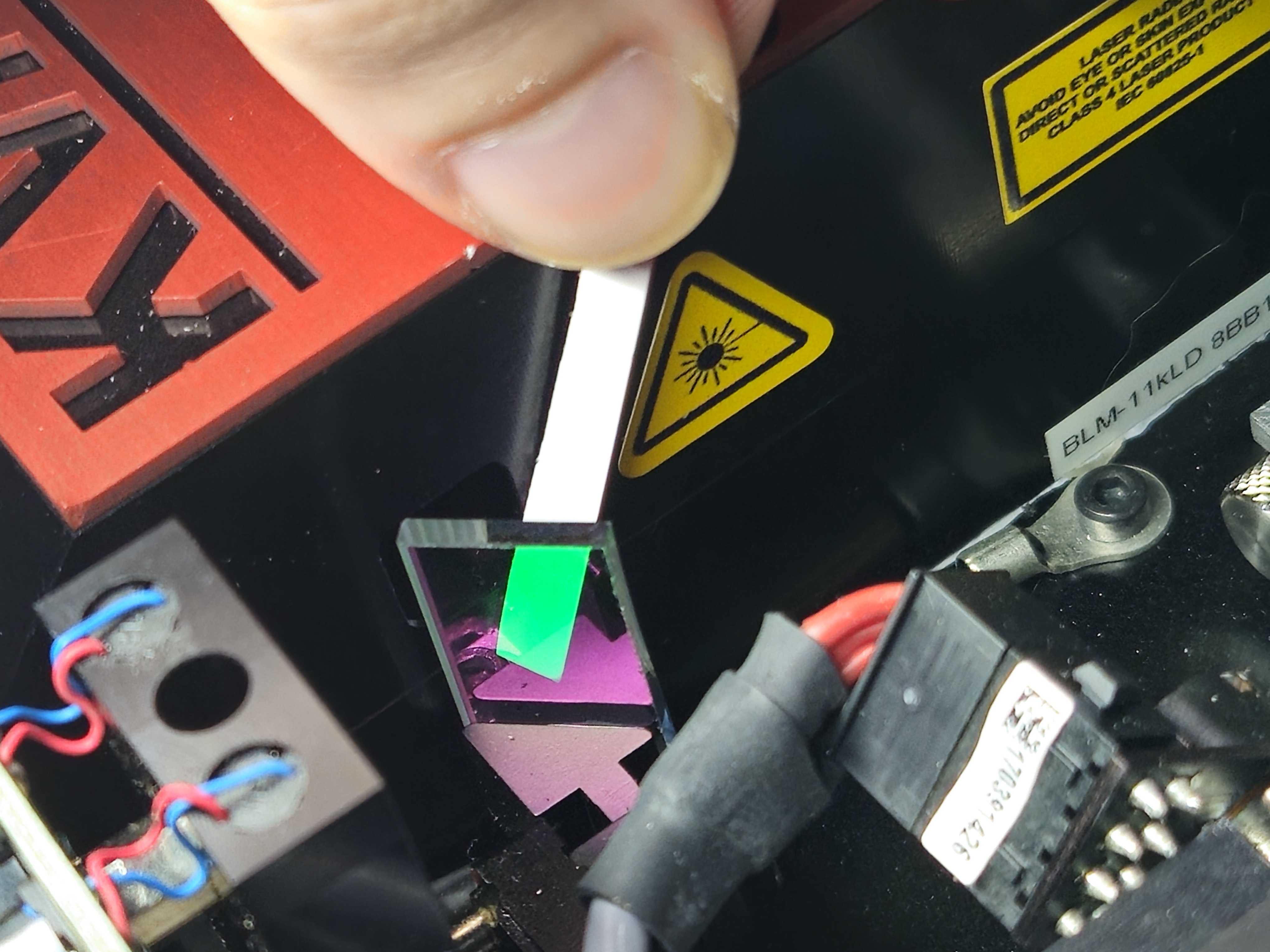
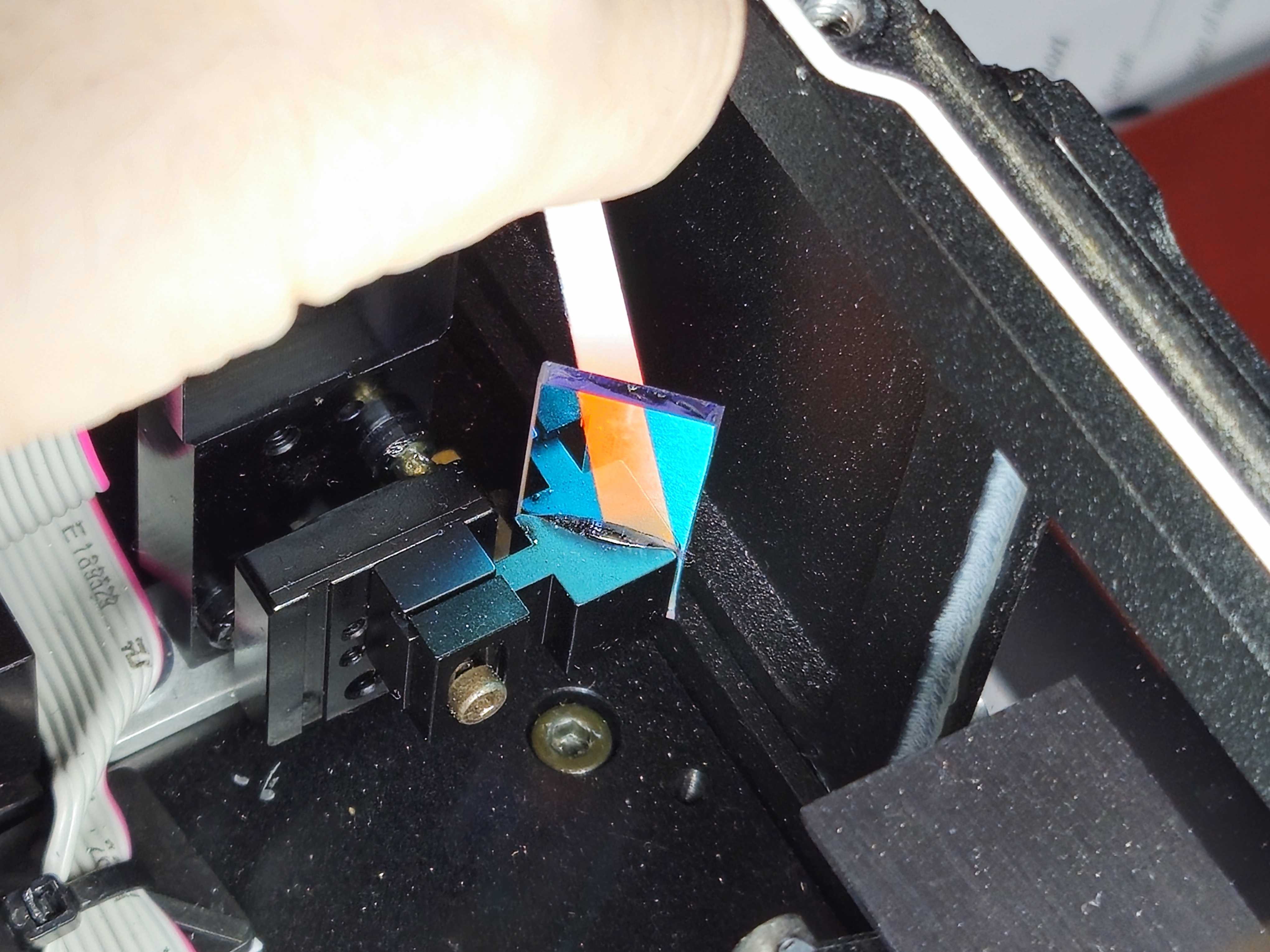
To combine green and blue, you may have blue pass through the dichroic, and green reflected.
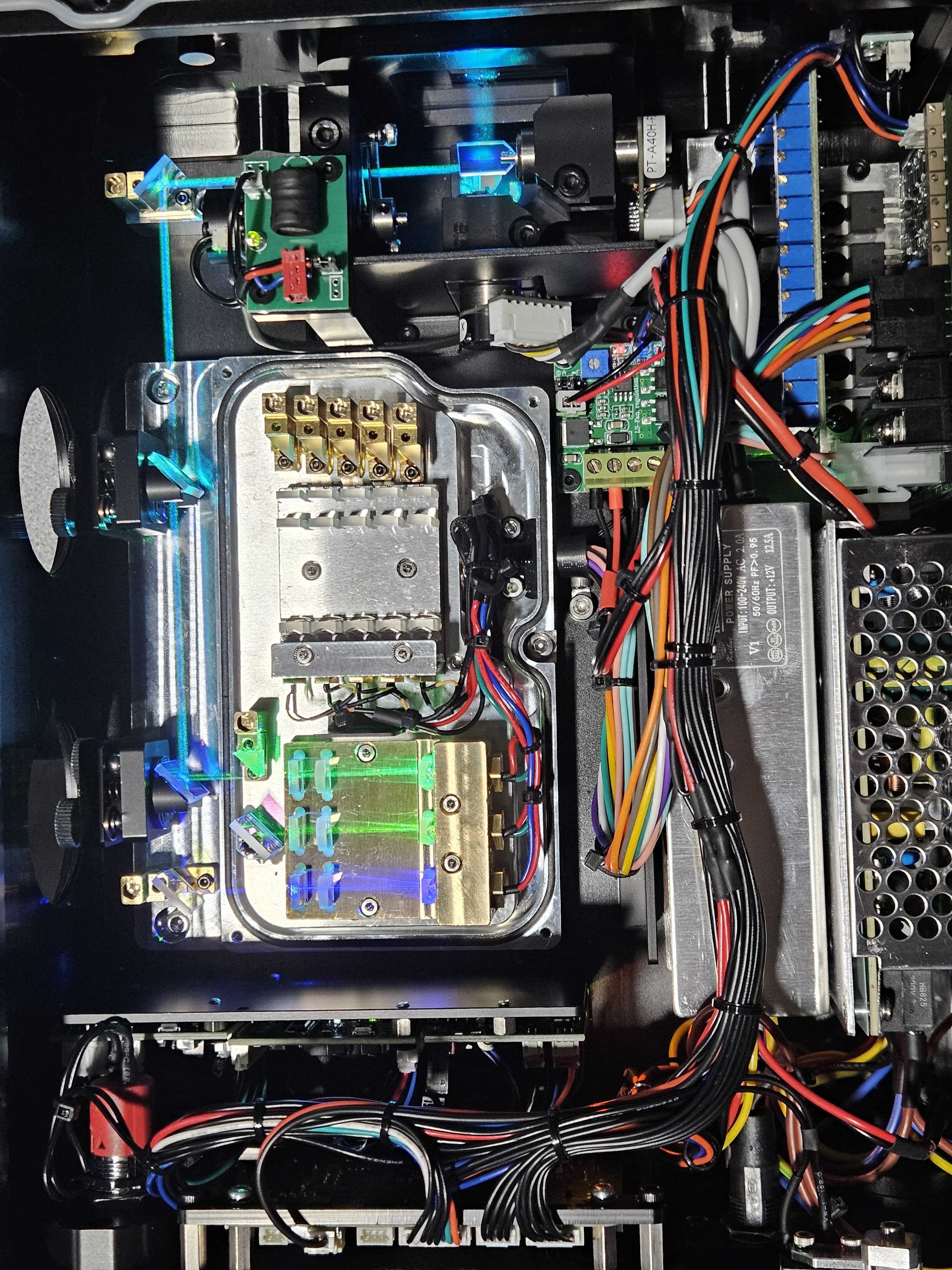
The dichroic is attached to a mount that allows fine adjustment, and the beams are mixed perfectly on top of each other, where the beams are at 90 degrees and the Dichroic is at 45 degrees of each beam.
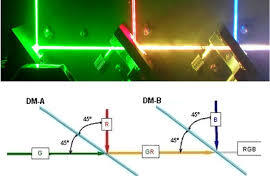

There is always 1 less dichroic than there are colors in a laser projector. So, if your laser has red, green and blue, there are 2 dichroics and only two things to adjust. If your laser added a 4th color like yellow, there would be a 3rd dichroic and three things to adjust.

There may also be other mirrors to shape the beam along the optical train, but we normally do not need to touch these as doing so may throw off the perfect angles needed to keep the beam in line.
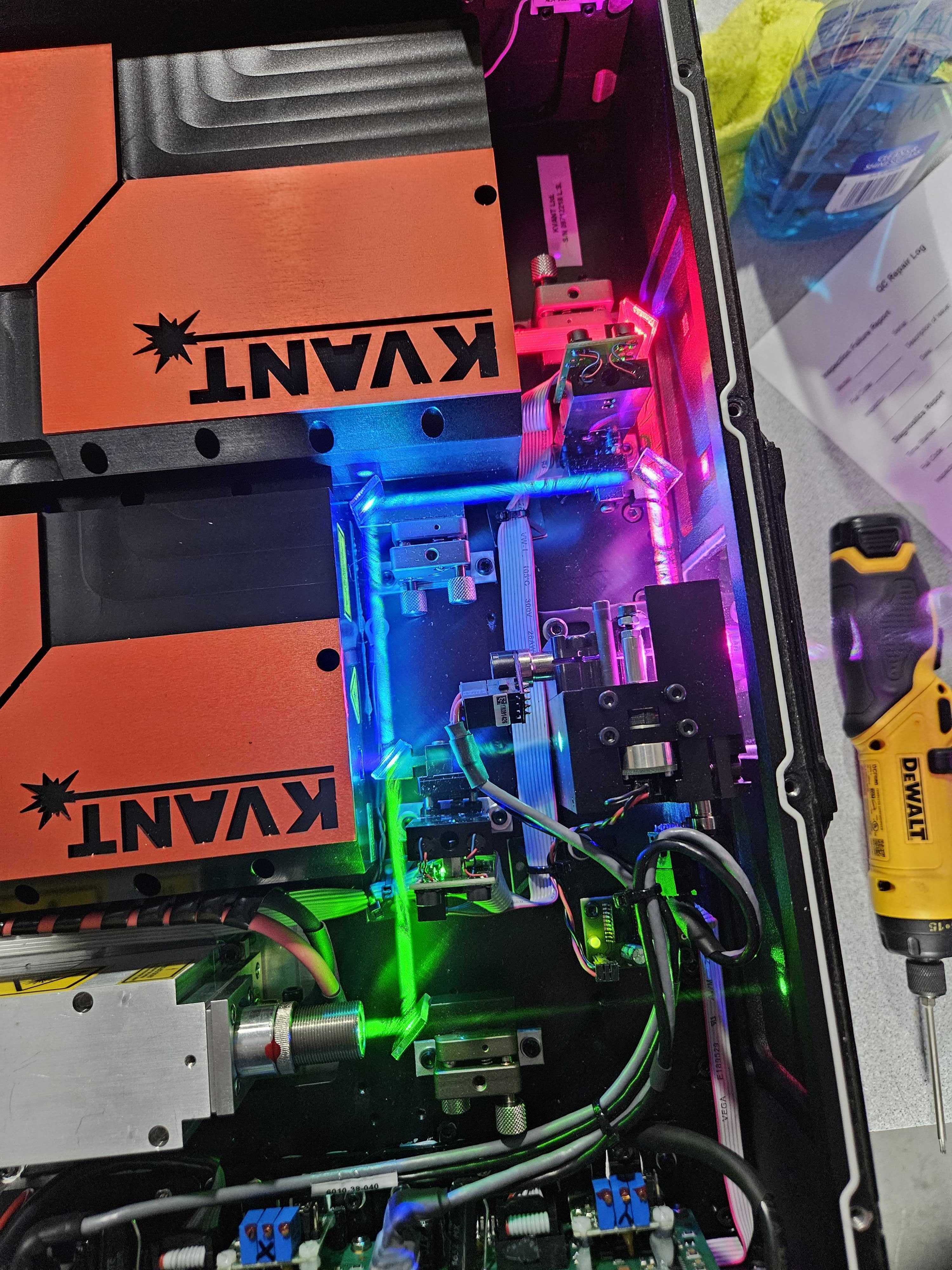
This combined beam is then centered onto the laser scanners, for output.
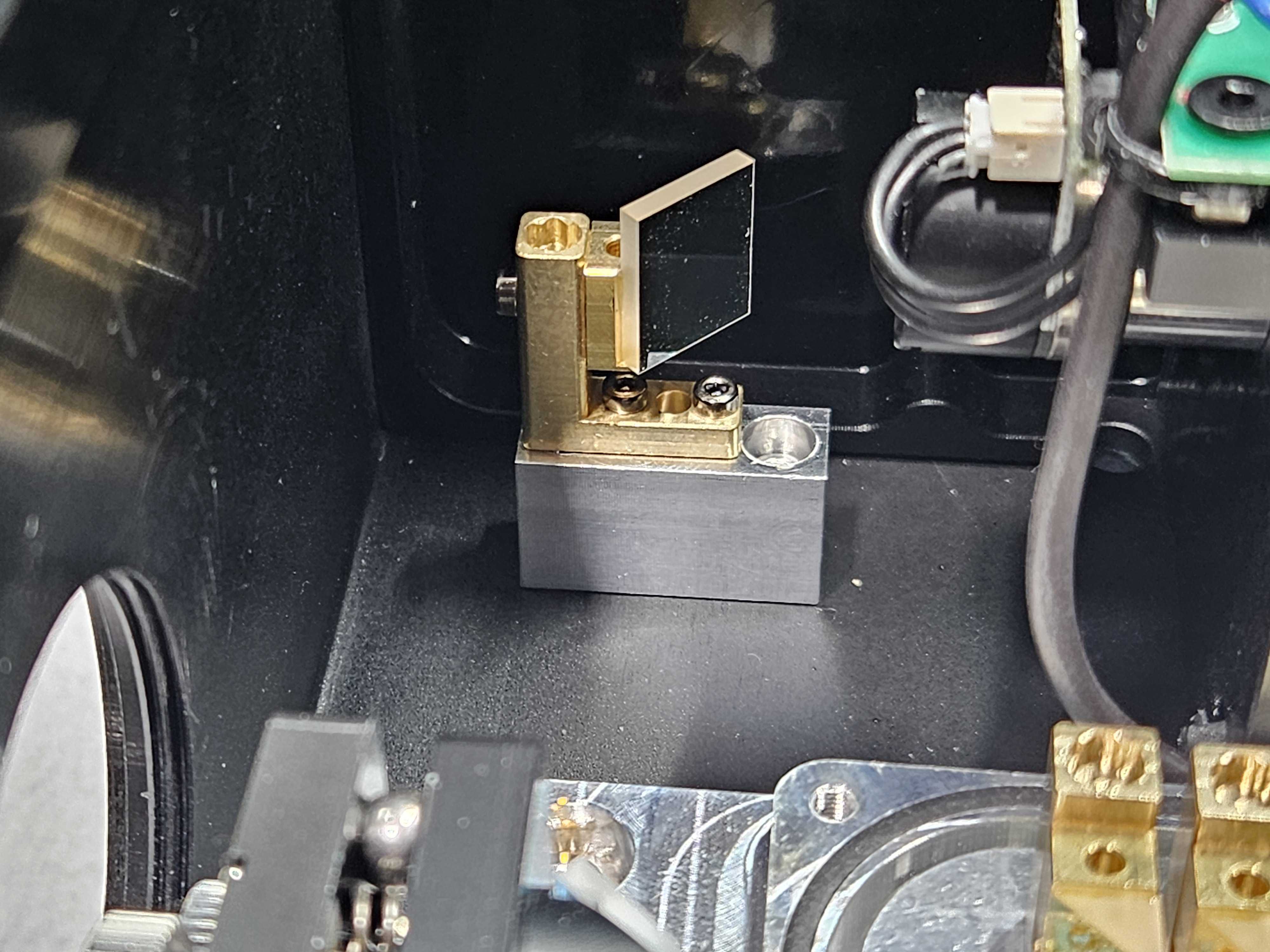
Examples of Misaligned Lasers
Here are some examples of what different kinds and different complexities of misalignment look like to help you determine what needs to be adjusted.
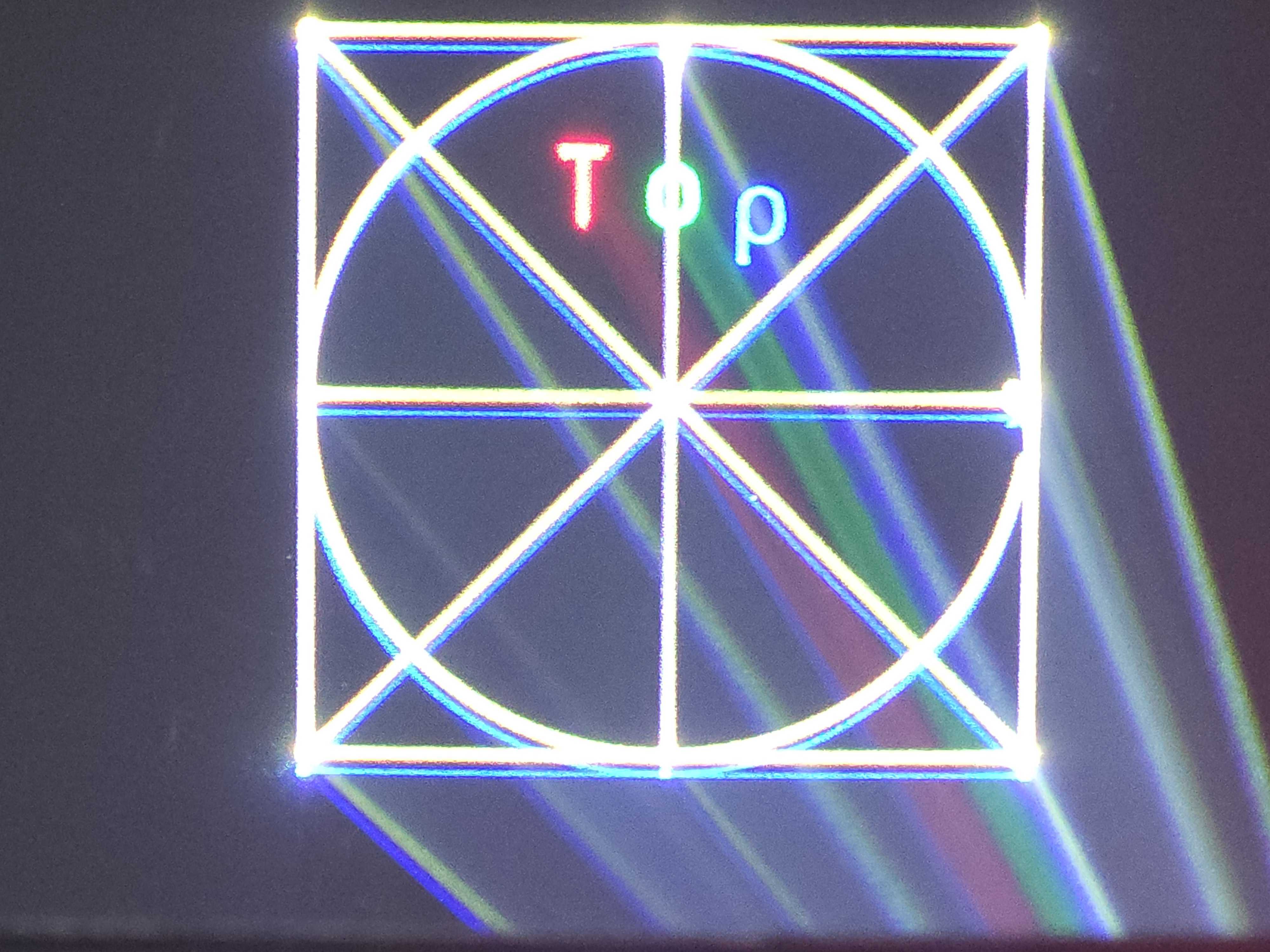
Single Color Convergence Issue:
Blue too far down.
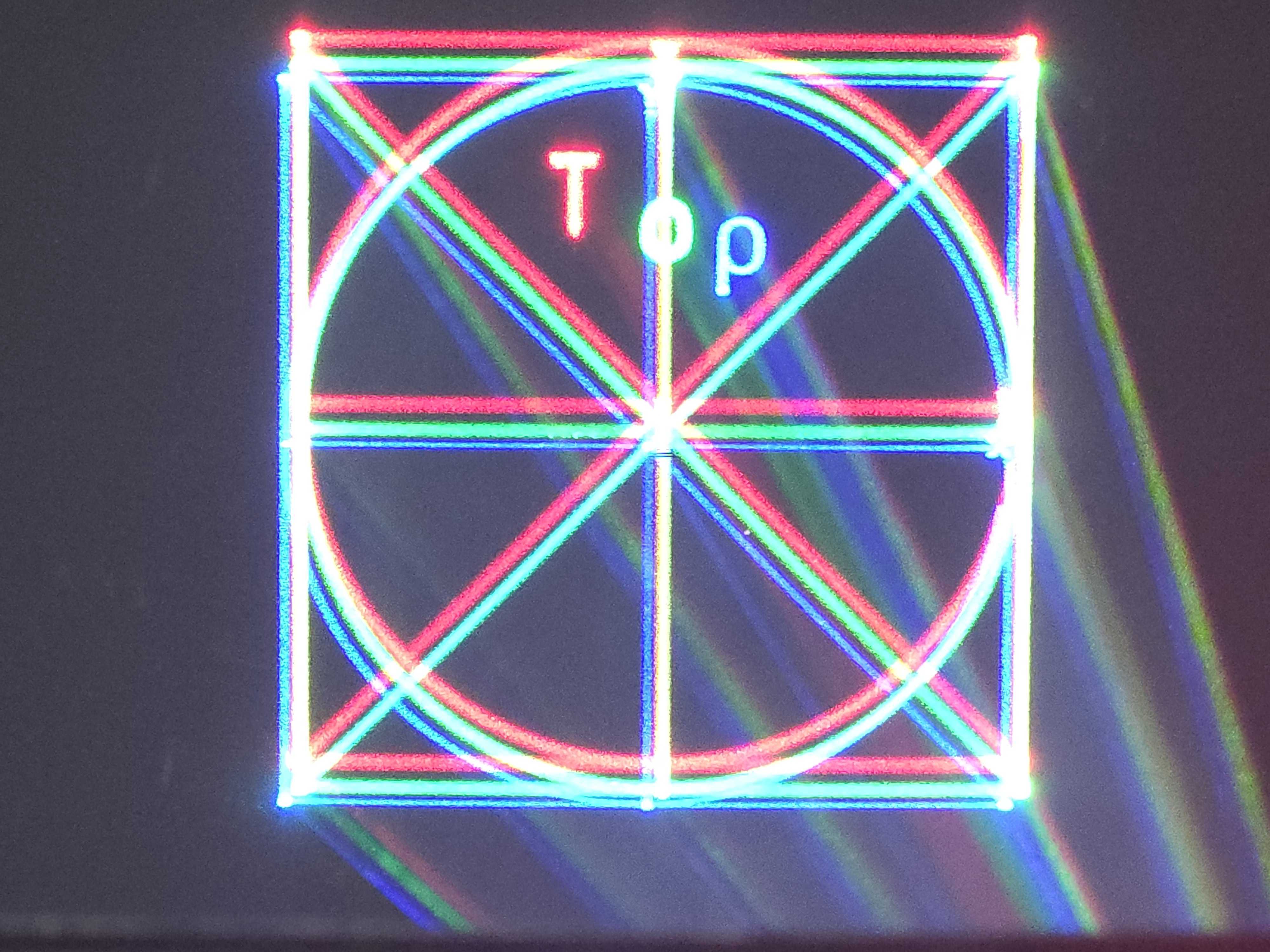
Multiple Color Convergence Issues:
Red too far up. Blue too far down.
Single Module Alignment Issue:
Blue split, partially going up.
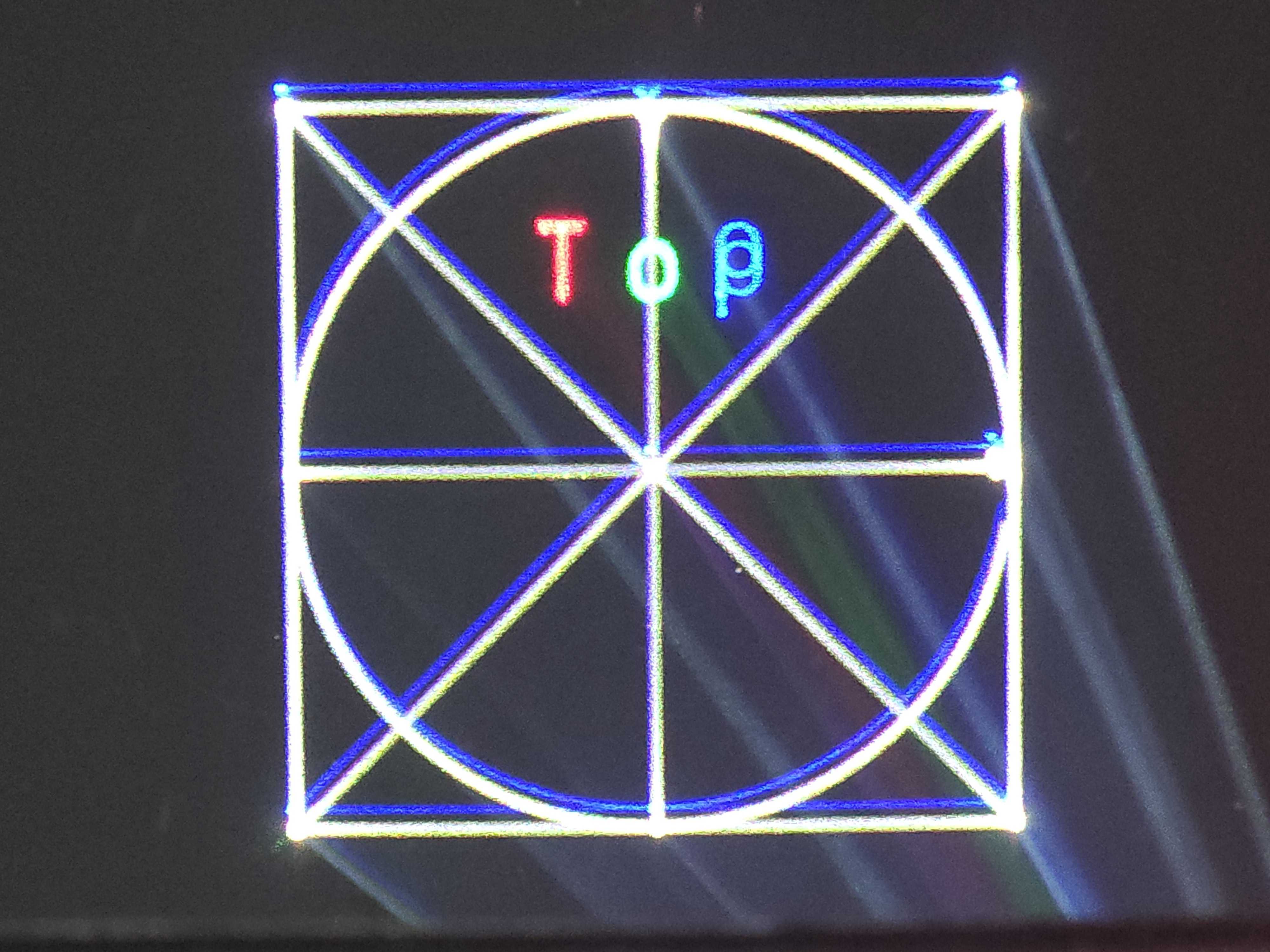
Multiple Module alignment Issues:
Red split, partially going left and right. Blue split, partially going up.
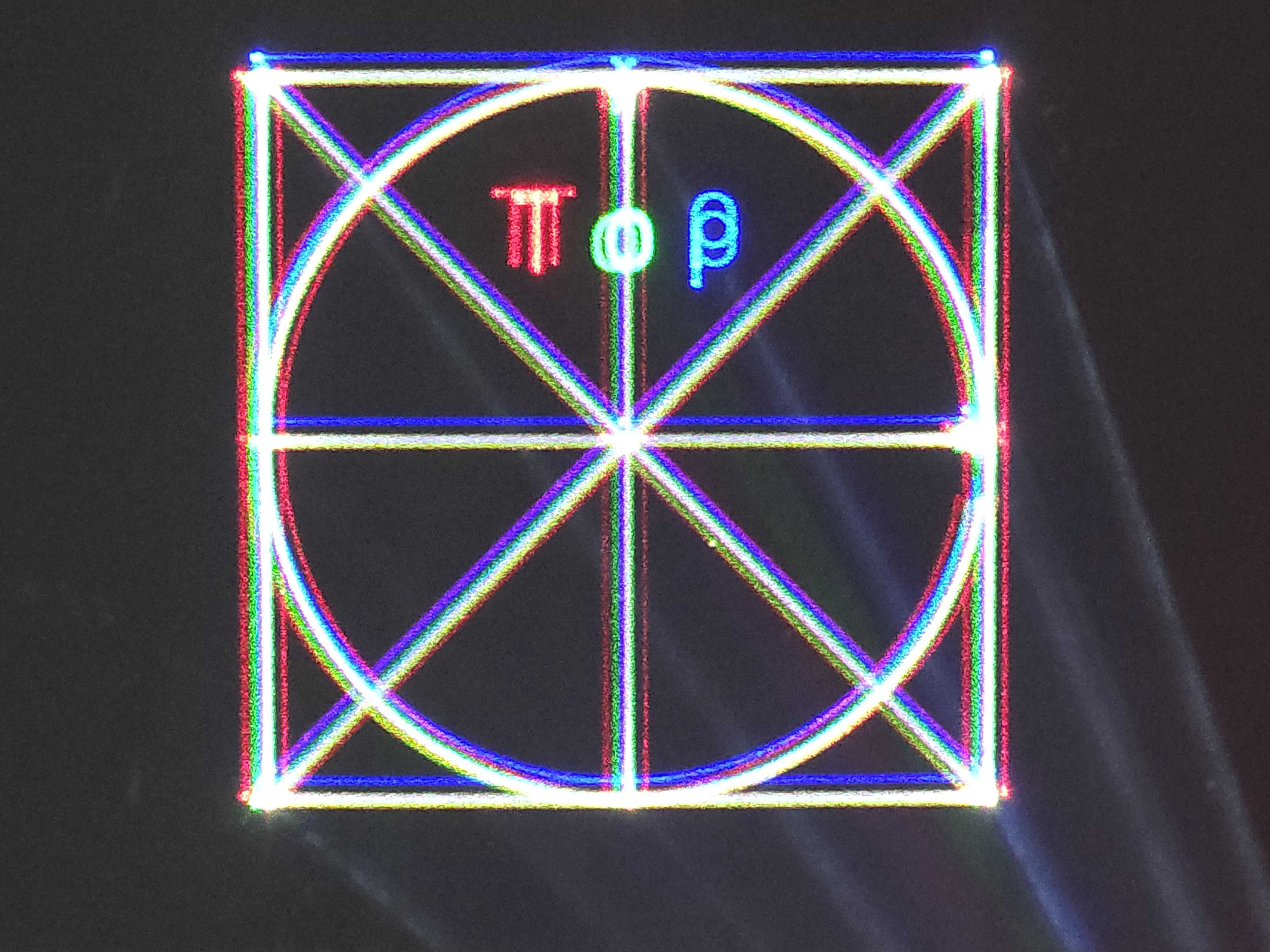
Single Module and Single Color Issue:
Red too far down. Blue split, partially going up.
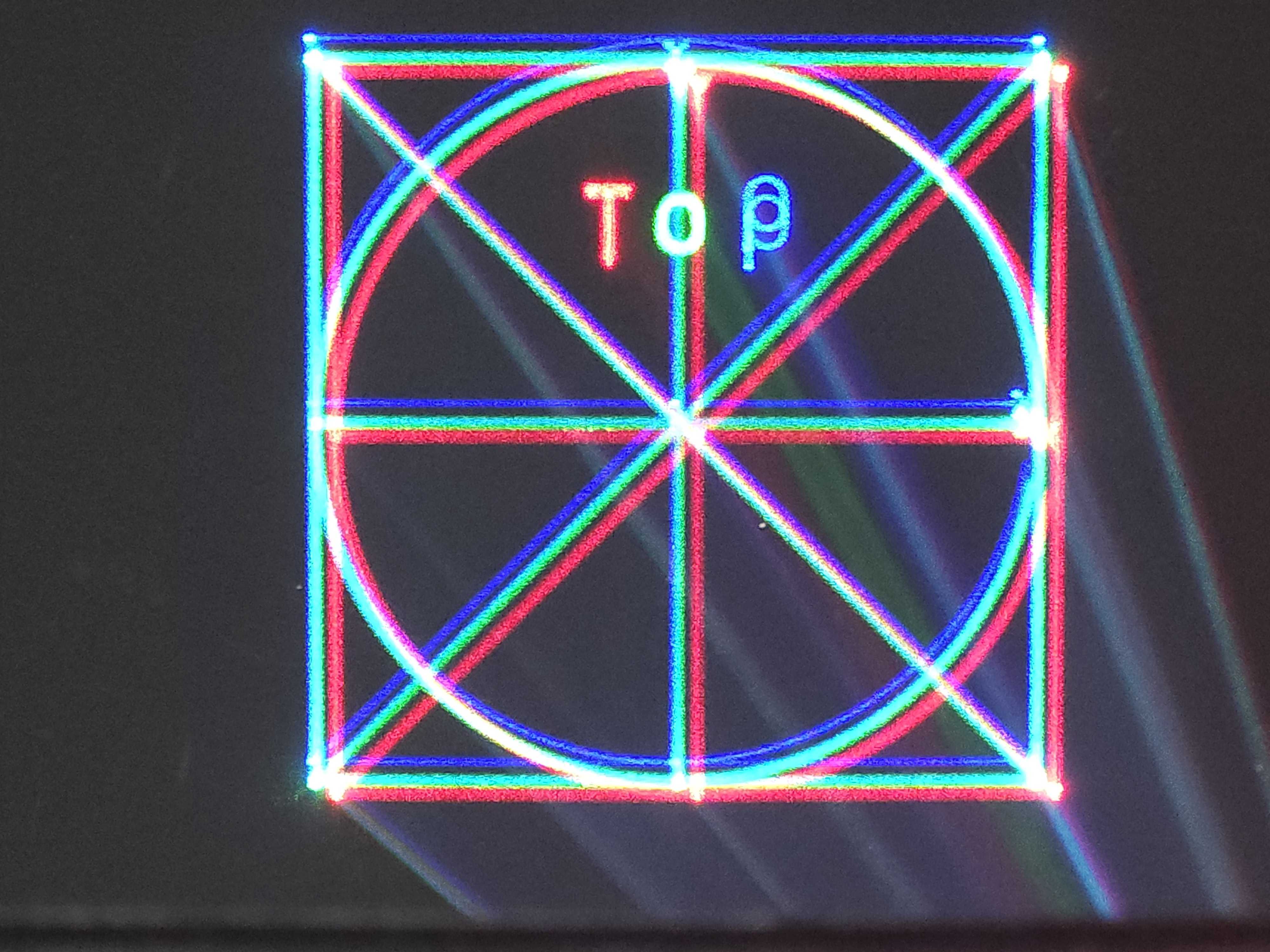
Multiple Module, Multiple Color Misalignment Issues:
Red split, partially going left and right. Green too far left and split, going further left. Blue too far down and split, going up.
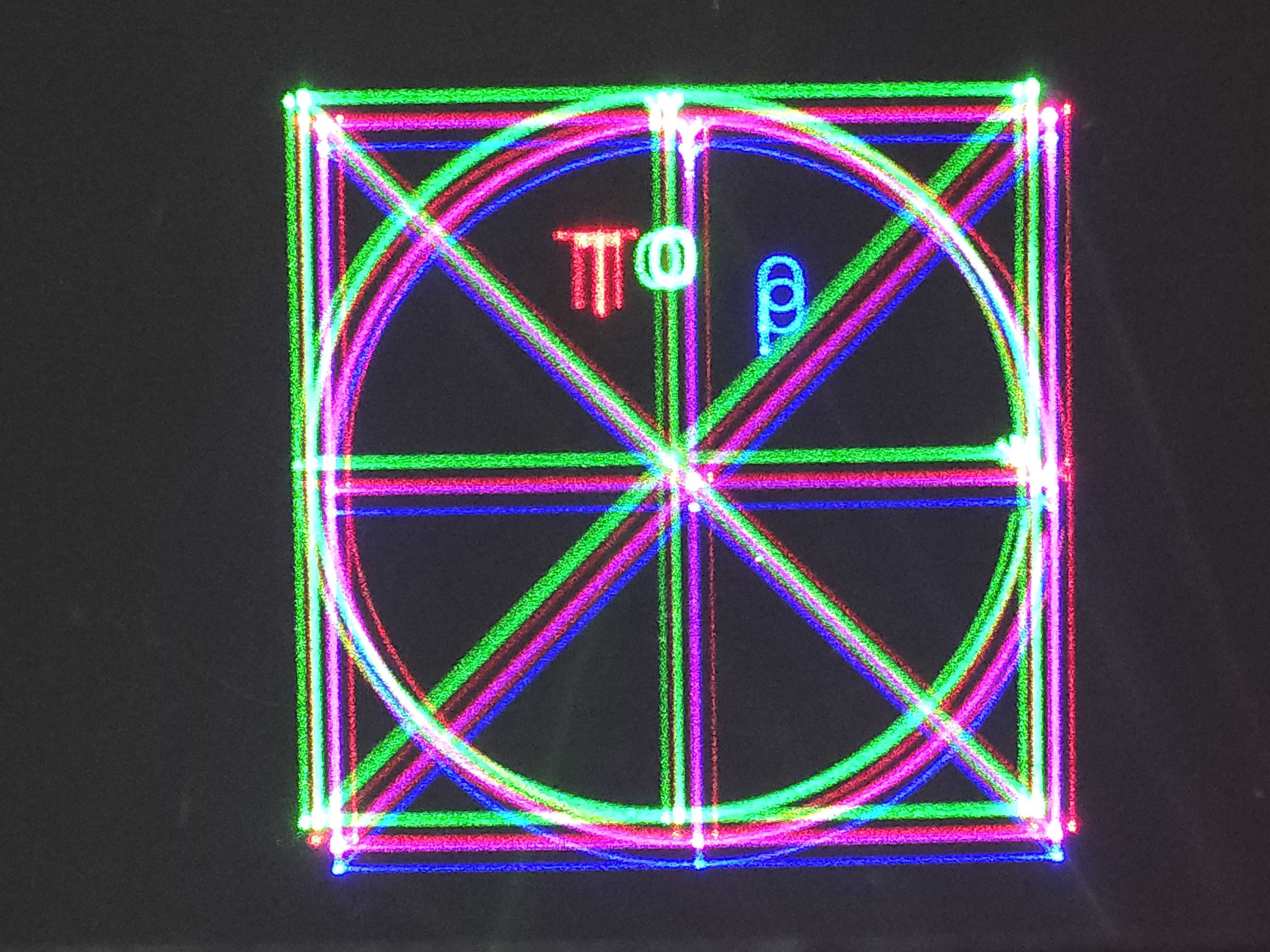
Types of Optics Mounts
Inside today’s laser show projectors you will generally find 3 kinds of mounts, both inside and outside the laser modules. These mounts all provide similar usefulness, but serve different price ranges and applications. All of these mounts’ goal is to hold some sort of optic and align them over both X and Y axis to position the beam where it needs to go.
## 20 Picture of inside a laser with all kinds of mounts (or collage of many) ##
Friction Mounts
The most common type of mount you will find inside a laser module is a Friction Mount. This is when the optic is attached to a two-piece arrangement of brass. These two pieces are screwed together and then screwed onto the base plate of the module. These two connection points become the x and y movements for our optics.
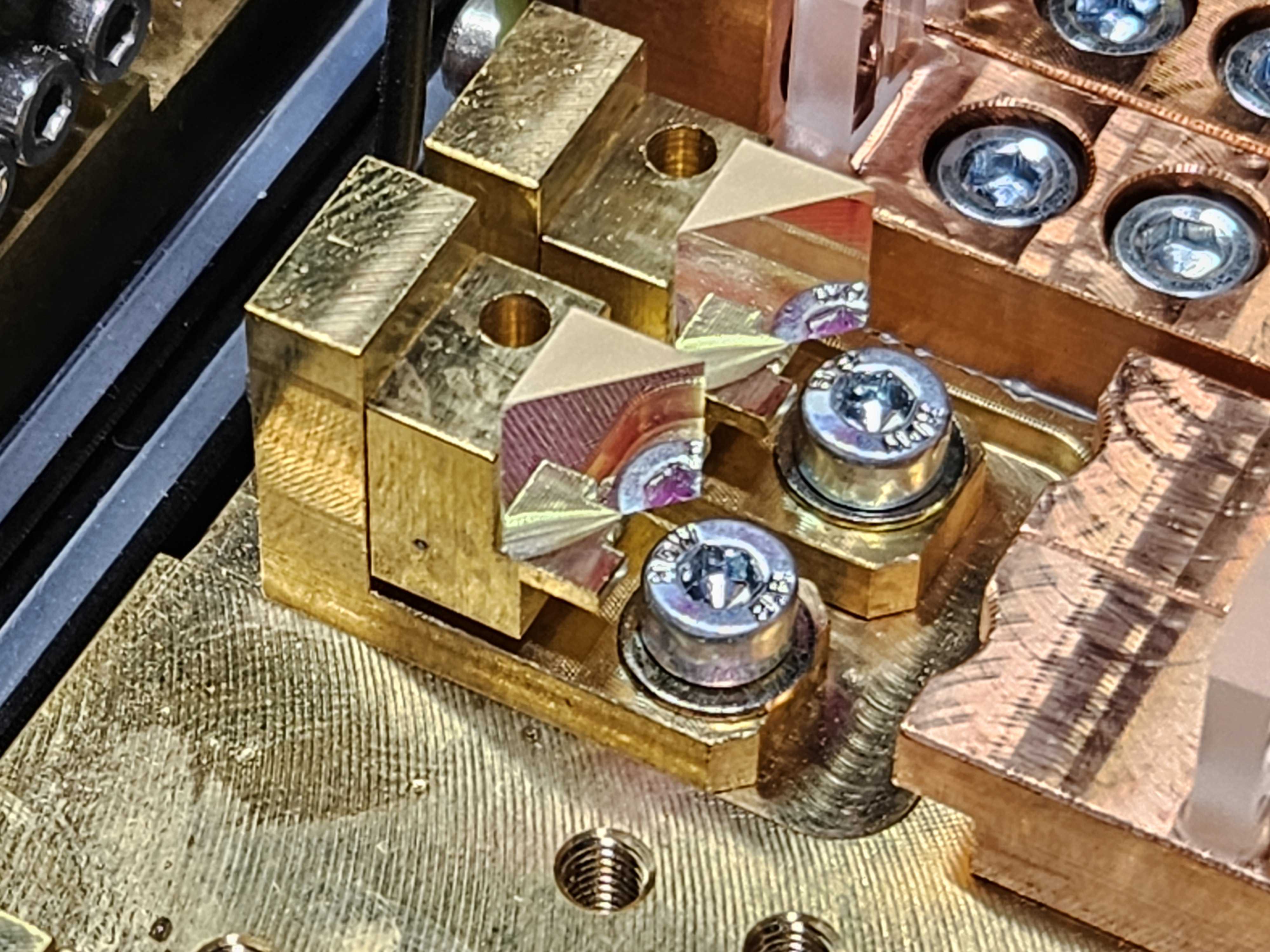
The tightness of the screws dictates the amount of friction there is between each plate. These mounts work by having the right amount of friction to hold the optic in place, while remaining smooth and loose enough that you can do fine adjustments to align the individual diodes along the grid array.
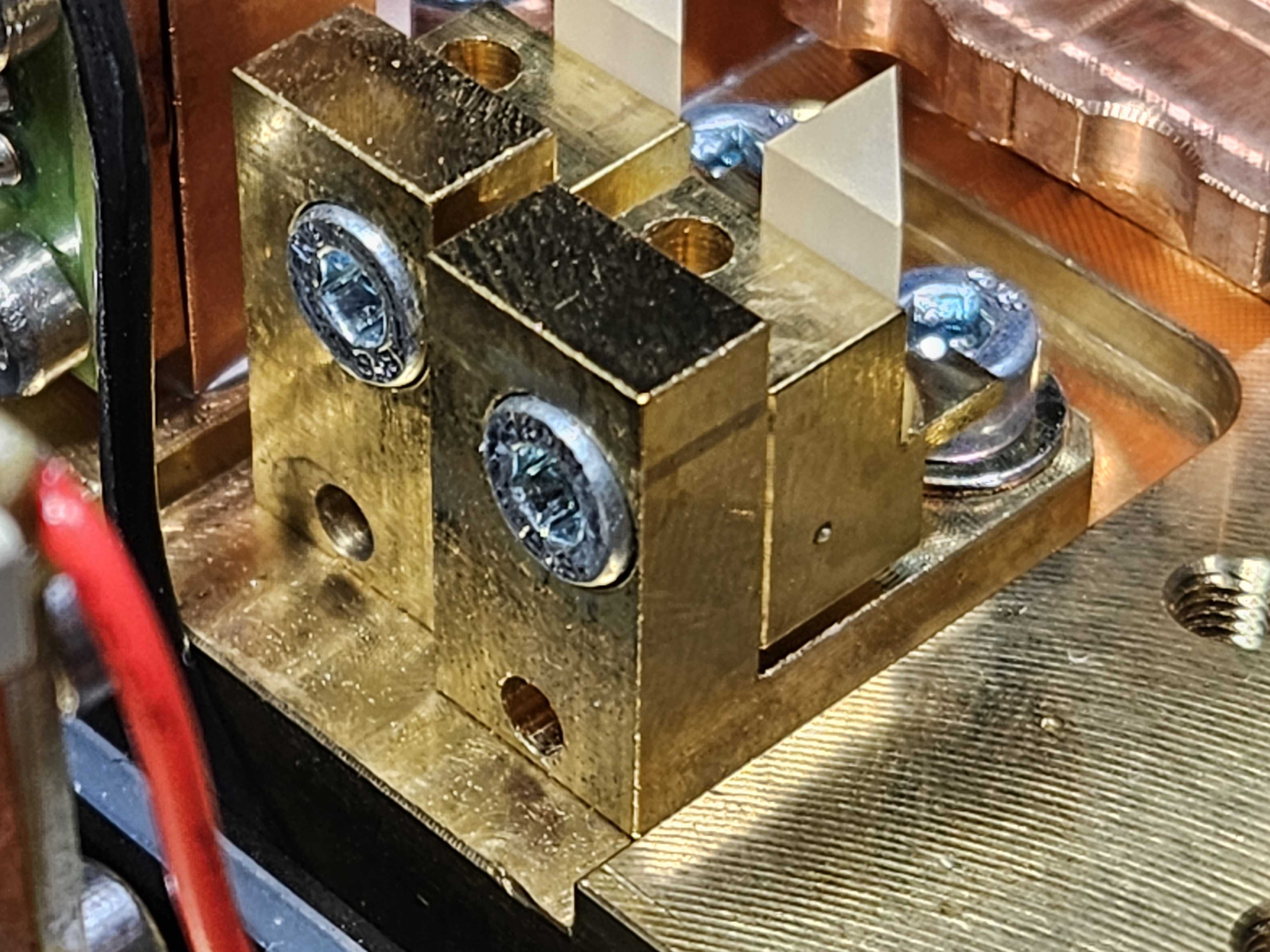
Friction mounts get aligned by prying the x and y axis back and forth by using a thin pry bar or metal pick in the drilled holes seen on the mounts. The main reason these get misaligned is the screws loosened to the point where there wasn’t enough friction to hold it in place in a hard hit or with strong vibrations.
Flexure Mounts
Flexure Mounts are easier to adjust than friction mounts, but less smooth than kinematic mounts. Thus, they also live in the middle of cost to produce. Flexure mounts are often used for dichroic mounts on lower cost lasers and sometimes found inside modules on medium to high end laser modules.
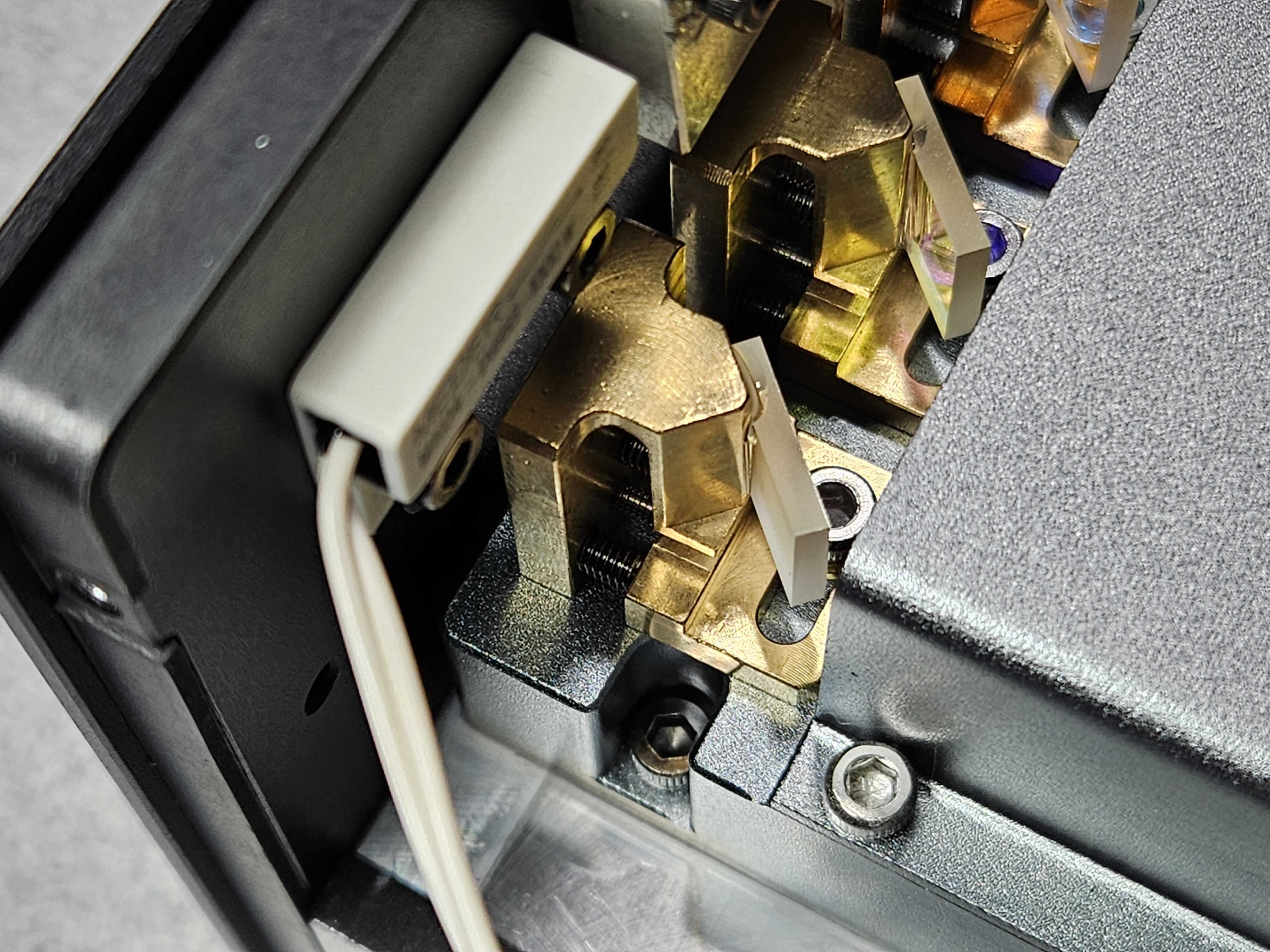
Flexure mounts work by positioning the plate that holds the optic across two axes of push and pull. This allows you to walk the optic along an axis, as well as tighten back and forth to position the optic in the optimal position and hold it perfectly in place.
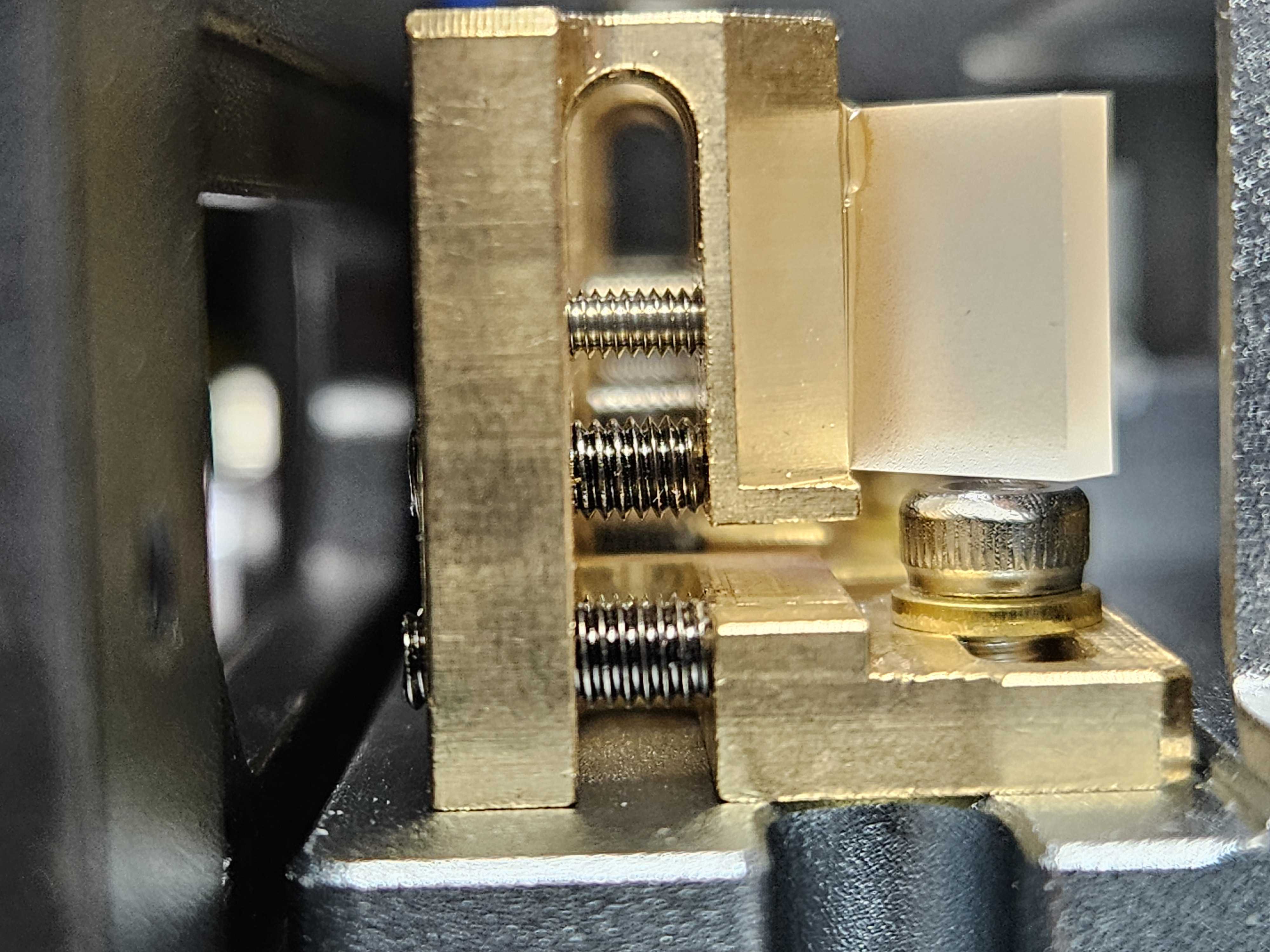
The main drawback to flexure mounts is they are very sensitive to overtightening, and a little fiddly to walk the beam in, but once they are locked into place, they are usually very solid and hold position very well.
Kinematic Mounts
Kinematic Mounts are the highest end manual type of mount in laser show projectors. These work by propping up the optic mounting plate with a ball bearing, two high thread count screws, and two springs to hold the plate against the screws. The two high thread count screws serve to move the optic in the X and Y Axis.
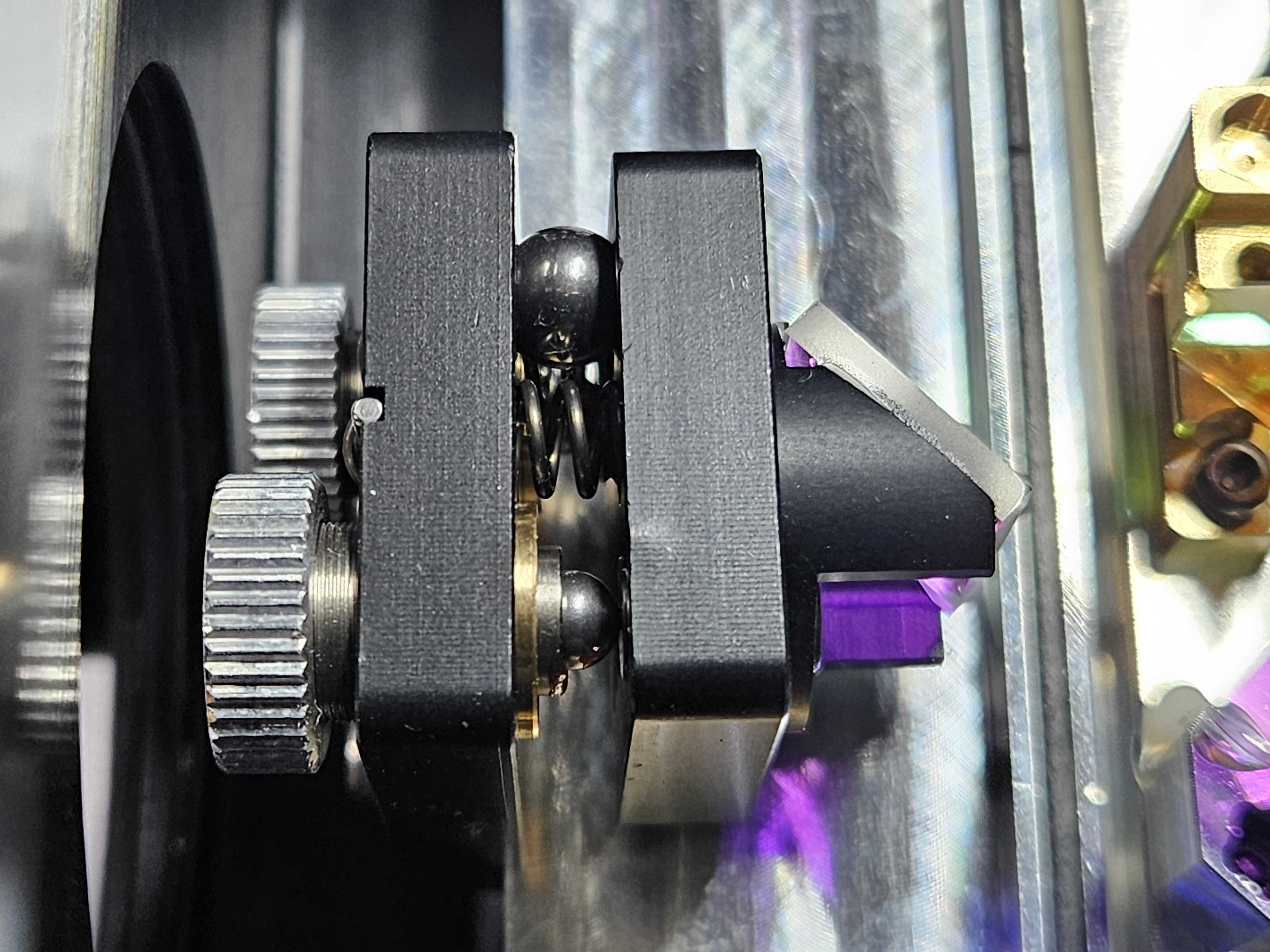
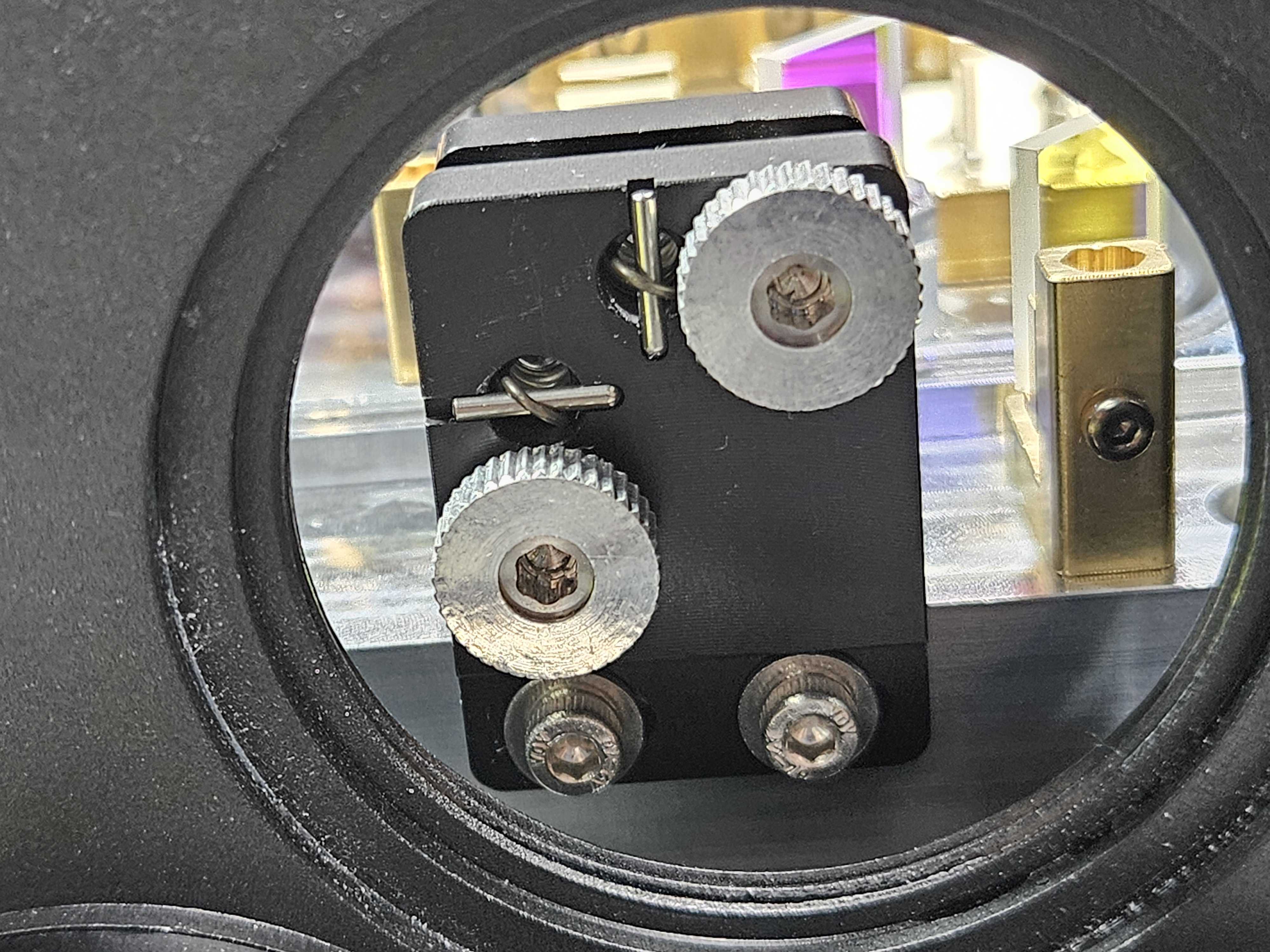
The two screws are very high accuracy and are generally oiled to close the thread gaps from the screw to the plate. This allows the screws to move very smoothly and with great precision but also hold their position during normal transport conditions.
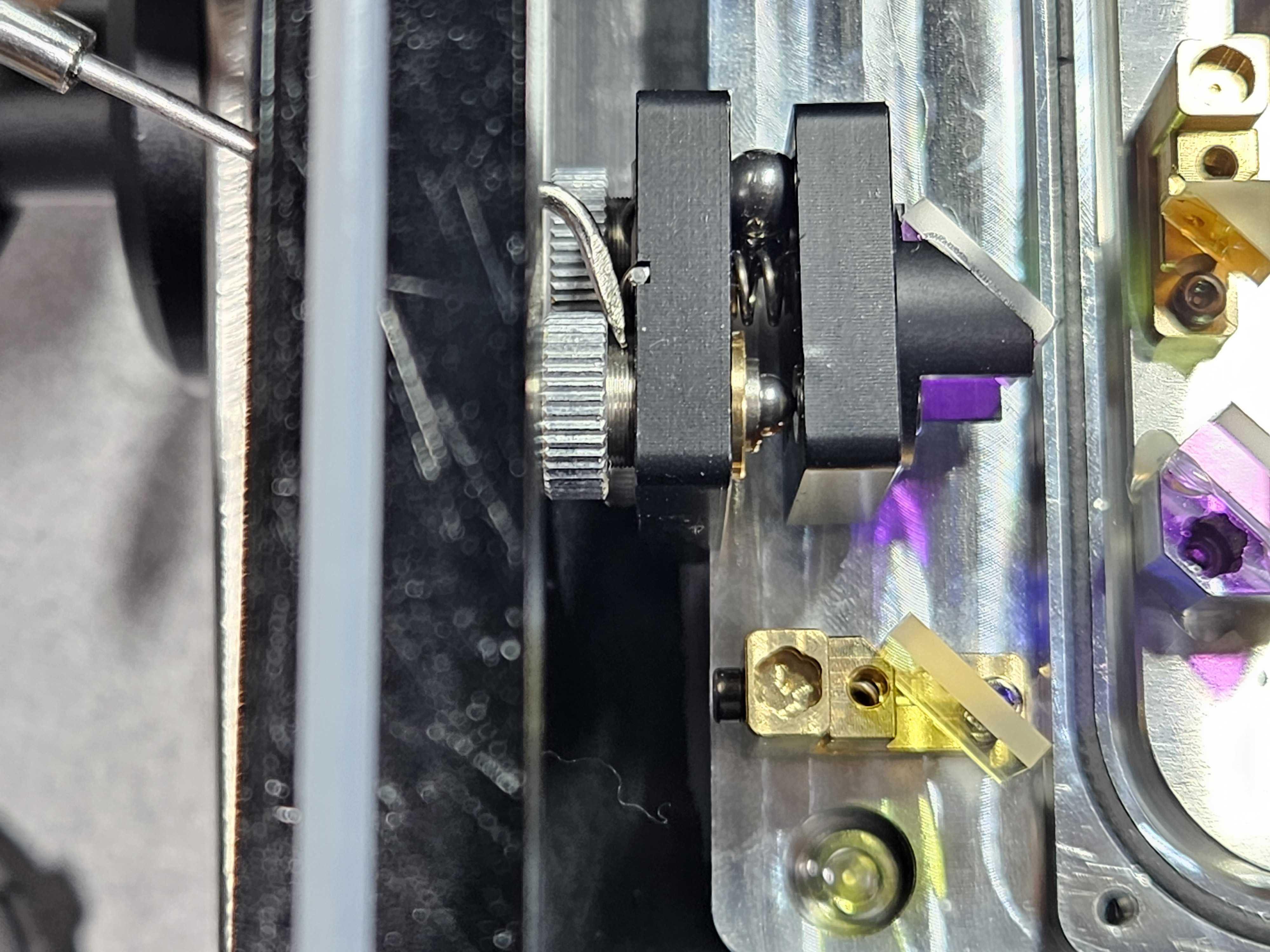
Kinematic mounts are often positioned close to the walls of a laser projector, and projectors typically have access panels so technicians can use them during setup of a show to fix color convergence quickly.
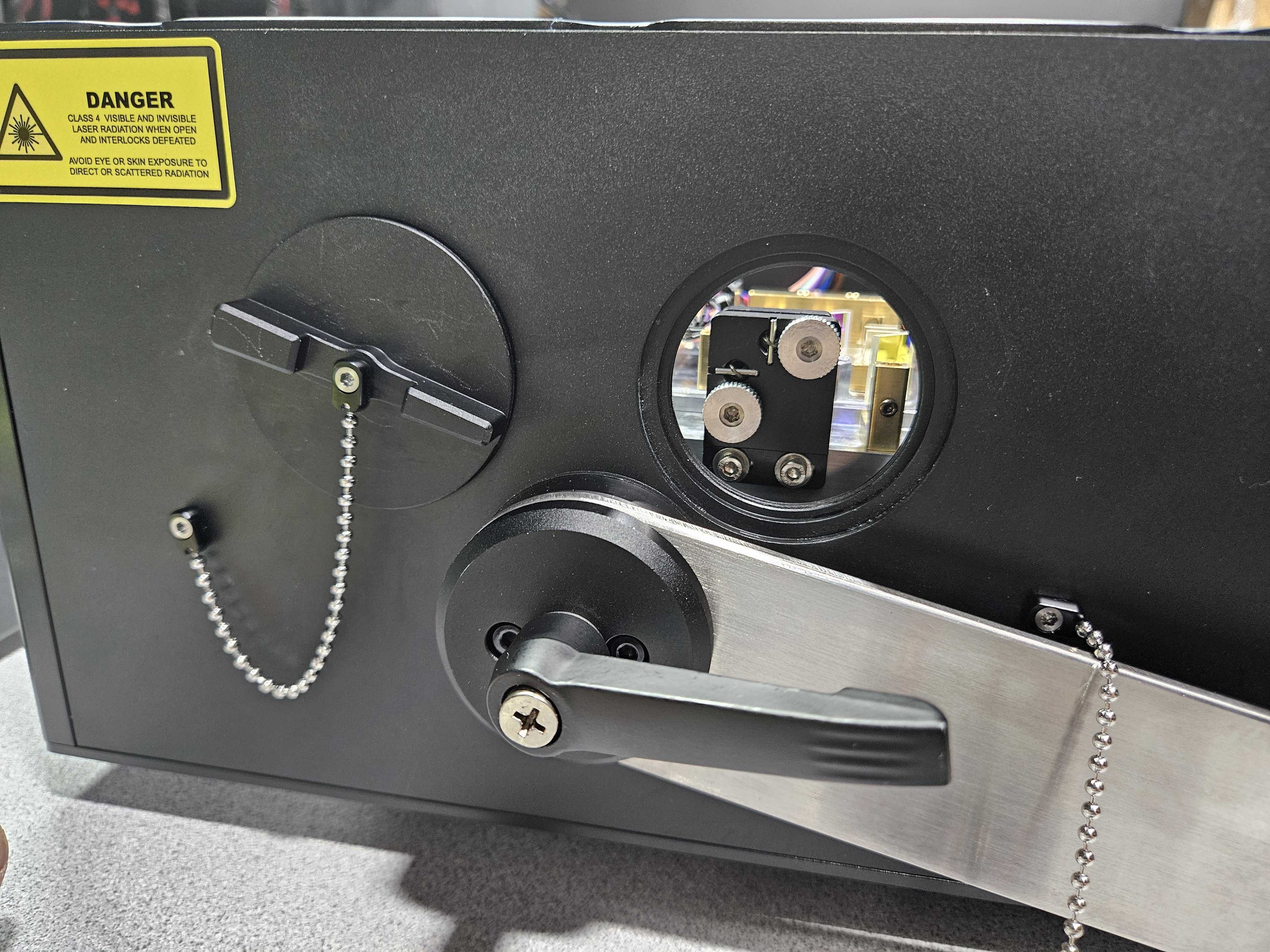
High quality kinematic mounts don’t get out of alignment often, but the oil eventually will dry out and the space between the threads will get slightly less precise, and as kinematic mounts age, they can be more prone to getting misaligned.
Motorized Mounts
Often just referred to as moto-dichros, Motorized Dichroic Filters are when you take a kinematic mount and put geared motors to the screws.
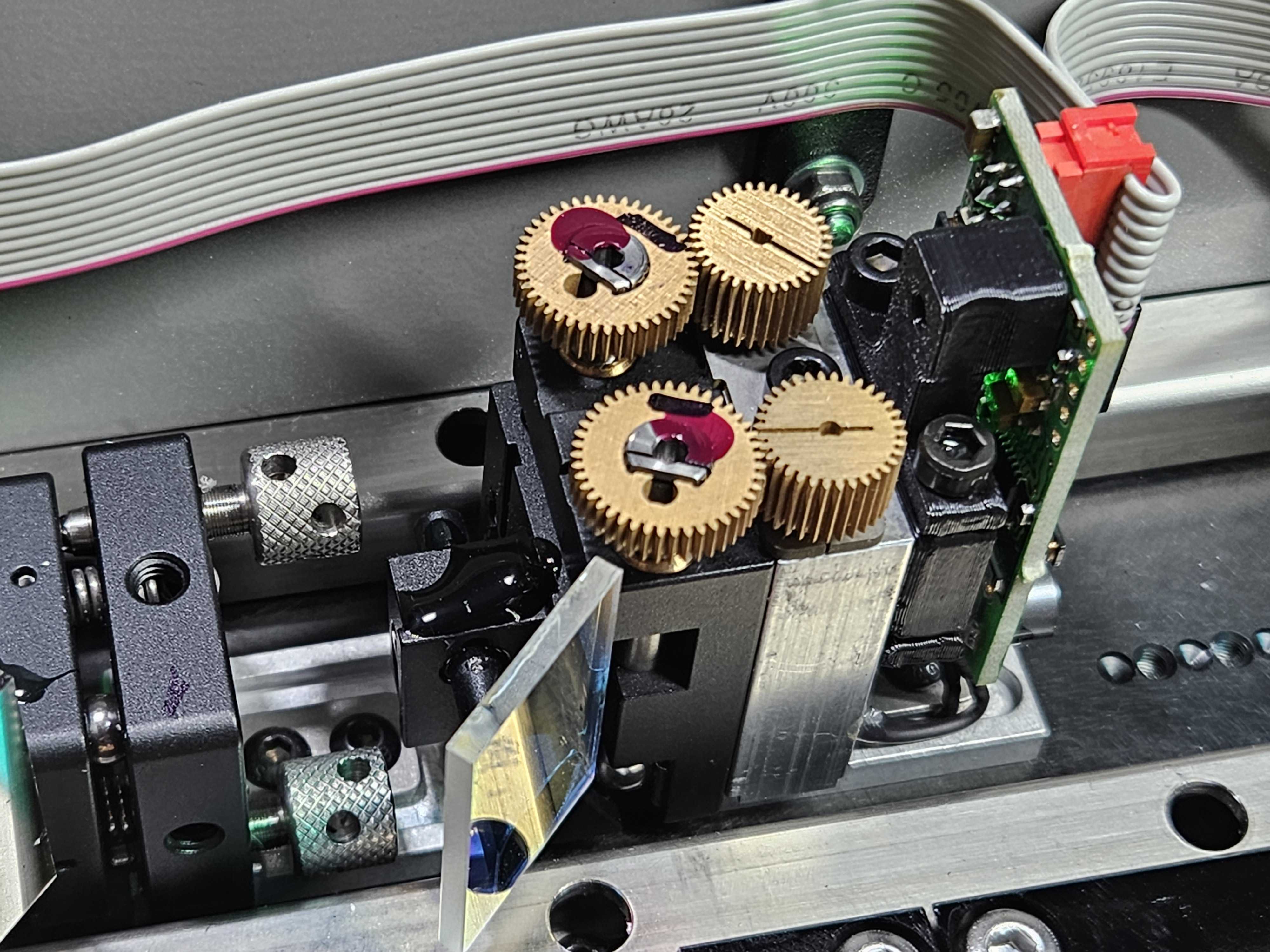
This allows movement of the two X and Y Screws to be done remotely, usually via software, or sometimes the back panel on a laser, so there is no need to open the projector. These are only found on high end laser projectors.
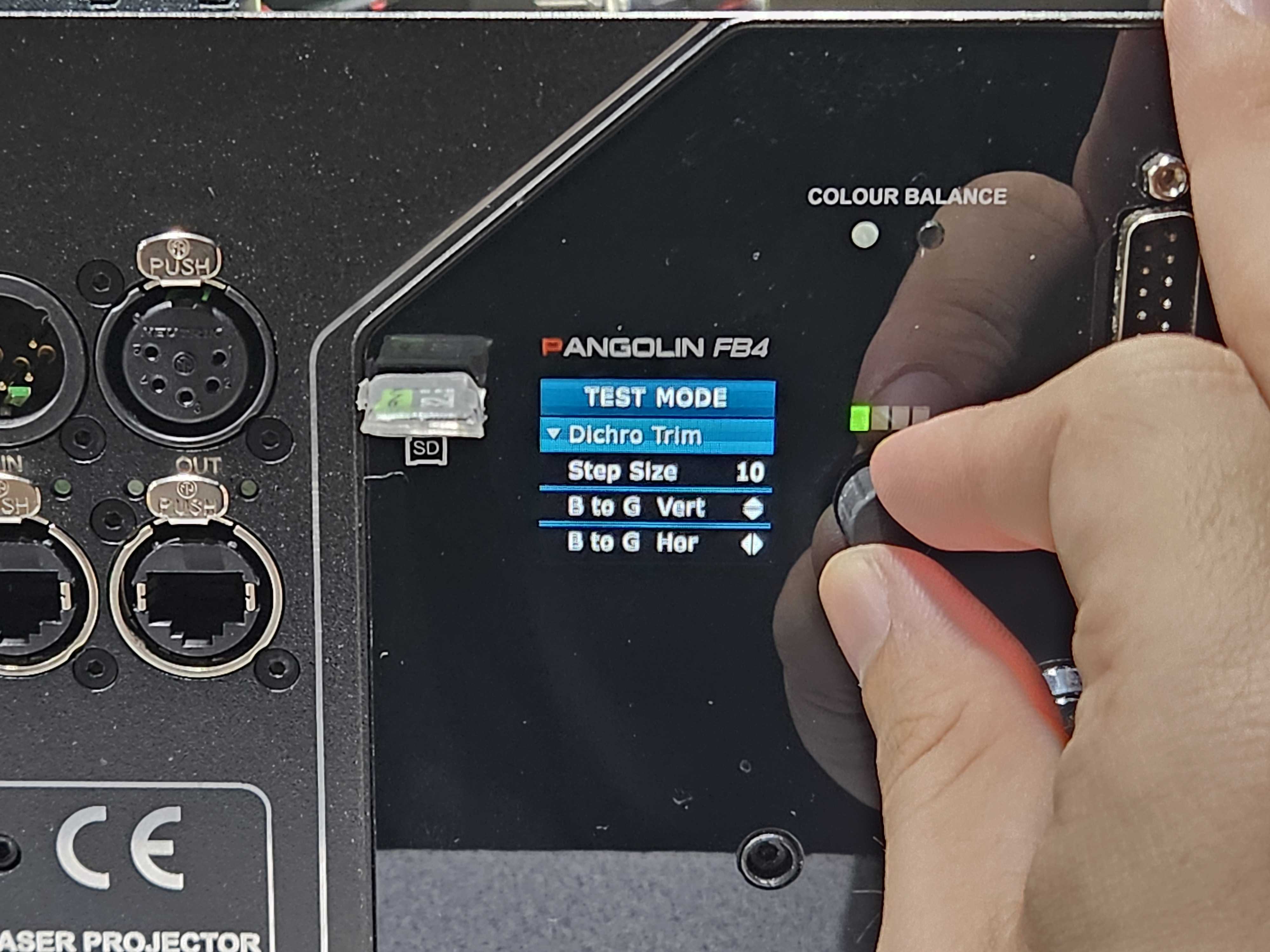
These motorized mounts are generally more precise then a human finger can be and can allow for very clean alignment, as well as emergency pre-show alignment without needing to get to the laser physically.
Know your Technical Limits
Before you decide to align your lasers, it's best to know your limits. Alignment is fine, technical work and requires precision and a light hand. It's also easy, if you are not careful, to burn or blind yourself. Plus, a wrong move with the wrong tool could kill modules, cause worse issues etc. Basically, we will guide you through the process, but we also don’t want you to end up in a worse position than you were before. So, please consider the risks and skills needed to perform a full alignment.
Recommended Tools
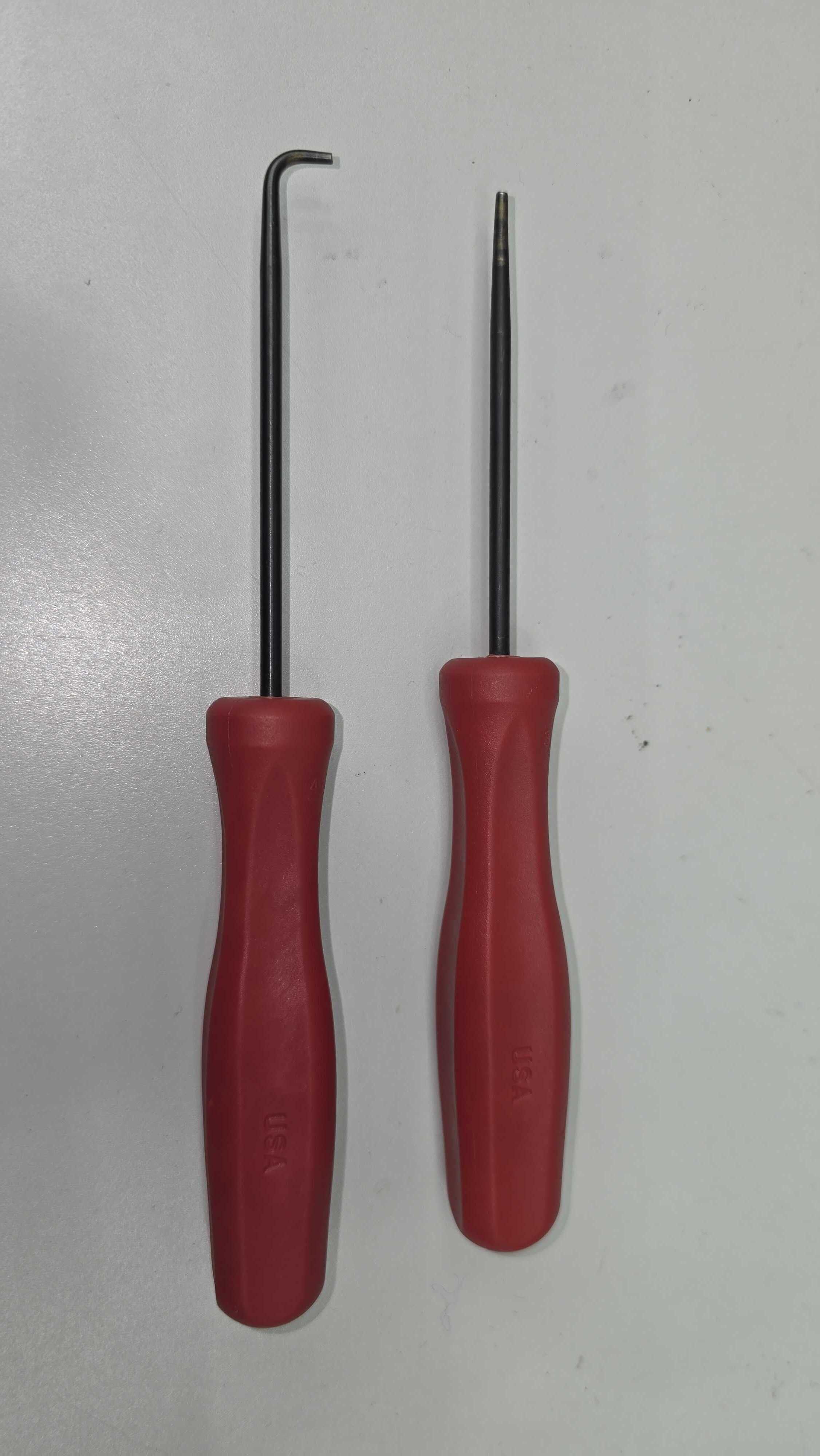
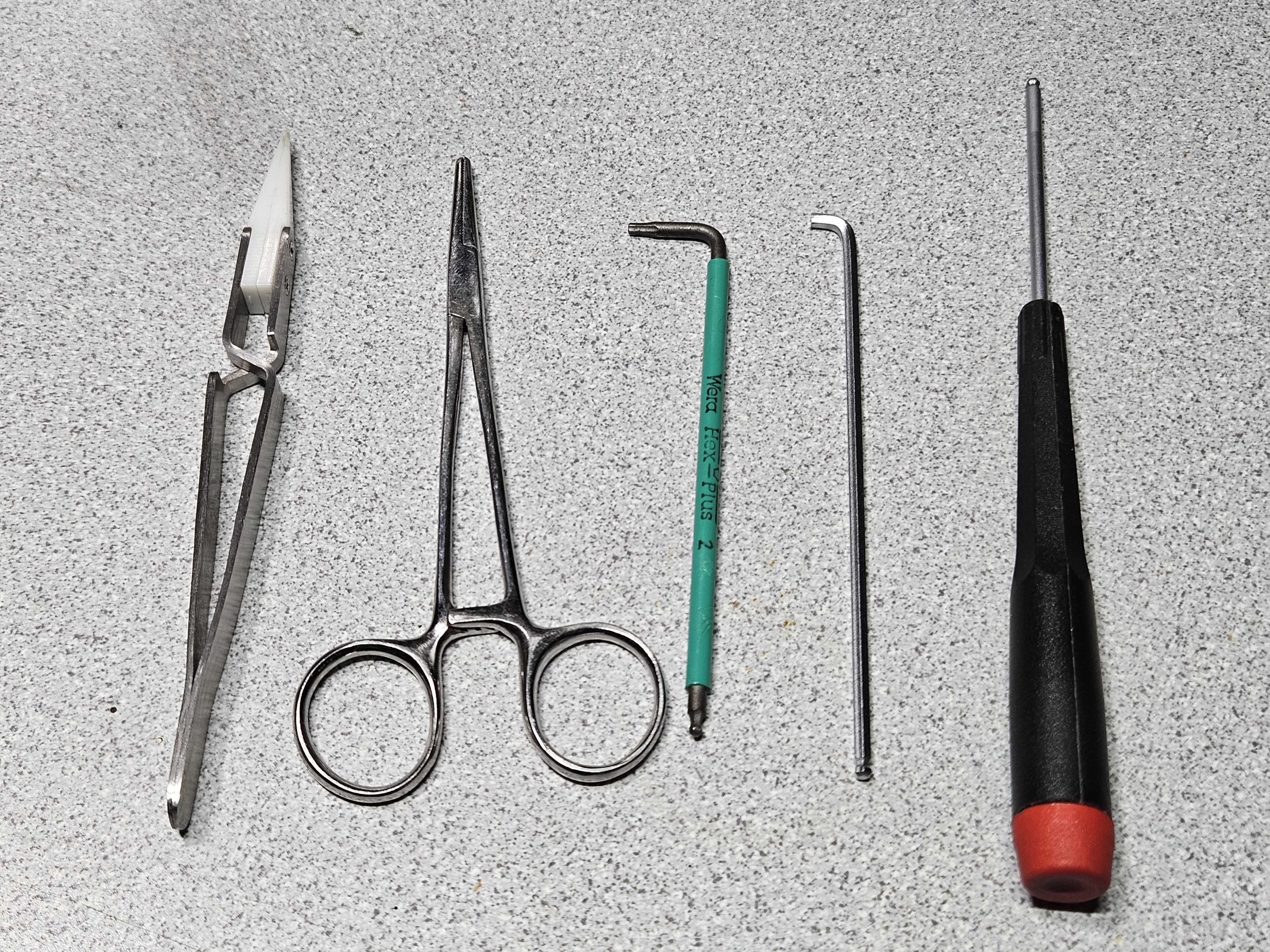
You will need fine hex keys, most likely in metric. They will be used for opening access panels and adjusting Flexure Mounts. Thin, small and stiff pry bars (automotive picks work great for this purpose). These will be for adjusting Friction Mounts. Hemostats or rubber ended needle nose pliers can be useful. Kinematic Mounts can usually be adjusted by hand, but pliers can be useful for adjusting hard-to-reach ones. They can also be useful for adjusting flexure mounts that are in difficult positions.
General Alignment Practices
When doing any laser alignment, it’s best to follow best practices to get the best result:
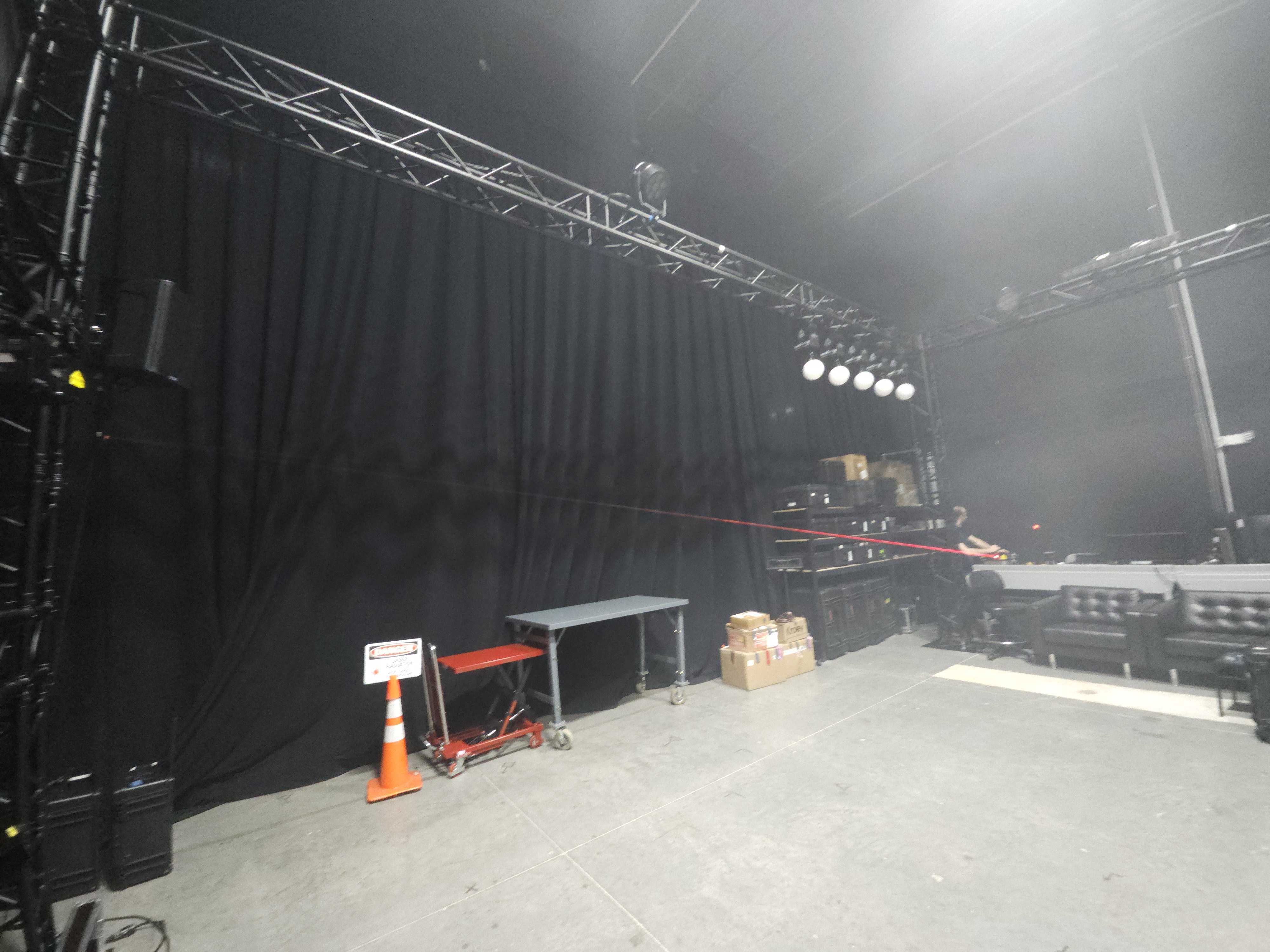
Long Distance
When aligning lasers, you will generally want to throw the beam as far as you can. When we perceive a laser being sharp and tight, it’s because we are always trying to focus out to infinity. And while you probably don’t have an infinitely-sized shop, you will want to get as much distance as possible as it improves the visual resolution of what you are aligning.
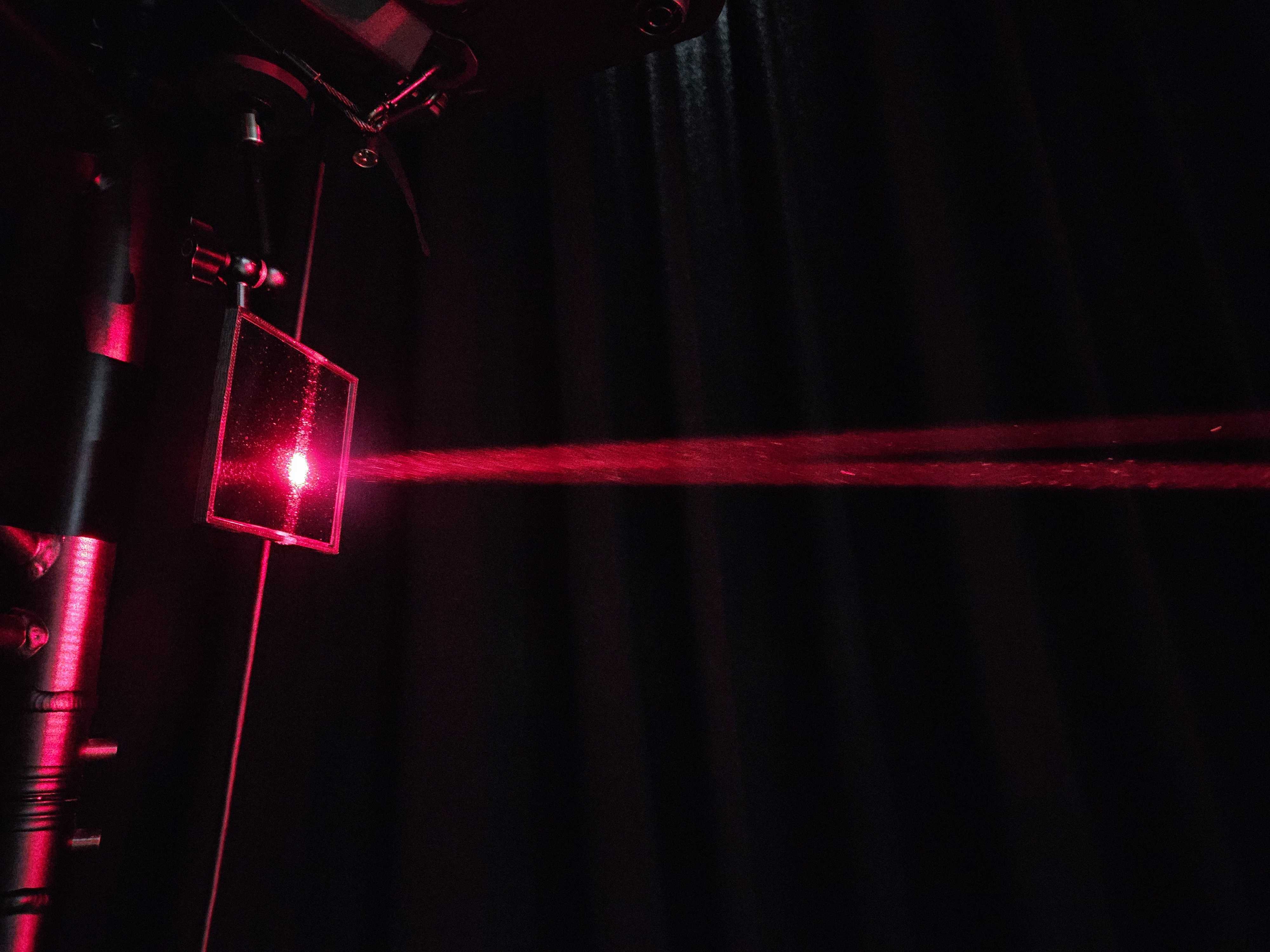
Bounce Mirrors
One way to get a very long distance even with a smaller space is to bounce the beam back and forth a few times before looking at the beam to align. Be sure to use only first surface mirrors so there is no double reflection. This also allows you to bounce the beam right back next to where you are so you can get a good view of the beam you are aligning.
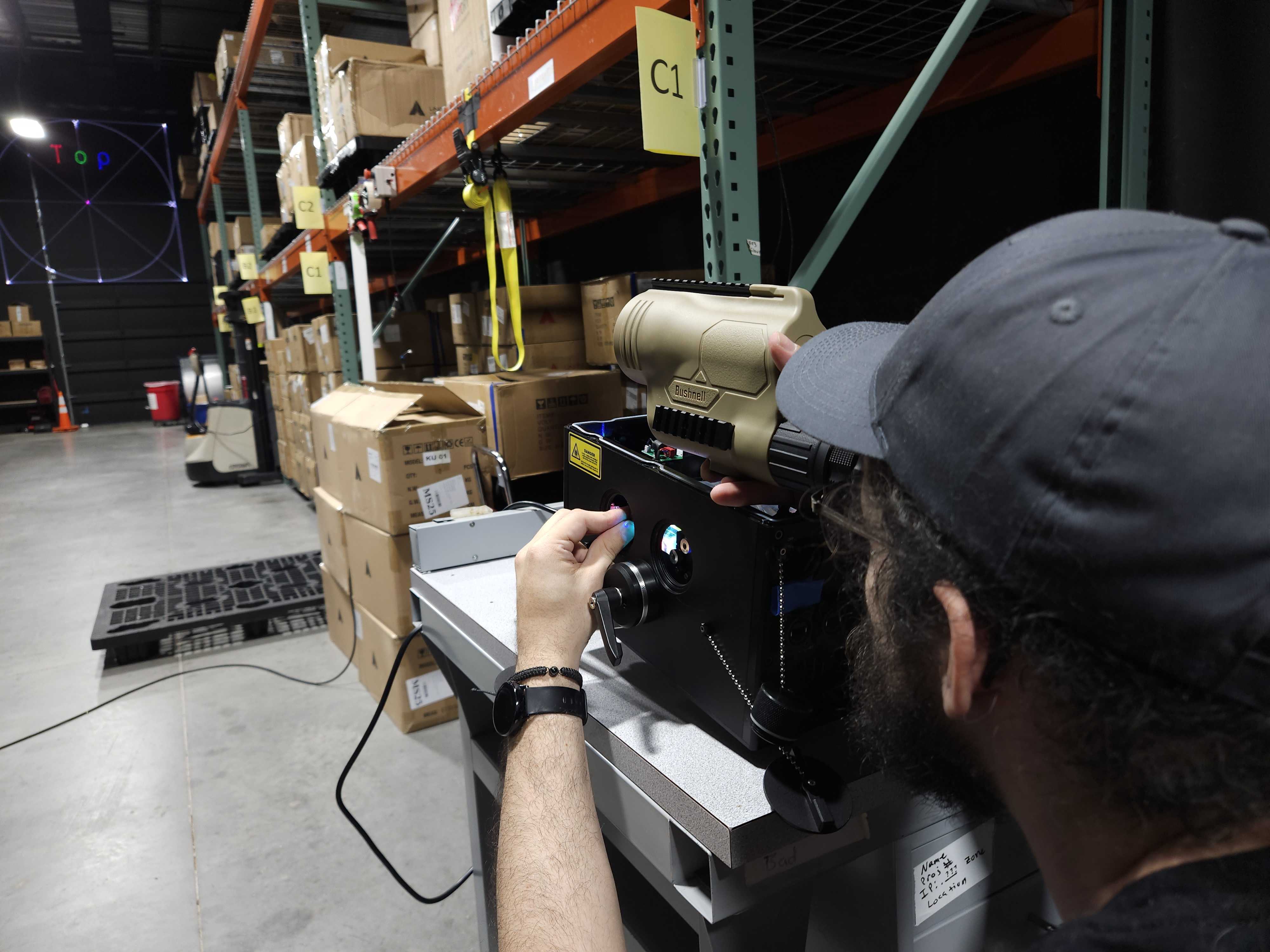
Binoculars
If you are aligning the beam on site, or cannot get a bounce or a friend to call the movements out, using optical magnifiers like binoculars or a spotting scope can help get a good view of the beam at a great distance.
Eye Protection
If you are opening a laser, and especially a module, to do an alignment, it can be easy to accidentally use a reflective tool and shine full power beams all over the place. We recommend all users, but especially beginners, use some sort of power-reducing eyewear to reduce their risk while aligning. The recommended pair of eye protection for this kind of job can be found on the Pangolin website:
Laser Technician Safety Glasses

Be Mindful of Burn Risks
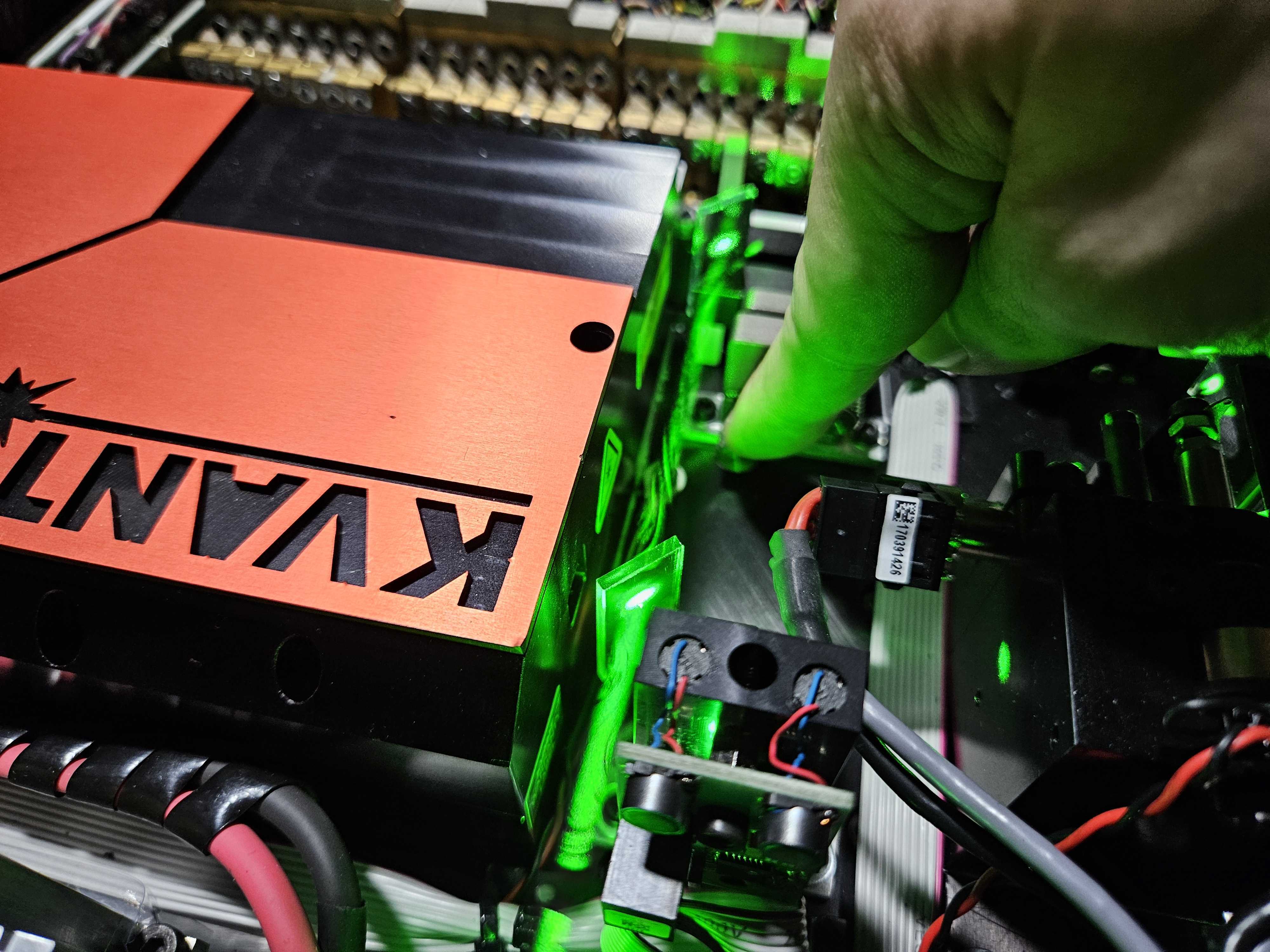
Lasers are still high-intensity light that can burn skin or set fire to materials, when working inside a laser often people forget their fingers are very close to these intense and hot beams. Burns are more common when doing an alignment over eye damage, though generally has less severe consequences. Be mindful of your fingers when working inside a laser projector.
Digital tools, Beam Analyzer, Cameras
Sometimes digital tools which can display your beam on a screen can be a useful less eye straining then looking directly at the beam. Often these setups are used by the manufacturers in their production to ease the strain on their employees and sometimes even get more accurate then the average eye can. One of the easiest solutions to get into this technology is with the Beam Analyzer, which can be purchased on the Pangolin website.
Make Sure Your Optics Are Clean
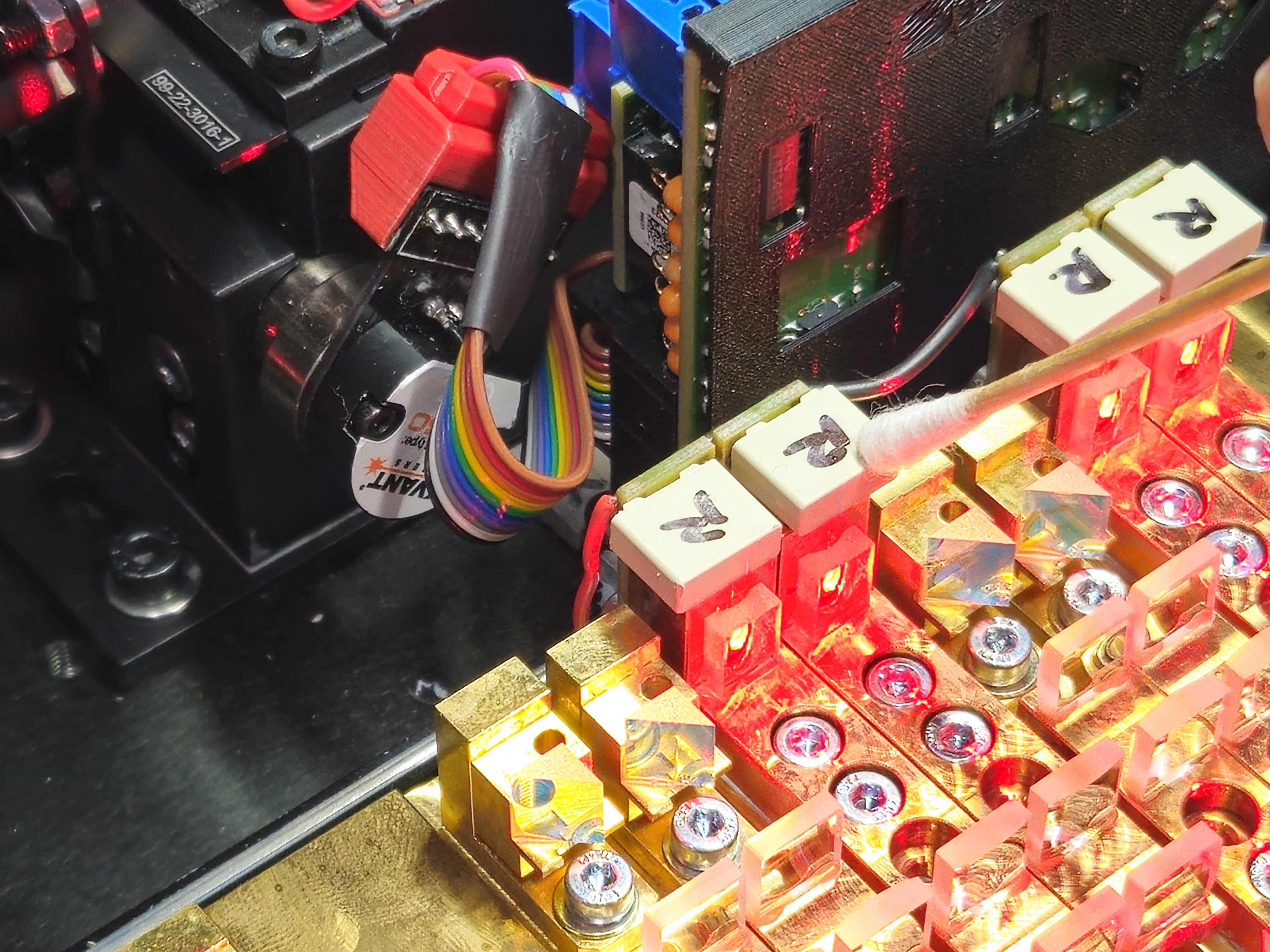
Before performing an alignment, it is best to ensure that your optics are clean and free of any debris. Dirty optics can lead to issues with the output that make alignment more difficult and, in worst case scenarios, could cause damage to the optics while the laser is on. Laser light passing through optics should generate little-to-no scattering or “shine”. If the beams seem bright when they pass through a dichroic filter or the output window, that optic is likely dirty. Please refer to our guides on cleaning your optics to ensure they are clean before performing alignment:
Use the Lowest Power Necessary
When aligning your laser projector, you will want to set the unit to the lowest brightness that you can while still maintaining output from each diode. As a rule of thumb, this is done by setting the unit's max brightness to be 2-3% higher than the minimum needed to see output of all the unit's colors. Basically, we want the brightness to be as low as possible so that we can be safe and reduce eye fatigue while making sure each diode is lasing so that we are aligning the full beam.
The Module Alignment Process
Before we talk about aligning modules, it’s important to note that usually you don’t need to do this. Modules typically stay in alignment through normal use. However if it does need to be done, it should be done before color convergence. This process may need to be done to each color in the fixture separately depending on which colors have misaligned modules.
Red Misaligned vs Realigned:
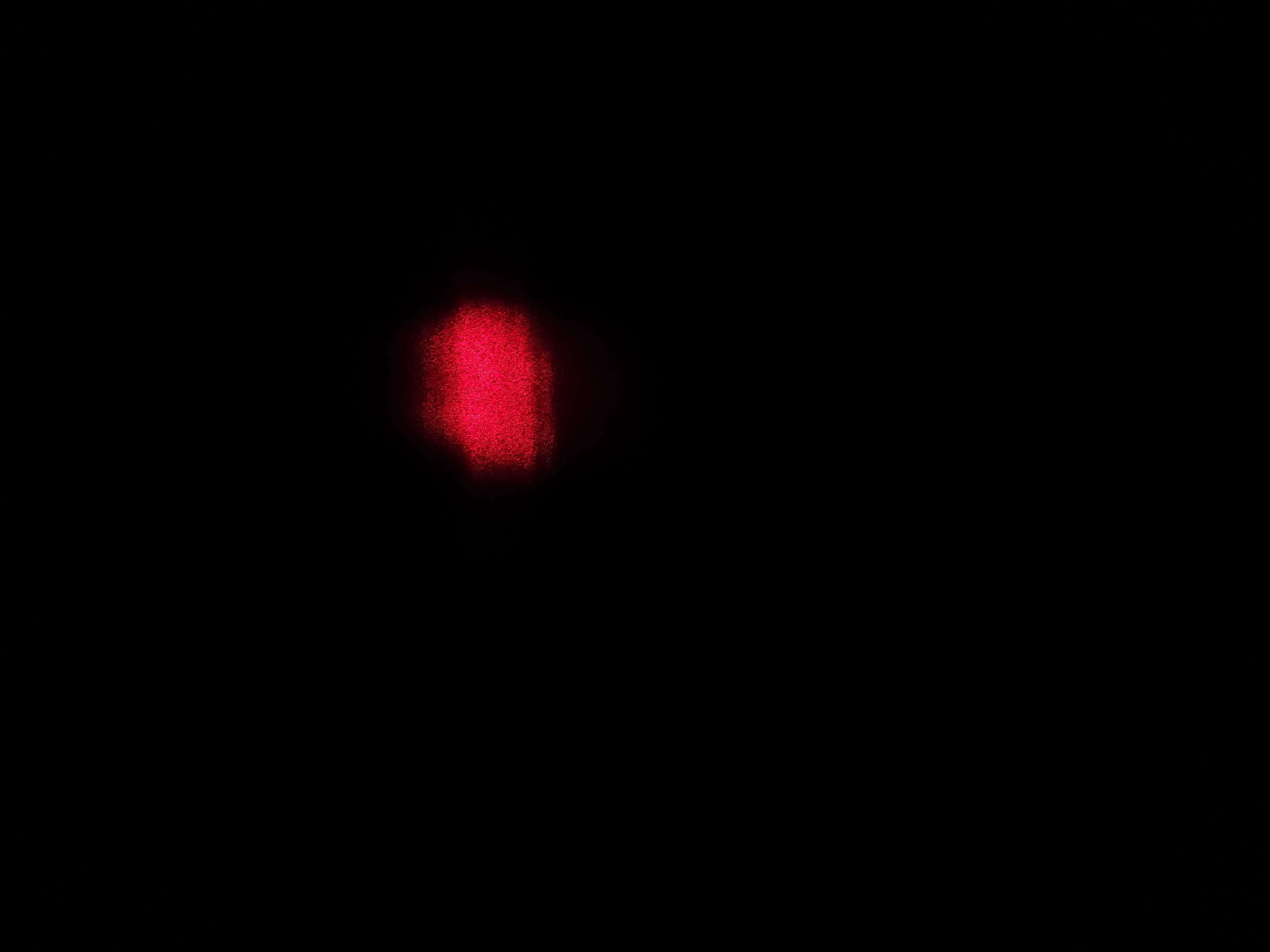
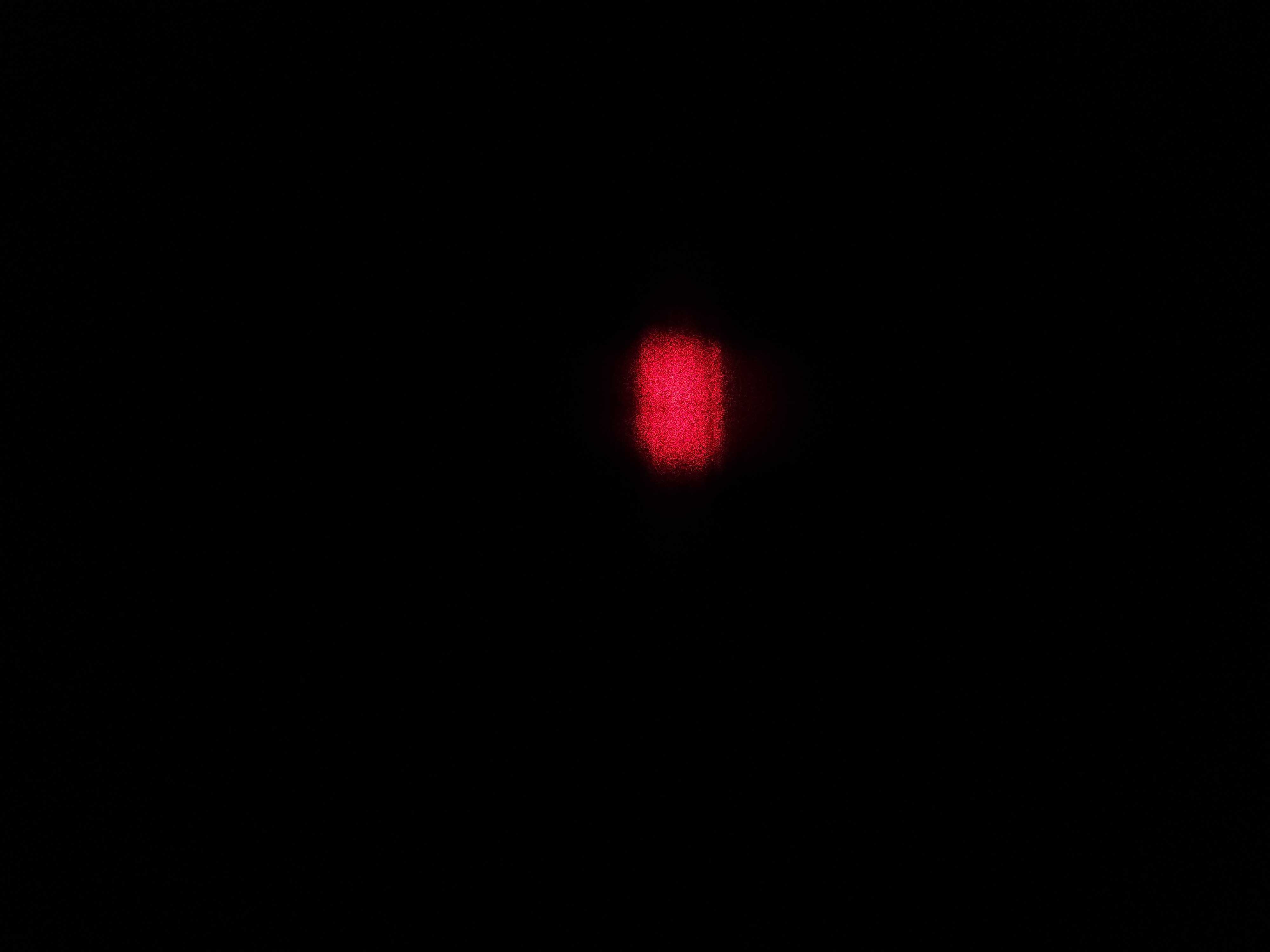
Green Misaligned vs Realigned:
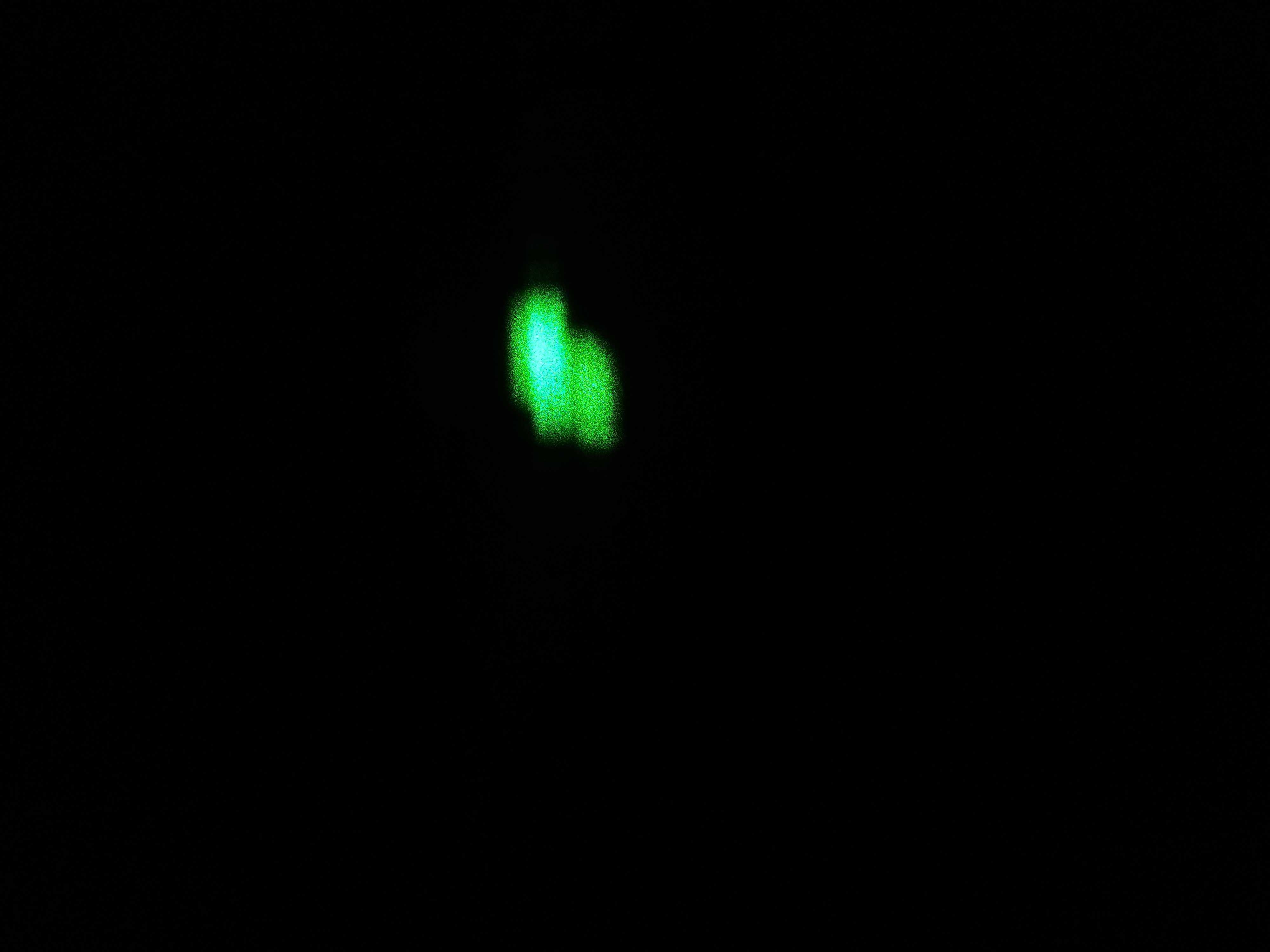
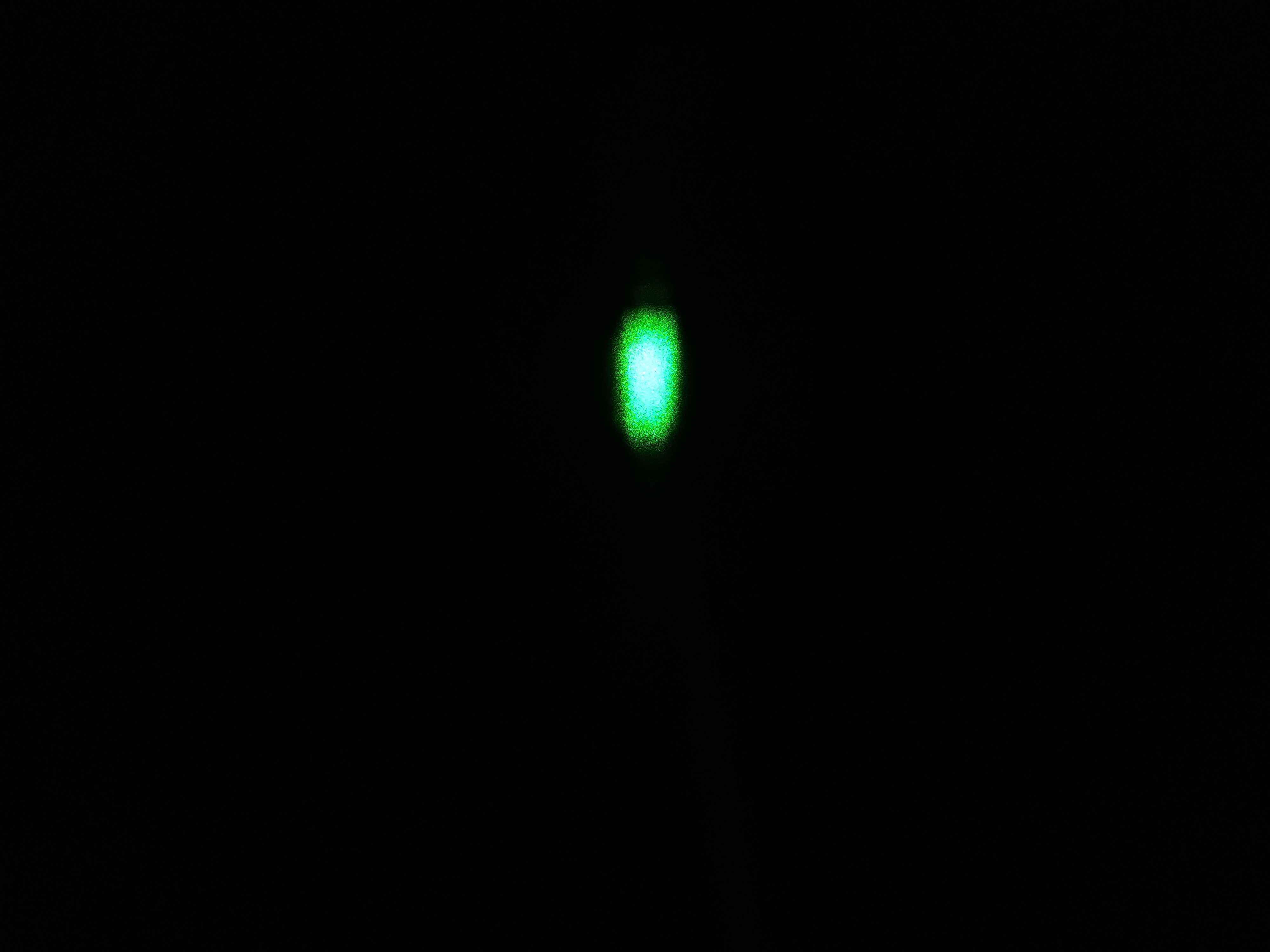
Blue Misaligned vs Realigned:
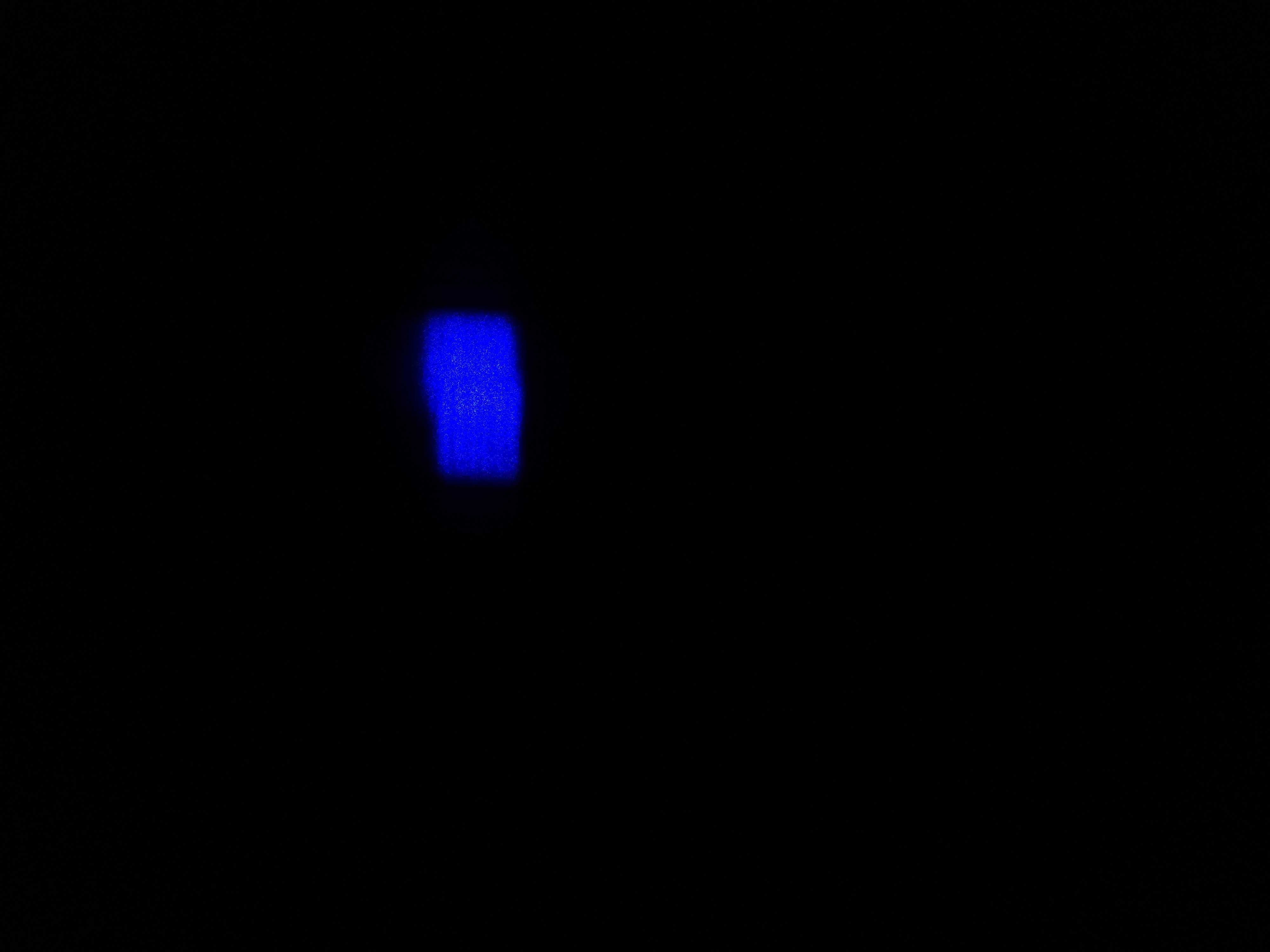
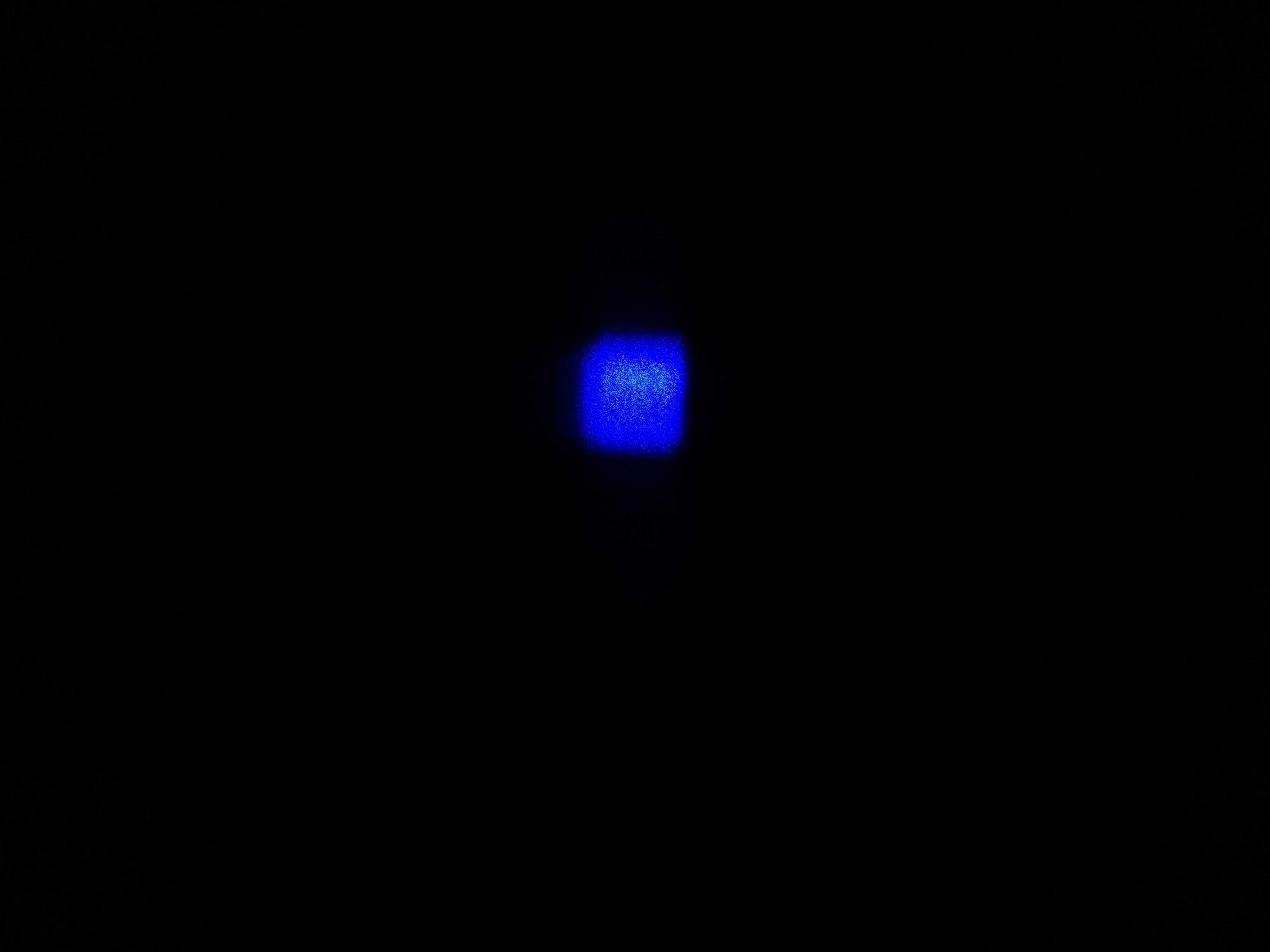
Didoes Misaligned, Colors Unconverged vs Correctly Aligned & Converged Projector:
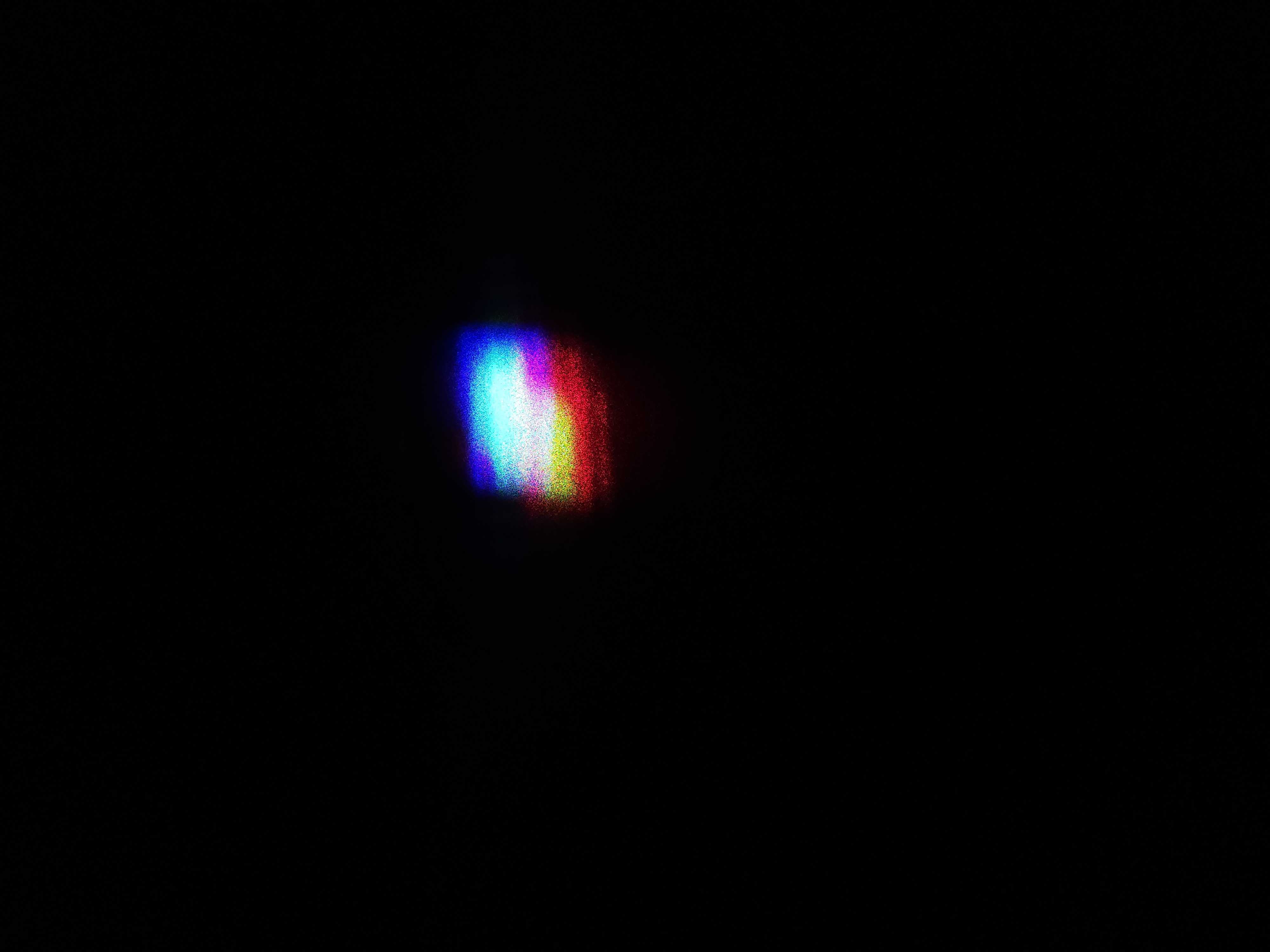
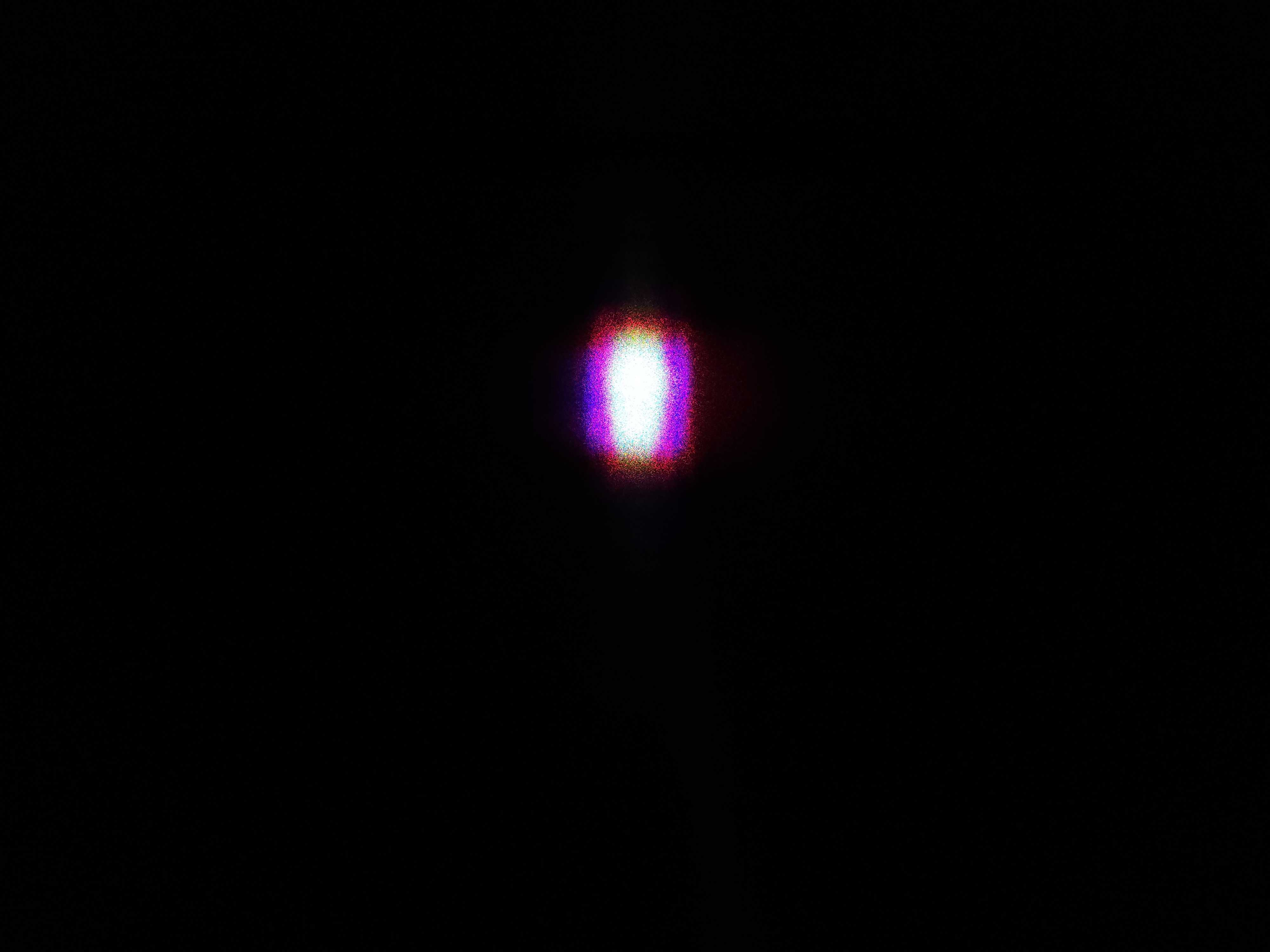
If each of your beams look good, skip to color convergence process.
Setting up your workstation
When aligning modules, we want to isolate the individual module that needs alignment as much as possible. We will want to only output that laser, and only ever have one module opened at a time. This helps avoid accidents, reduces safety risk, and keeps dust and debris out of the modules.
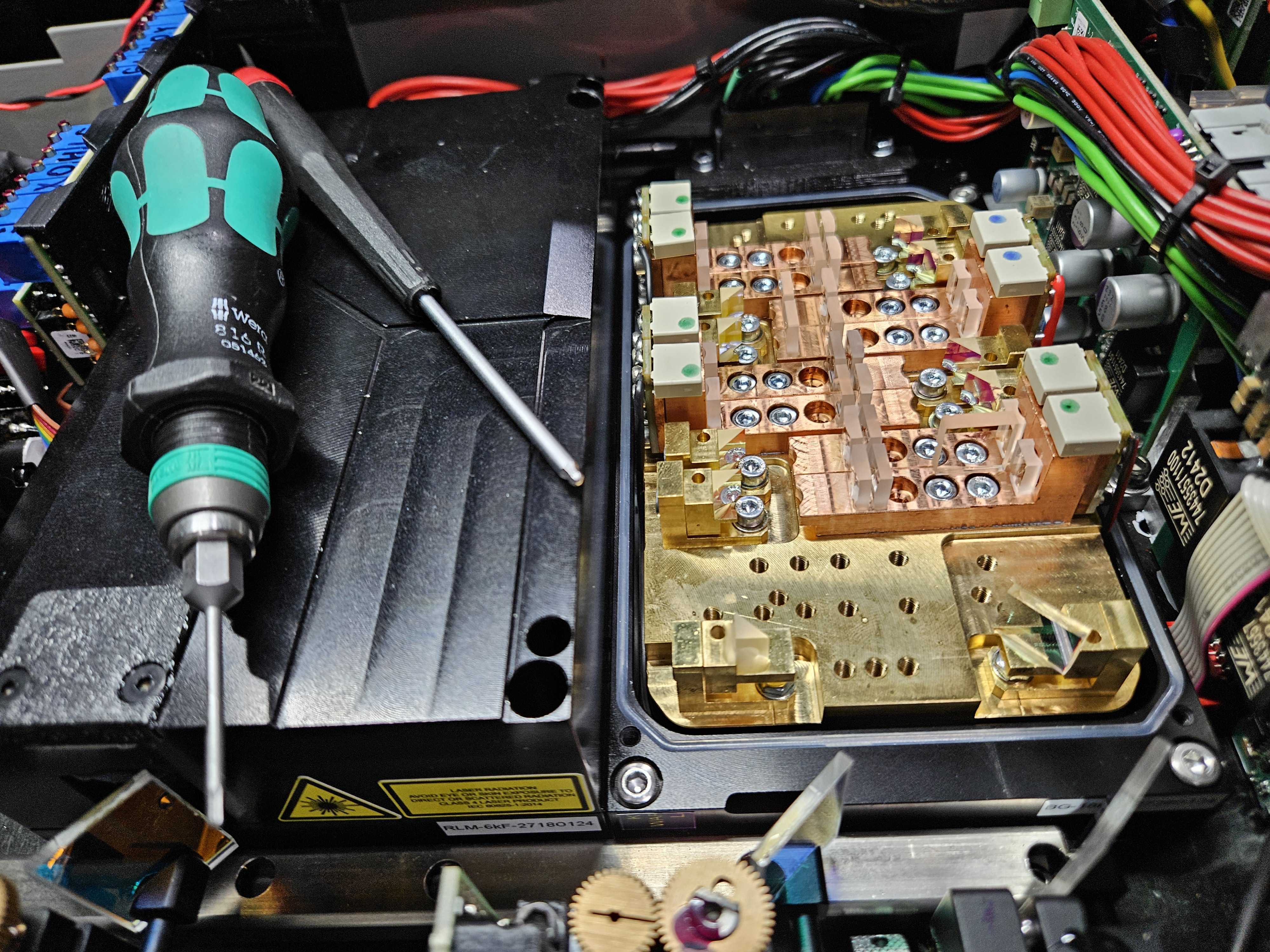
When aligning a module, you may need to re-center the beam onto the scanners if the module will stay inside the laser. Refer to that section if this is the case.
Some advanced technicians will take modules out of projectors to align them, but this usually only works better if the technician has a bench built to align modules. We recommend most people leave the modules in the laser projectors.
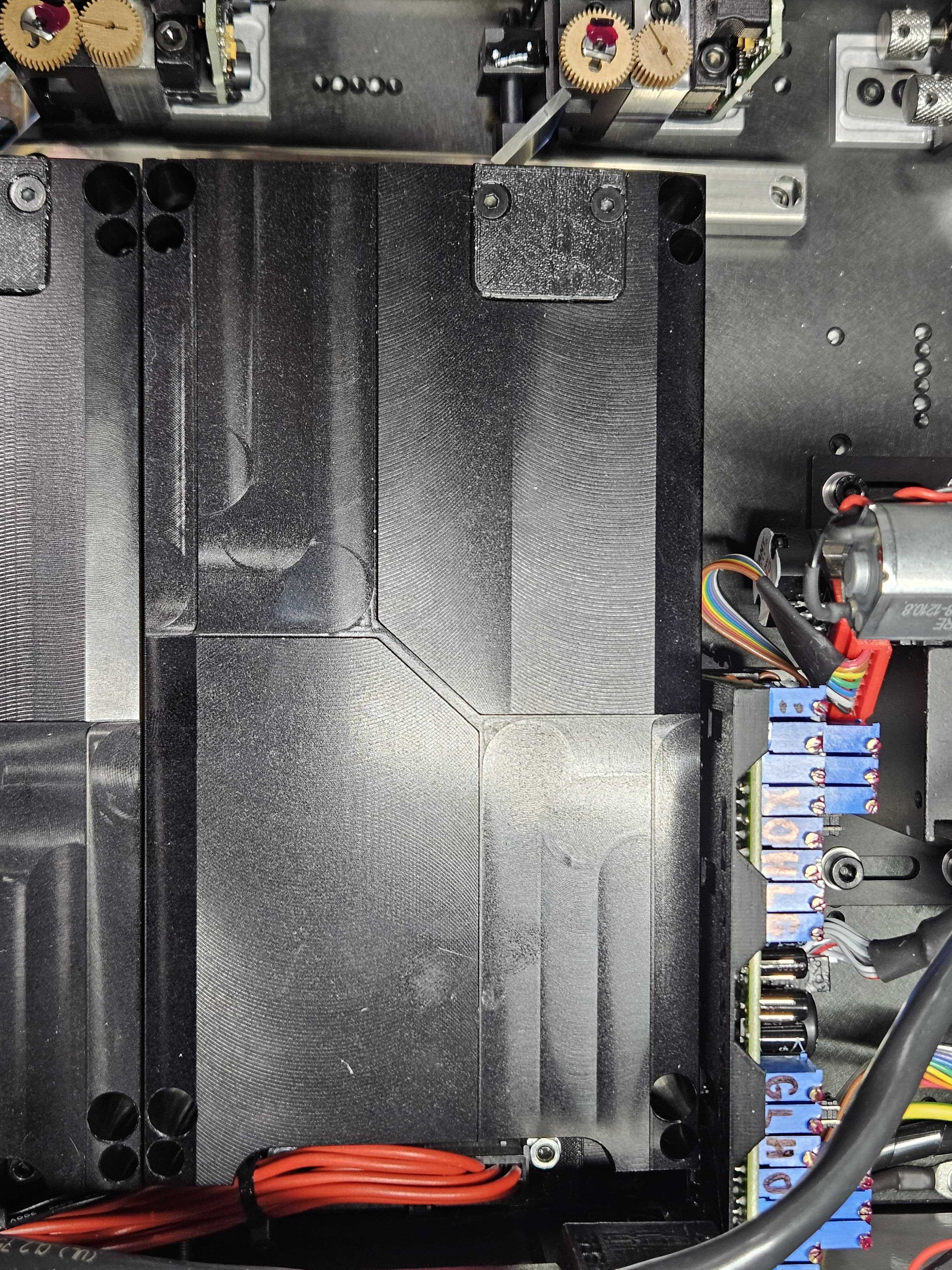
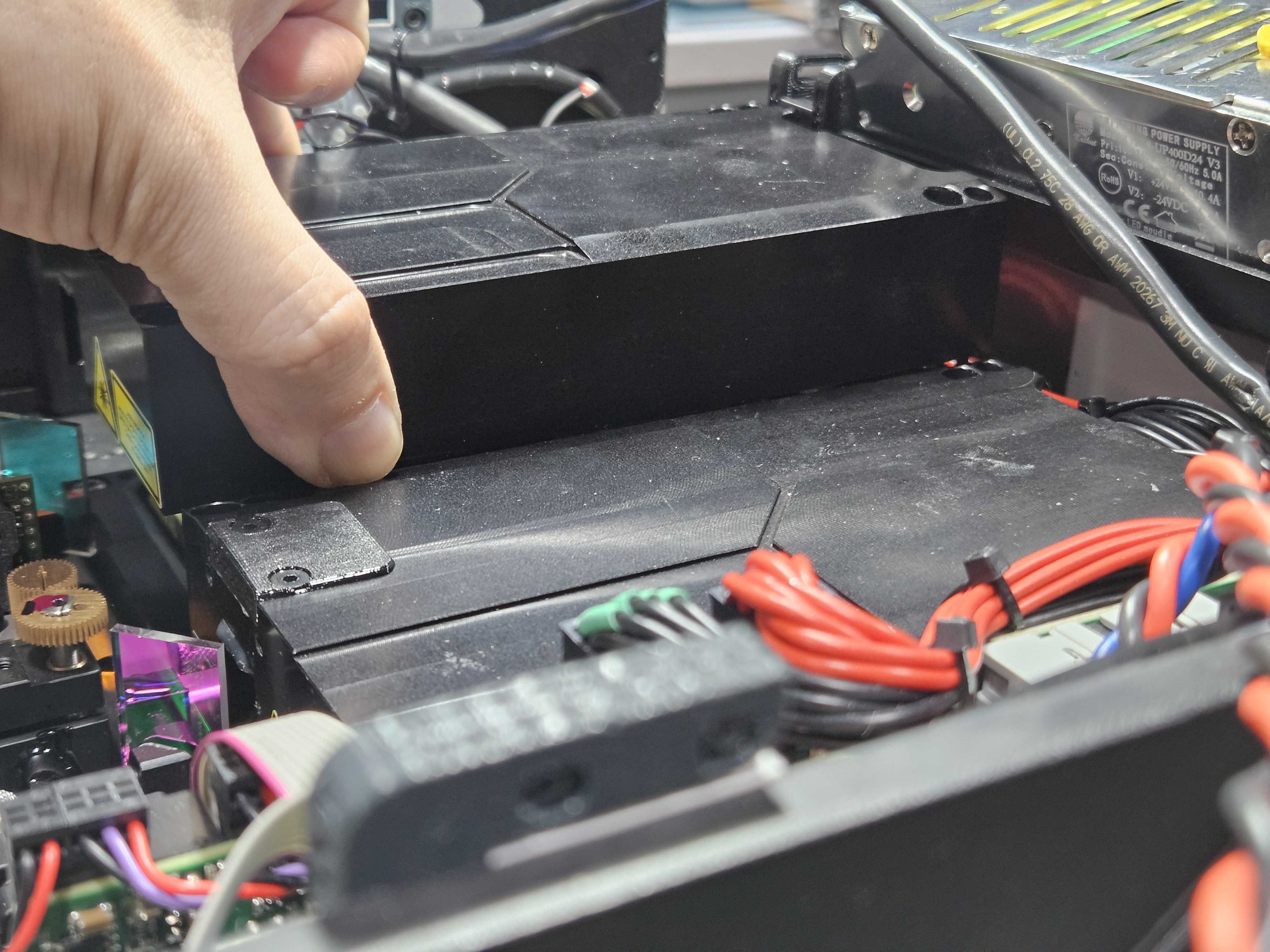
There will be two sets of screws on any given module enclosure, one set holds the cover to the bottom and one set holds the bottom to the base plate. Identify the correct screws and loosen them all completely before lifting the module cover straight up. The cover screws generally are a smaller size then the base plate screws
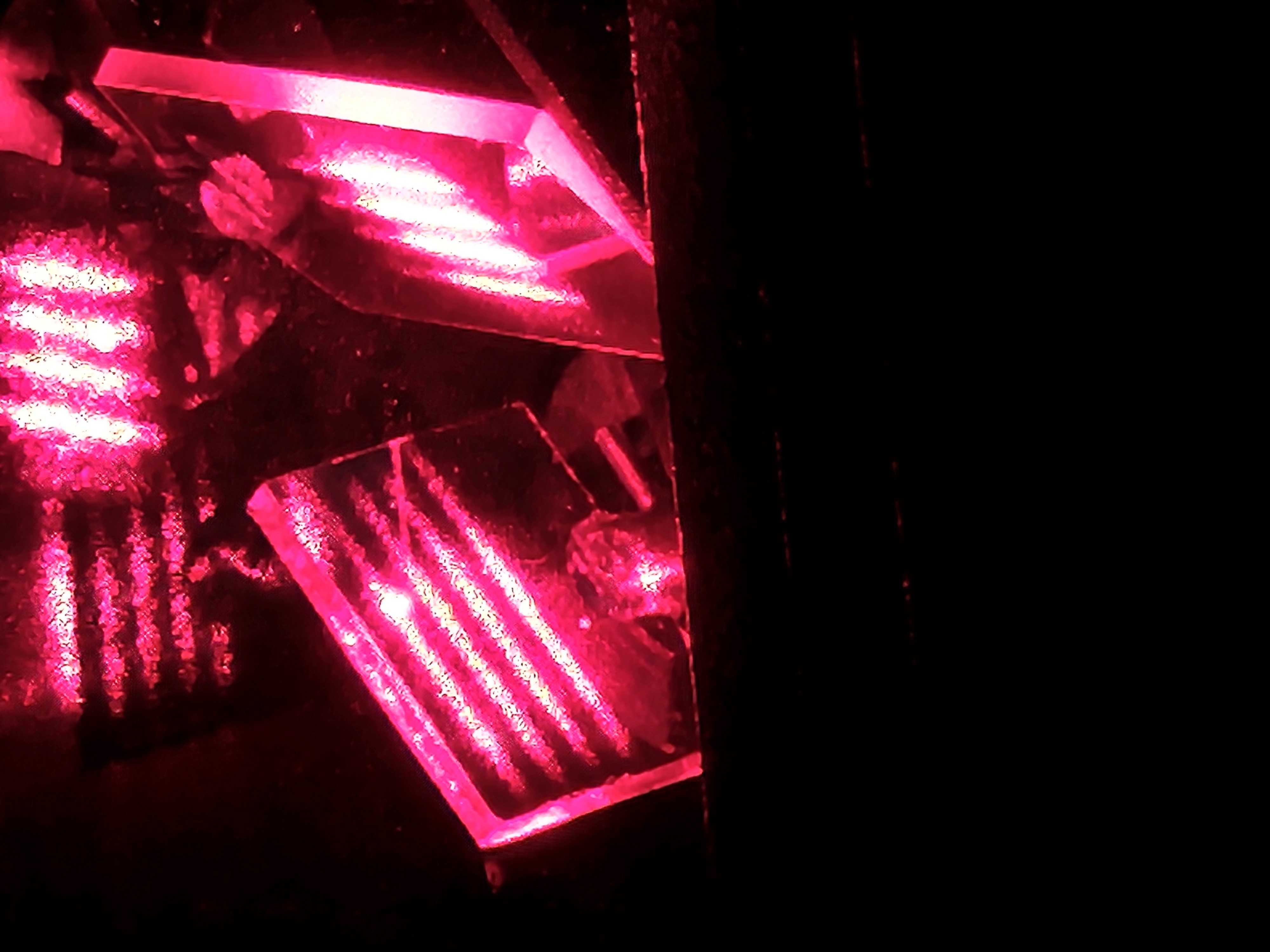
Plan to just shoot the beam straight out of the projector, to your target, using whatever technique like a mirror or other methods mentioned in the previous section.
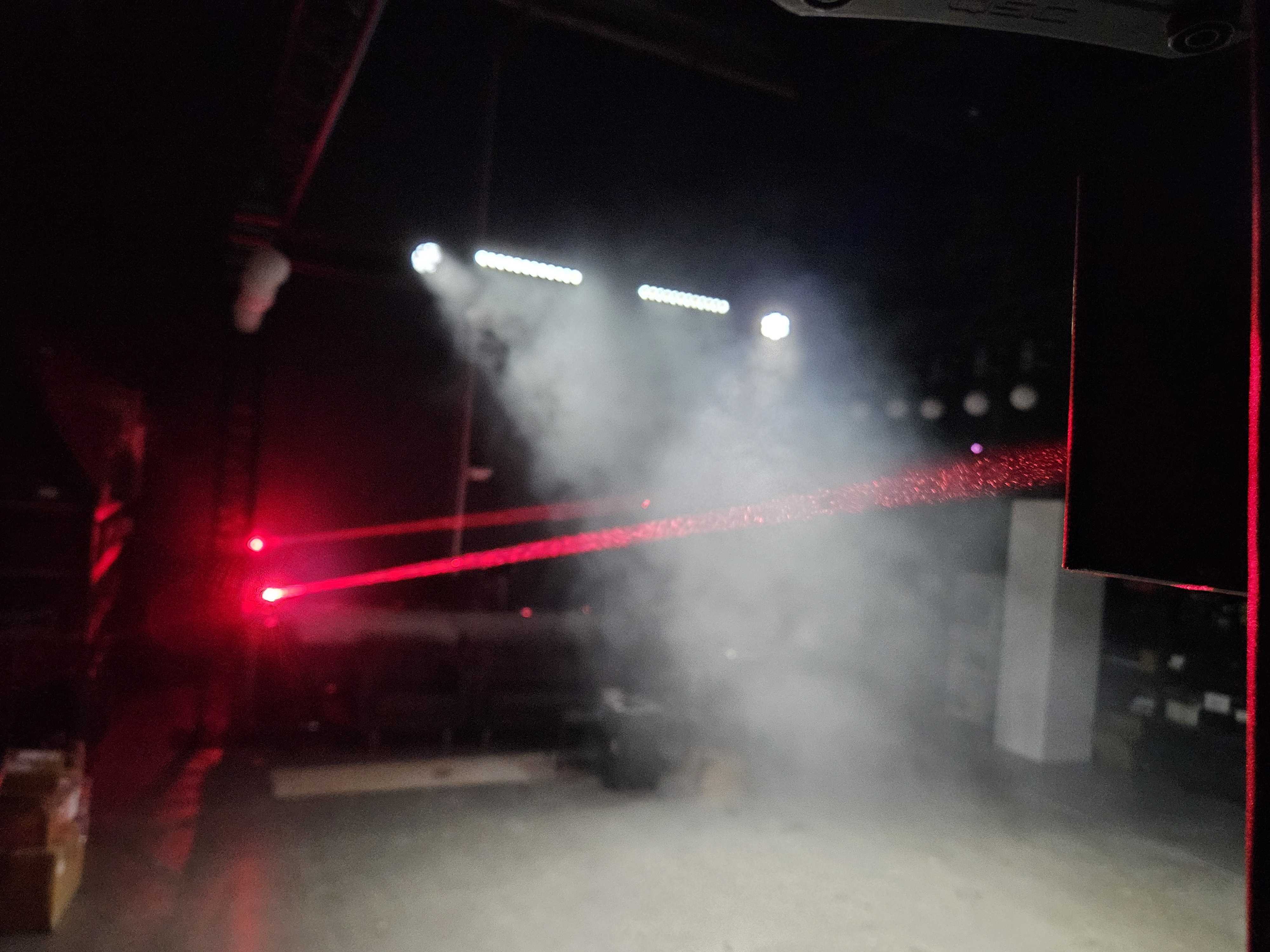
We do not want the scanners moving, so plan to just use a single hot point as a test pattern.
Identify the Misaligned Beam
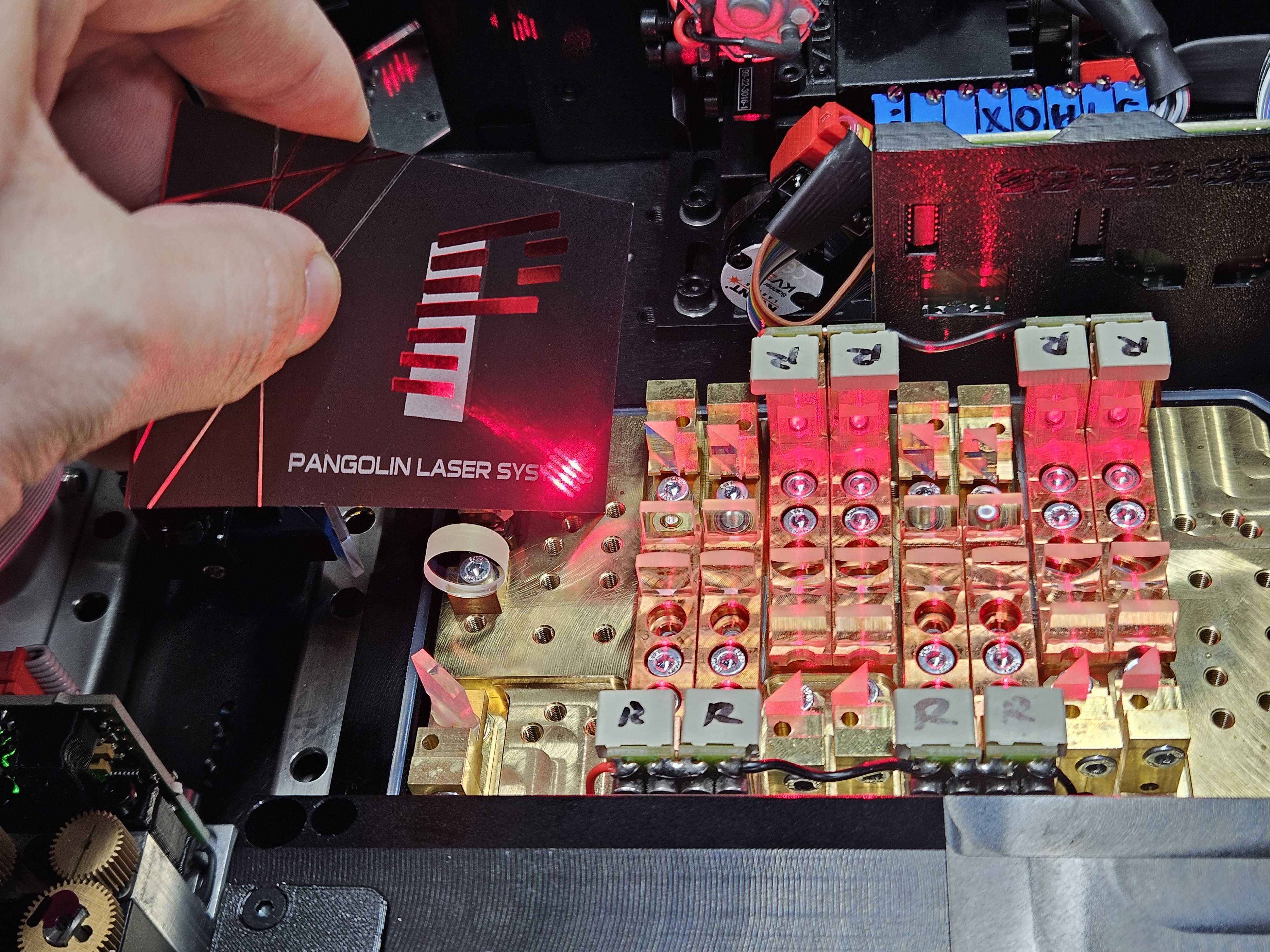
Inside the module you will find rows of diodes, Grab something like a shutter, or thin metal card or business card, cut it to the width of one of these diode sections, and slide it in front of each diode one at a time.
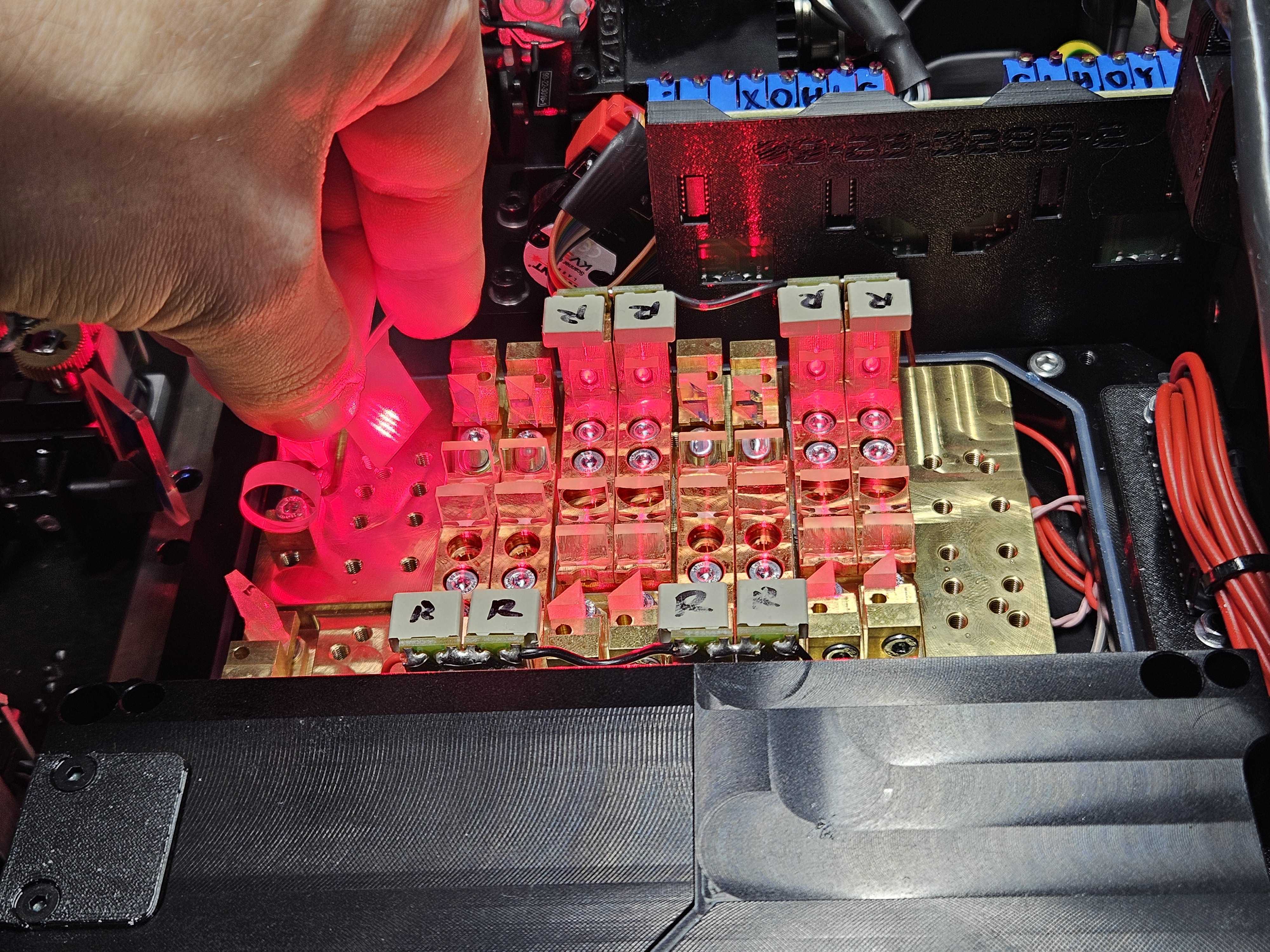
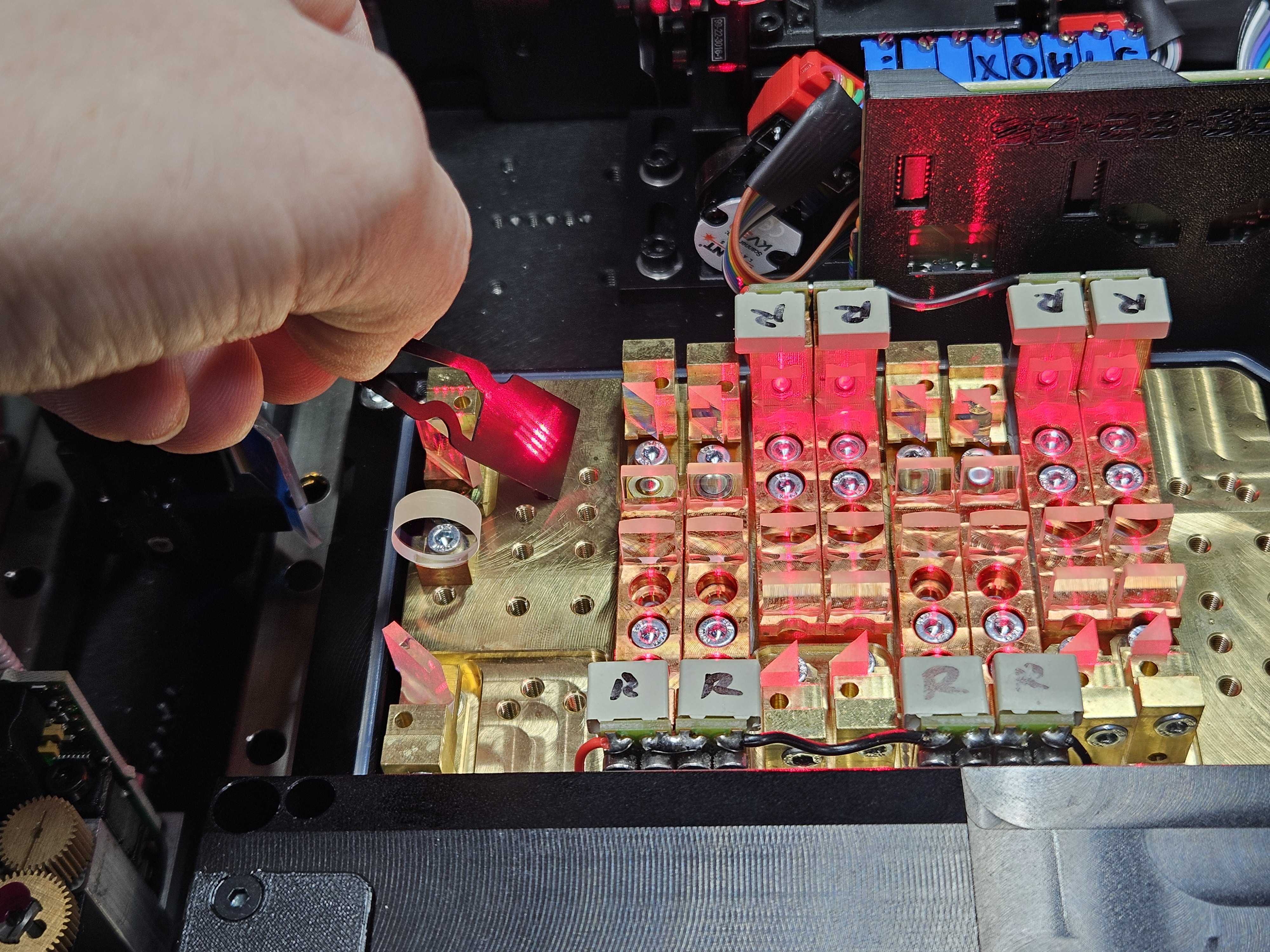
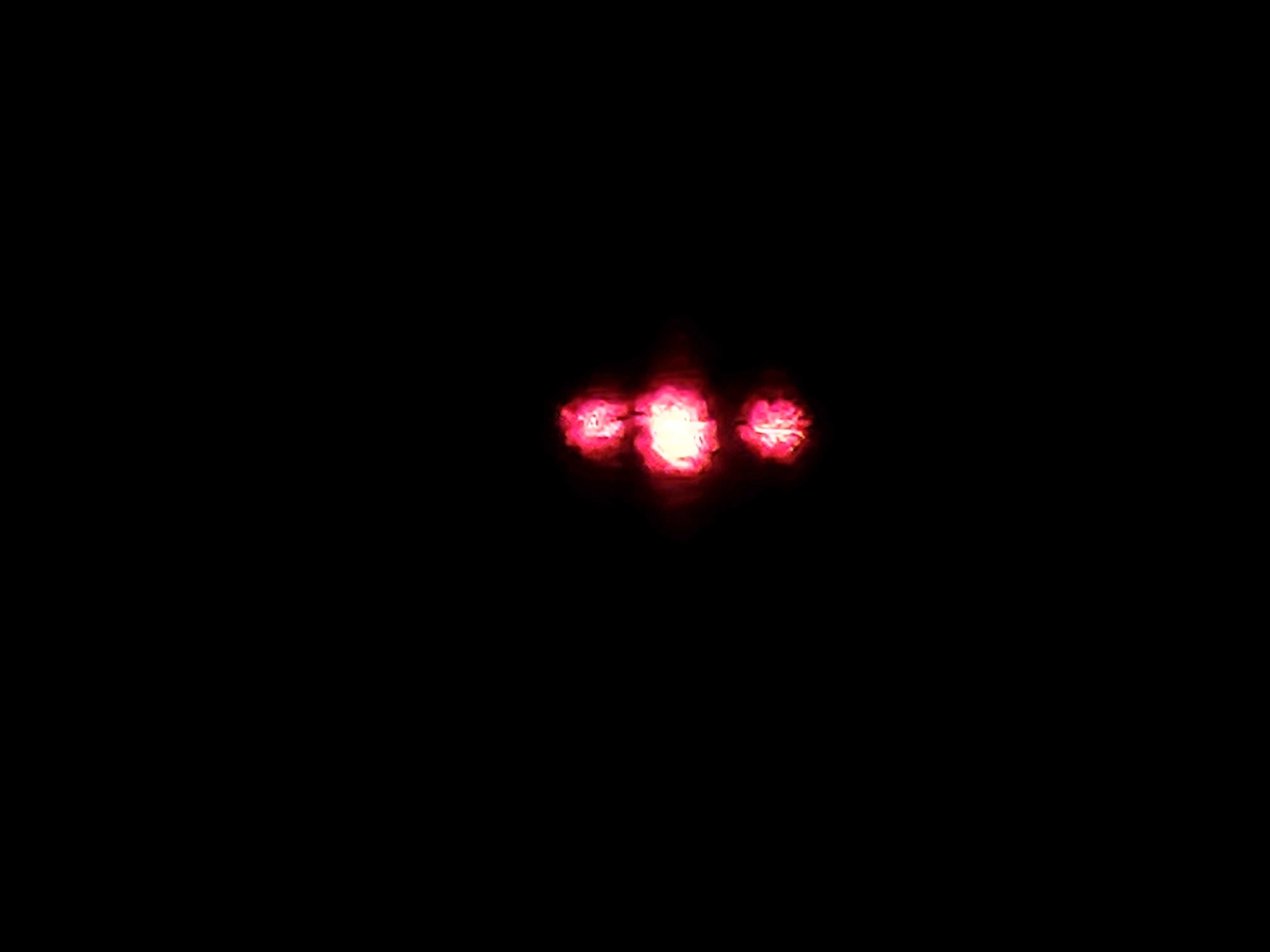
As you do this, you will look at the total beam output on your target. We will slowly move from diode to diode to identify which of the beams are off, or “flyers”. When you identify one, it can be helpful to mark the diode with something erasable like a dry erase marker on top, or a sticky note or something like that.
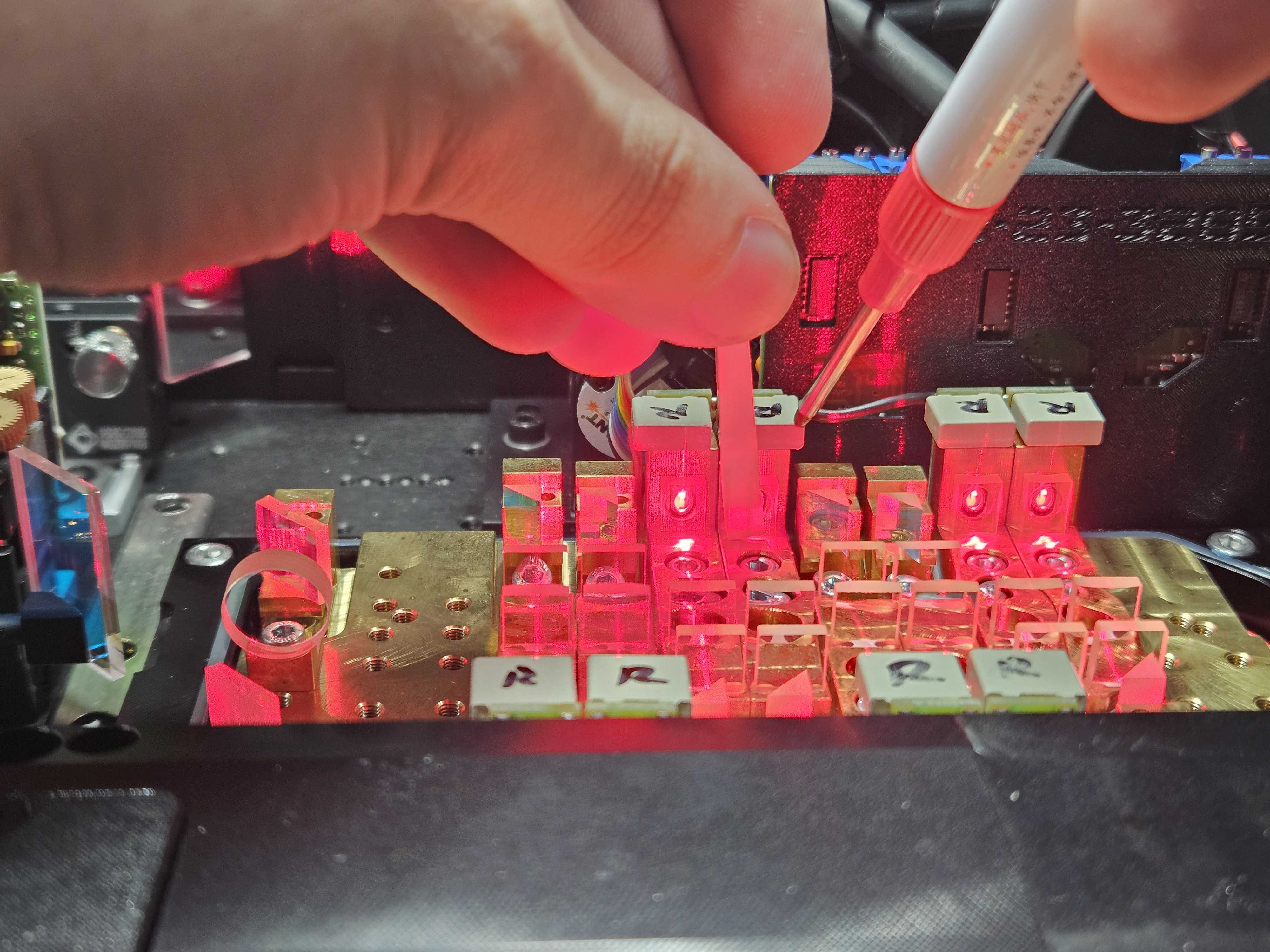
Continue going through the whole module to find all diodes that may be out of alignment.
Check the tightness of the mount
To fix the issue of why the alignment got out of alignment in the first place, we need to check the snugness of the friction mount. This will also serve as the “make it worse” part of the process, so we can easily see the beam we need to fix, out.
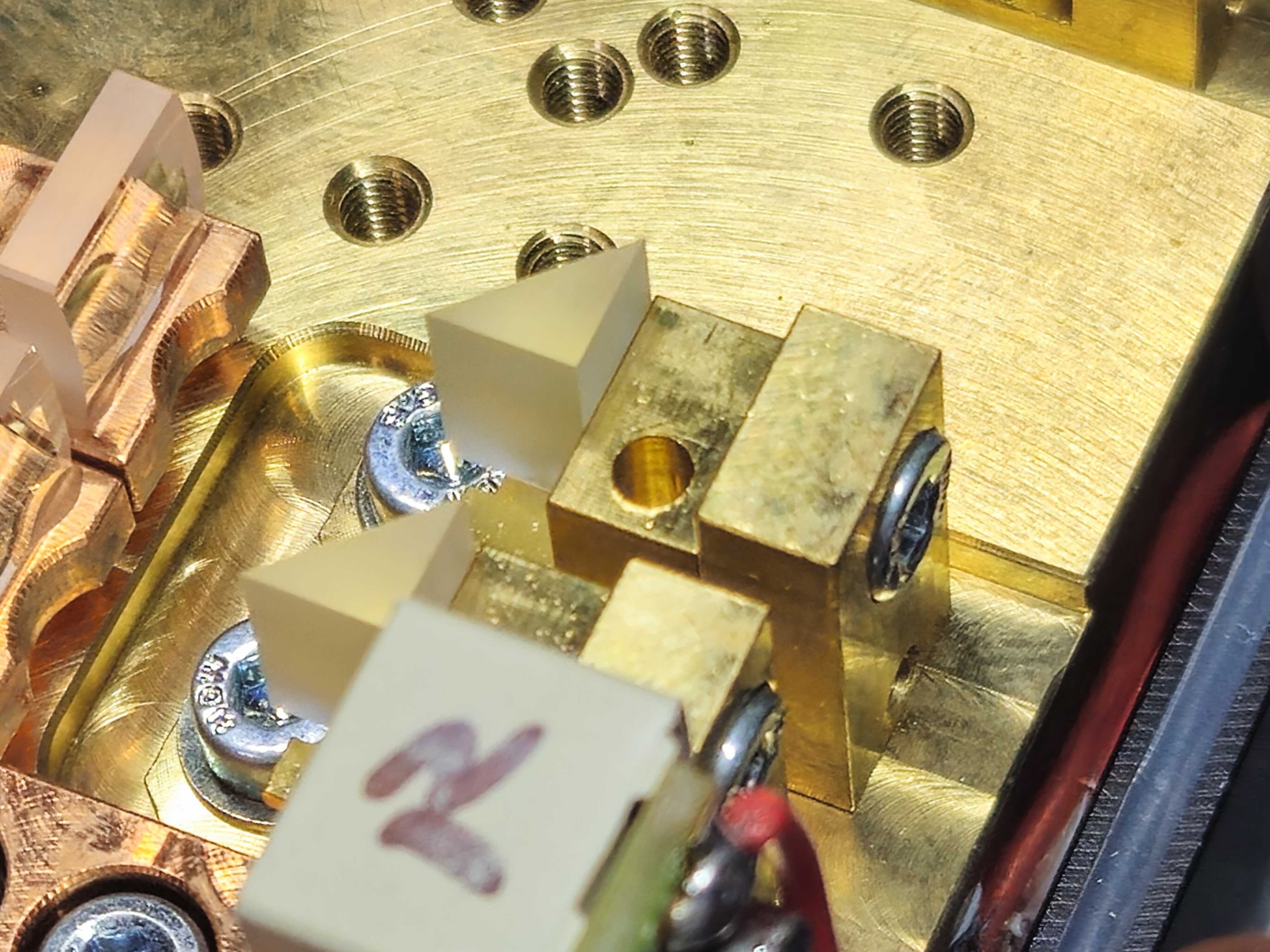
Start by using your thin pry bar, and stick it into the holes for both x and y, and move it very carefully, you should have resistance, but when it moves, it should not jump or skip across the surface. It needs to be a tight but predictable amount of movement to force applied.
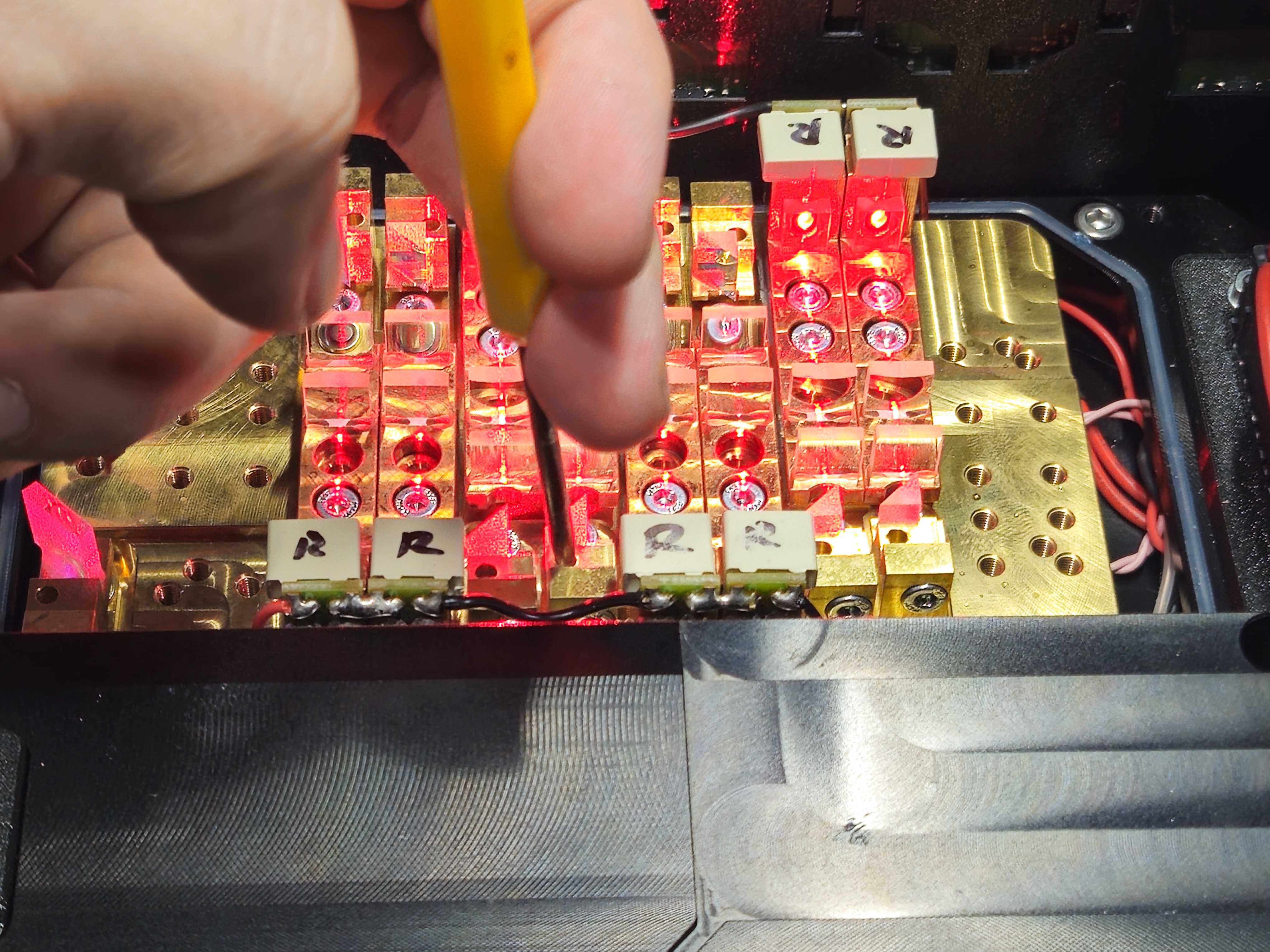
The friction mount SHOULD NOT stay in the position you hold it to when you push the pry bar. It will rebound and this is correct, we work the beam into place slowly by going more and more past the hold point.
## 47 Video clip of split screen, pushing too far and it rebounding inside and the beam on the wall with the flyer moving in and out ##
If it moves to quickly or is too hard to move and jumps too quickly, you need to adjust the tightness of the screw holding the friction together. Tighten and loosen this screw very small amounts to find the right amount of friction so you can align the beam, but so it will also hold during normal transport and impact events on the road.
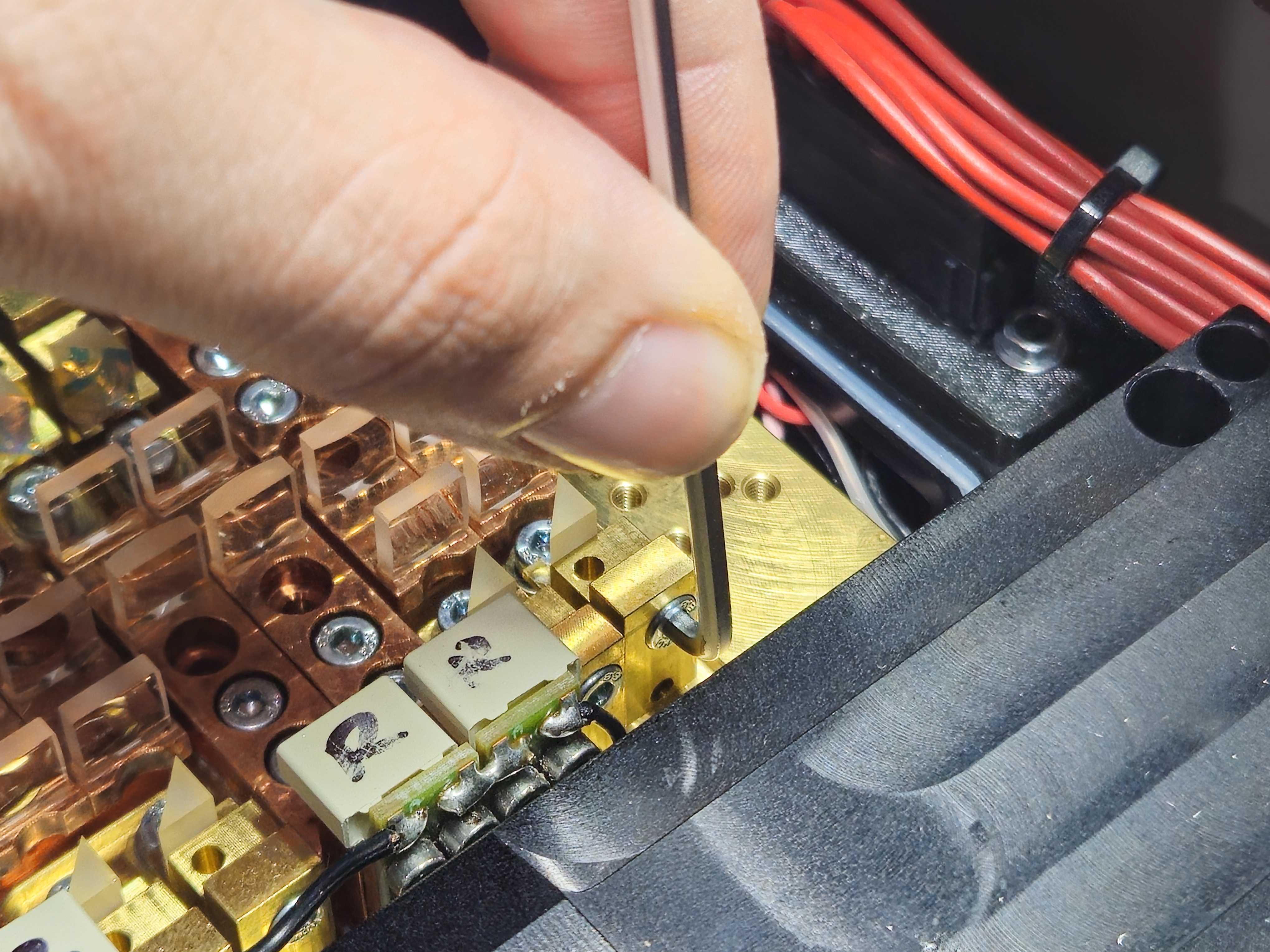
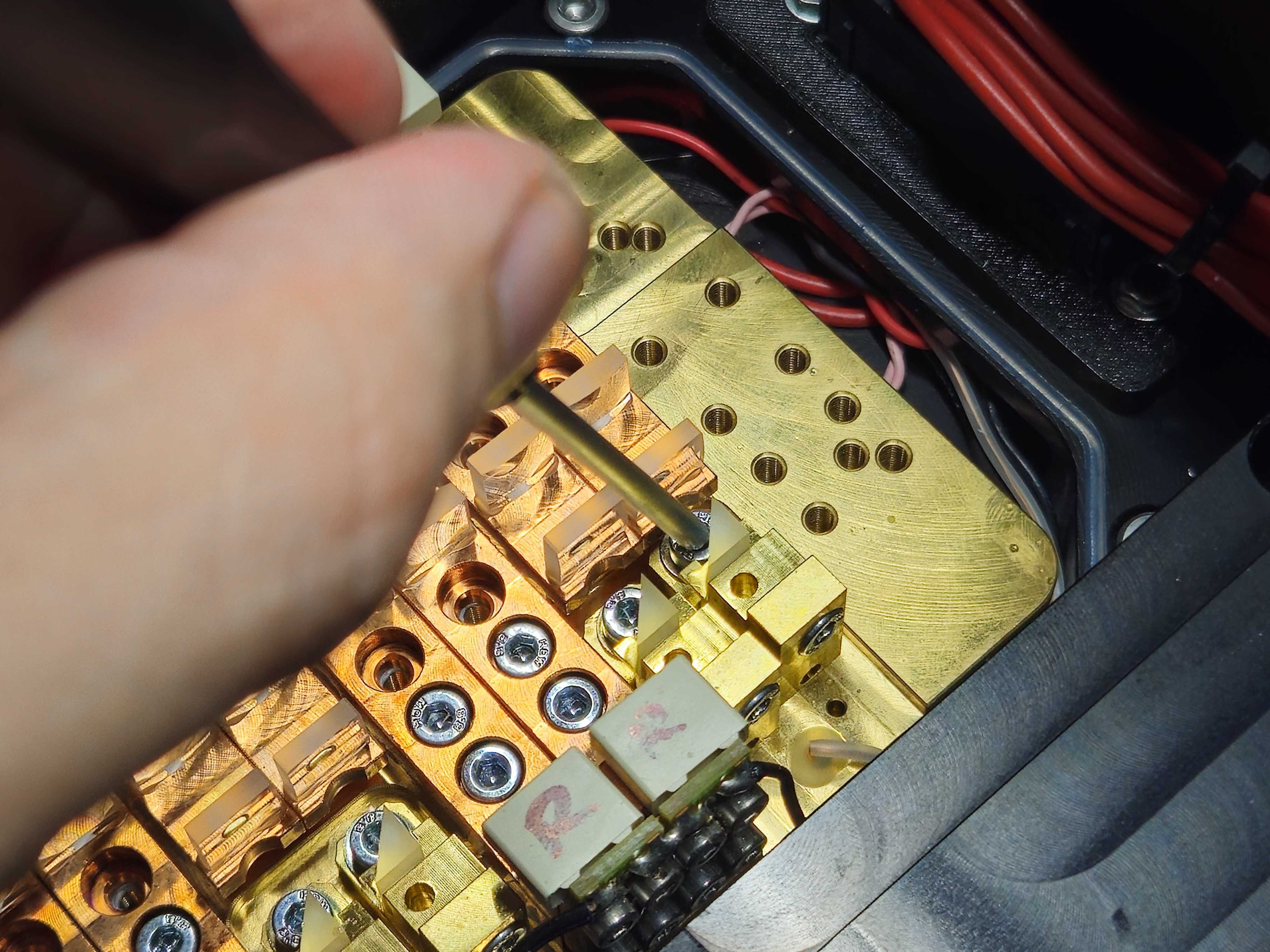
Its important that this friction is balanced well for the longevity of the alignment.
Shifting the Beam into the Center of the Output
Now that the friction mount has the correct amount of friction, we will slowly push both the X and Y axis slowly more and more past where we want it, for it to rebound to its holding location. You will want to work the beam slowly towards the main bulk of the beam.
## 49 Video clip of this action of pushing slightly further and further back and forth ##
The grid arrangement of a module is irrelevant at distance, and the goal here is to just center the beams brightness, or its mass as tightly as possible as all beams have some level of gradient edges.
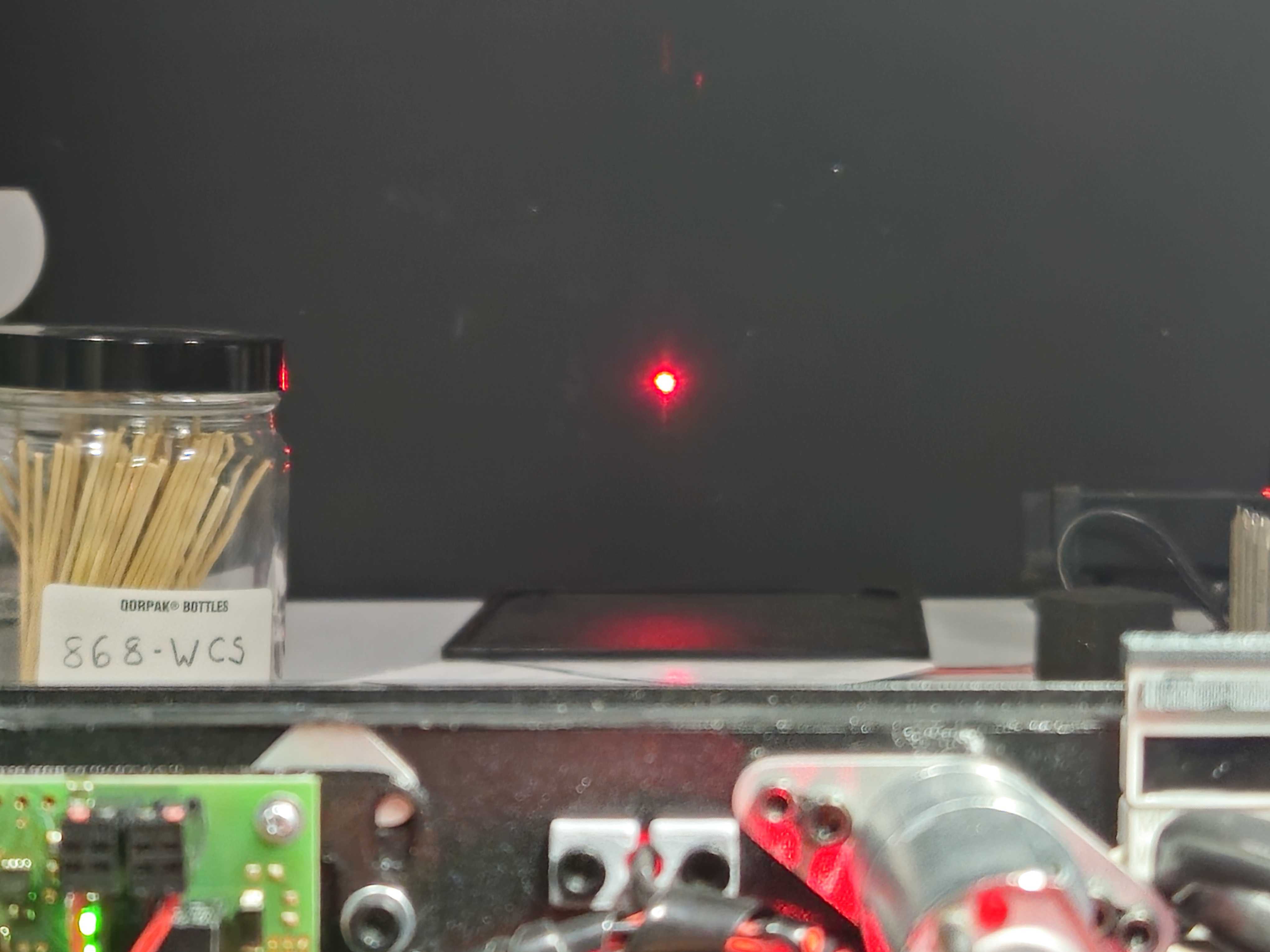
Do this for every diode that seems off center of the total beam mass. Repeat step by step. Your beam should look roughly square and have a nice bright center and even fades on the edges. Repeat for any module in the fixture that needs alignment. Once finished, remove any markings you may have used inside the module before closing it back up.
The Color Convergence Process
Setup your workstation
To do a color convergence alignment, we want to start by opening the projector in the necessary way. Sometimes this means access panels on the sides of the projectors, sometimes this means taking the top plate off. We will want to do this on a sturdy surface with the aperture aimed towards a surface that can take the laser energy without ignition and is visible to the operator under the conditions mentioned in the “General Alignment Practices” section.
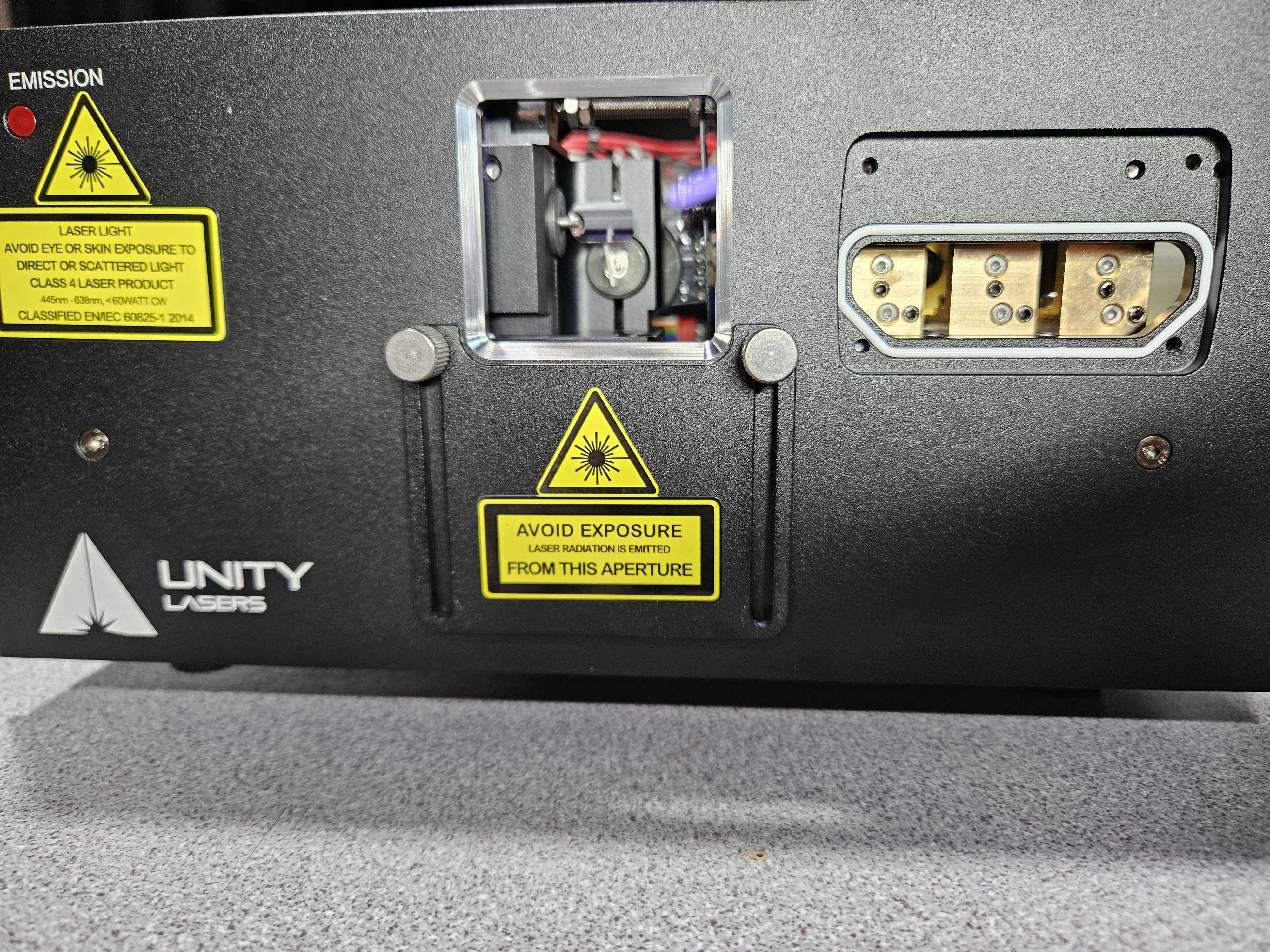
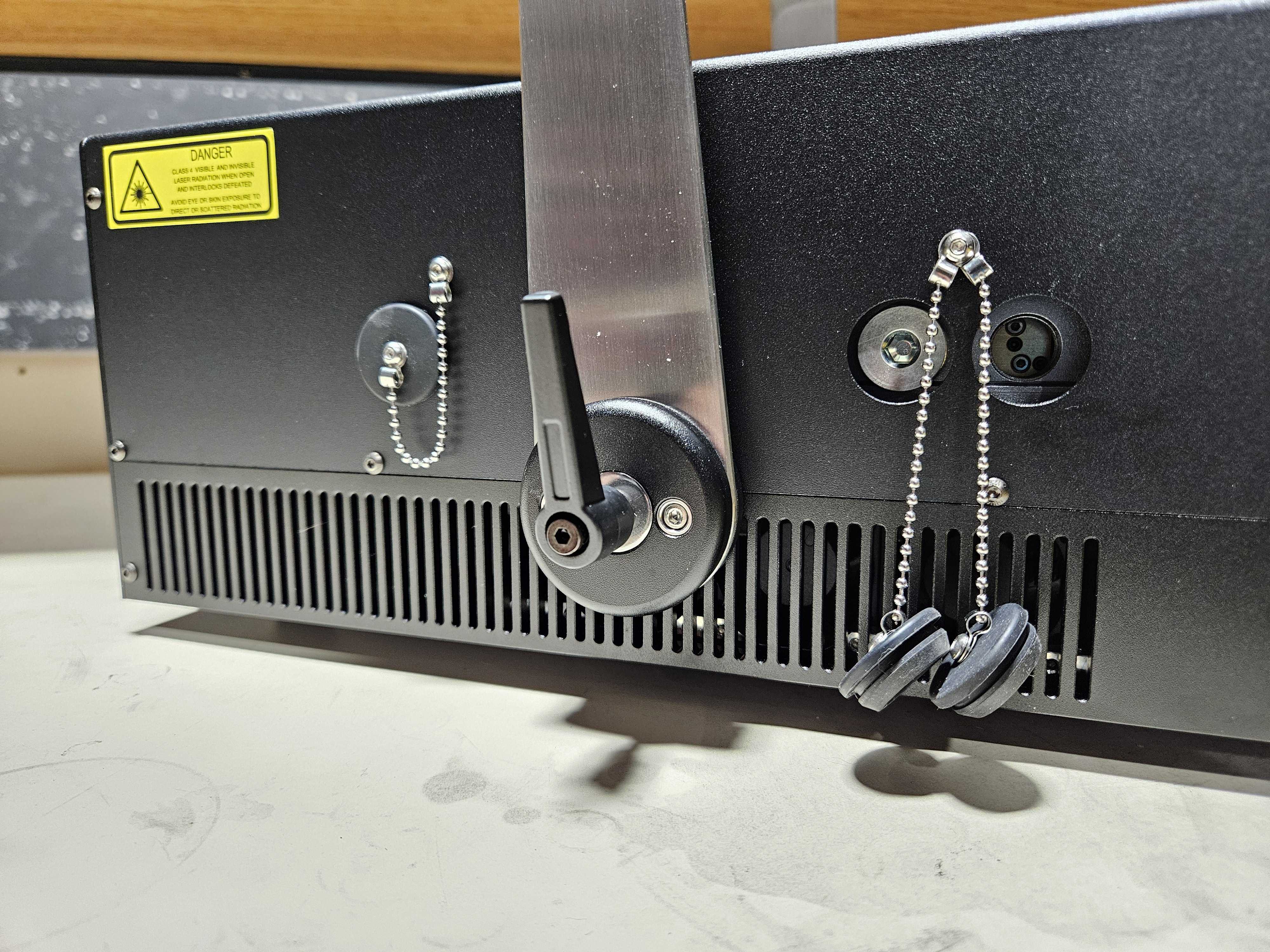
It’s also recommended to ensure the beam path is clear and marked if there are other persons who may enter the area. Since generally we aren’t within the 3-meter rule when working on lasers.
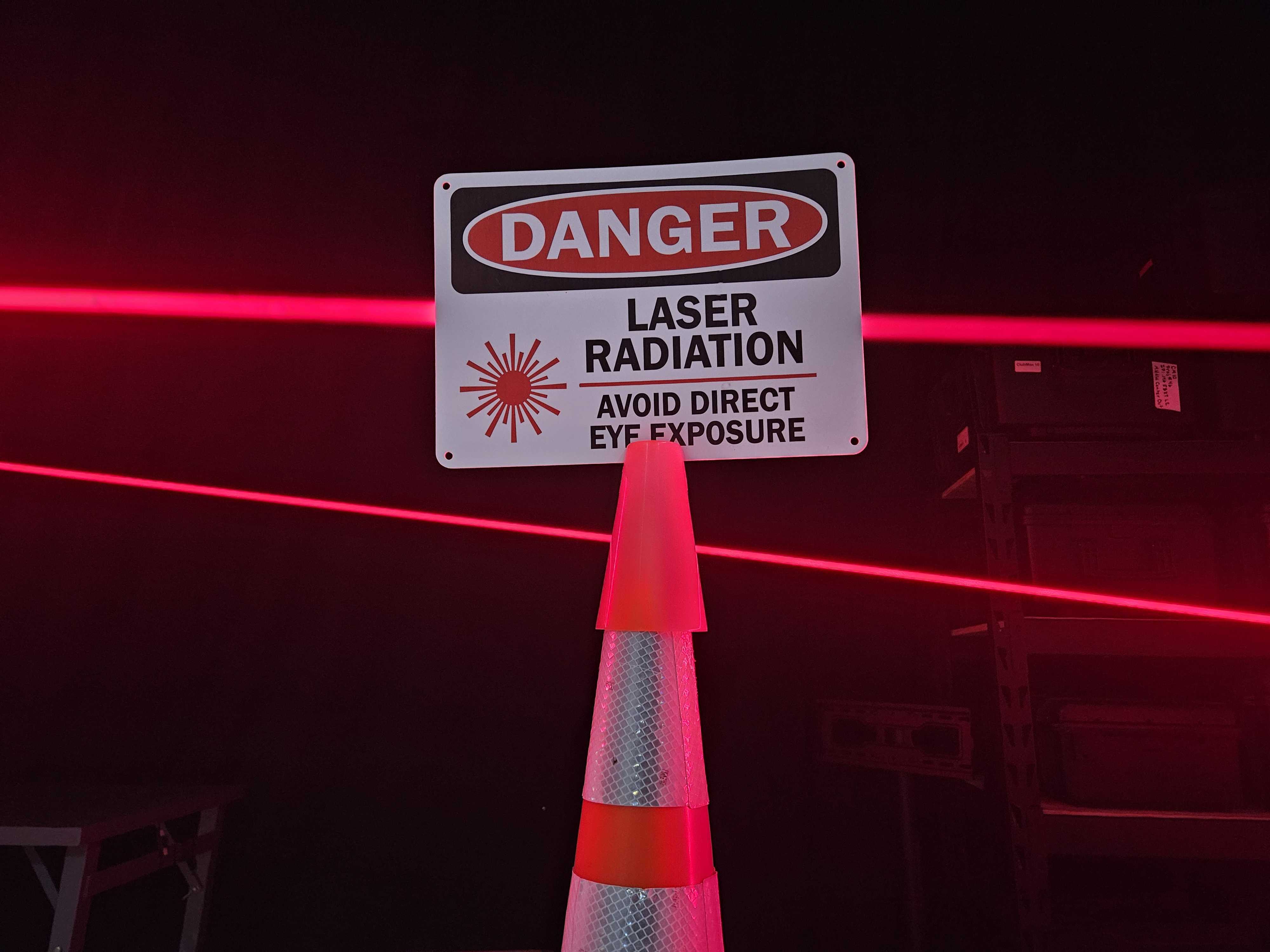
When it comes to output, we will use small patterns for the actual alignment process, but we will need to scan at full size for one of the steps, so ensure you can output a test pattern and use full scan width to ensure a safe operating area.
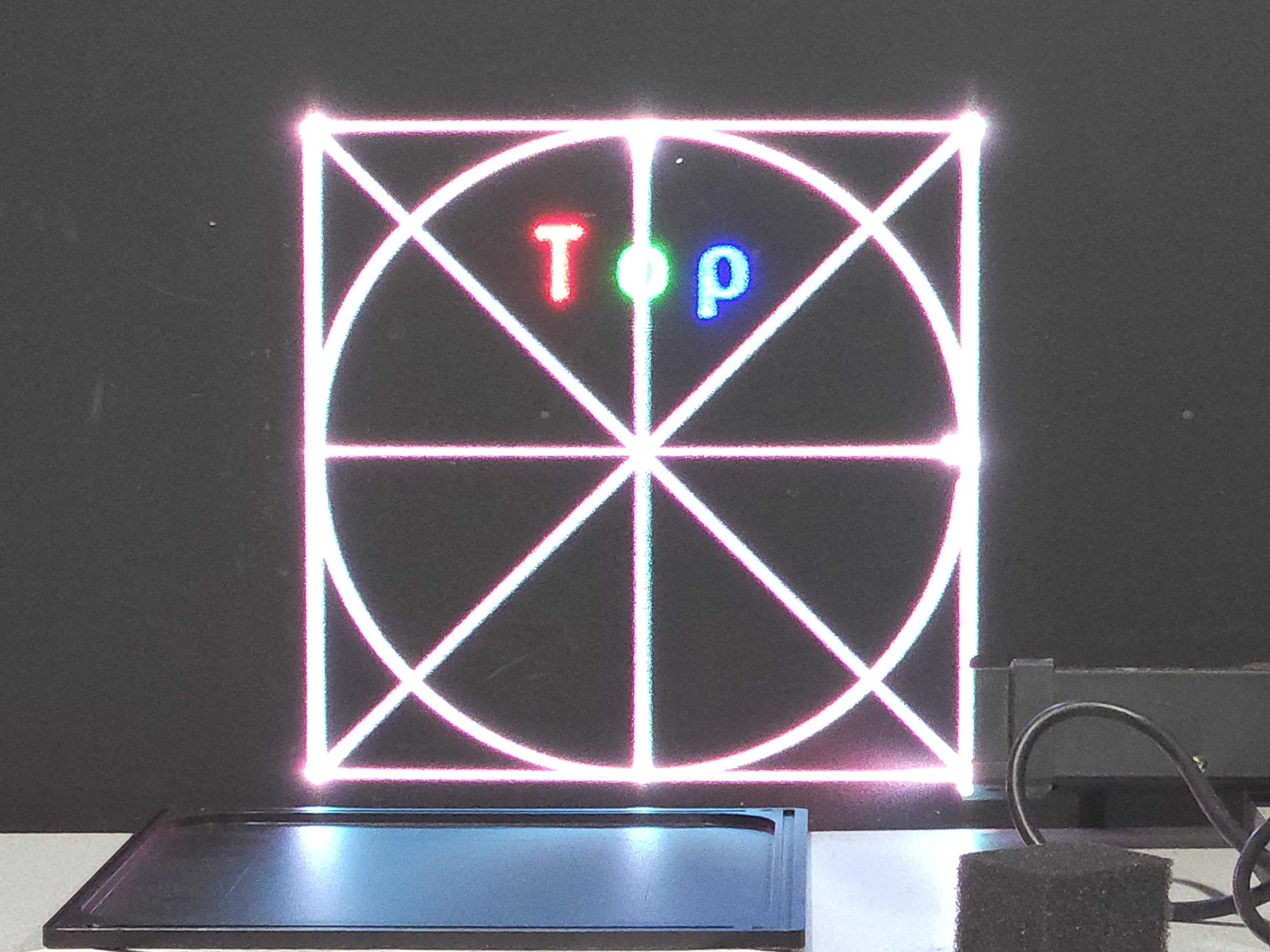
For test patterns, we find simple crosshairs can be quite useful, but most patterns which show the x and y axis along lines will satisfy. We also will need a test pattern that will output to all edges of the scanners angle, like a box or square on hand.
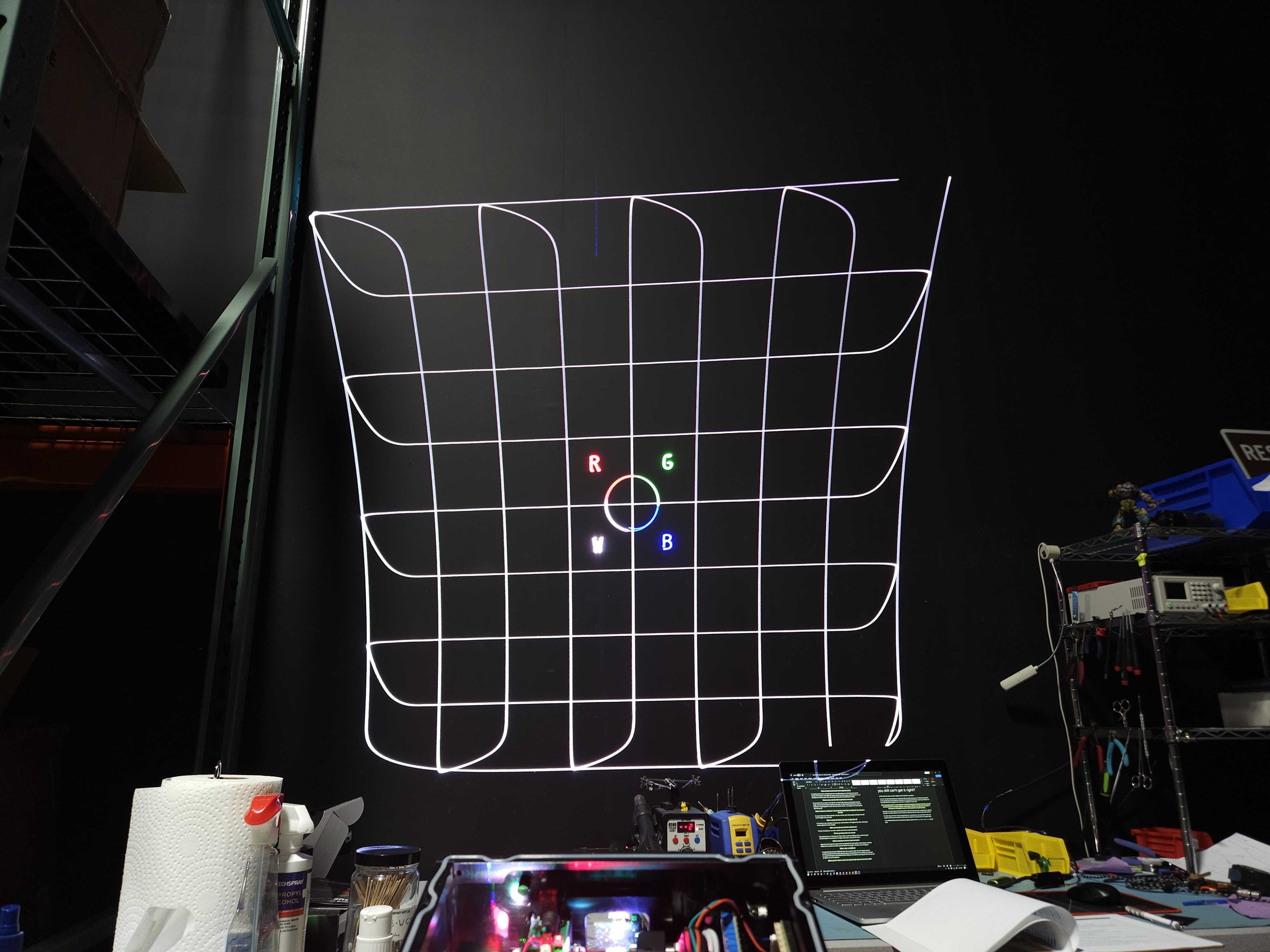
Identify which beam doesn’t move
Before we touch any alignment mount in the fixture, we must first identify which beam is a “straight shot” to the scanners. This generally means the beam that has the least bounces, or the one all the way at the back of the beam path. This beam will only ever be reflected off mirrors, and only ever pass through dichroics.
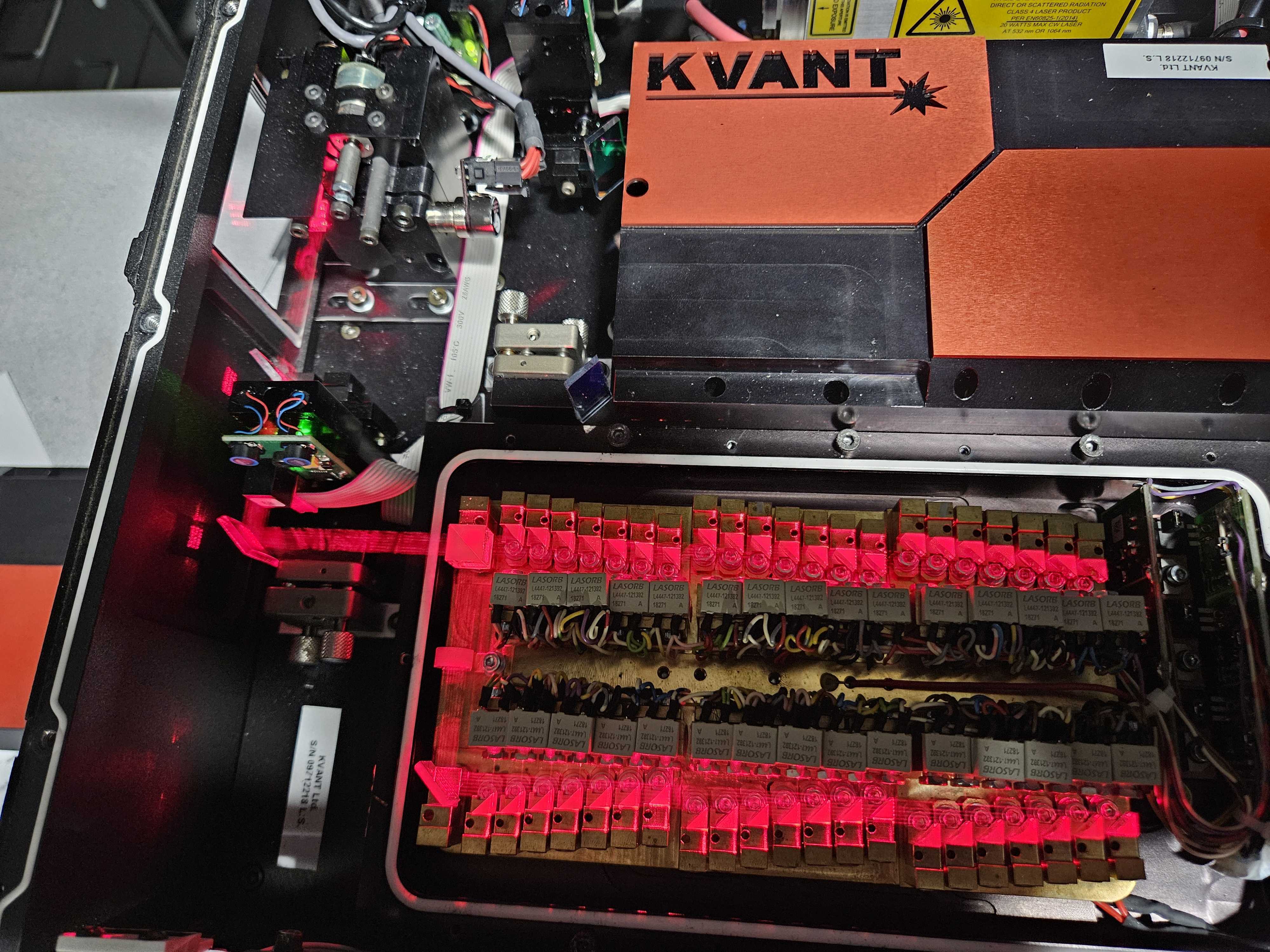
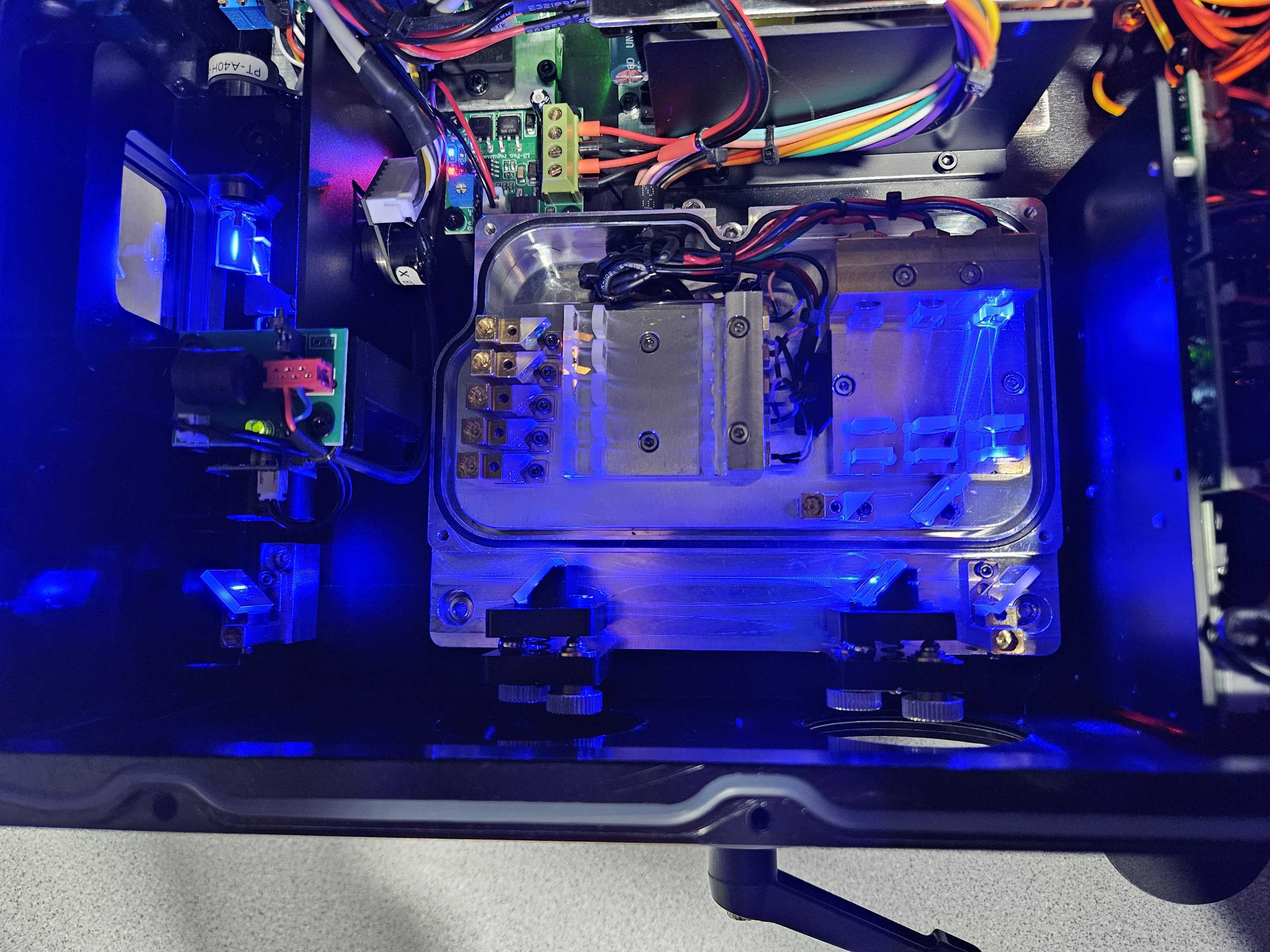
This beam is the beam we want to ensure is perfectly square in its bounces and centered onto the scanners. The other colors will be aligned to this color separately, so it’s important to identify this beam first, and not adjust it unless its not centered properly.
Aligning Colors In a Single Line Optical Train
Lets determine if your optical train is a single line train.
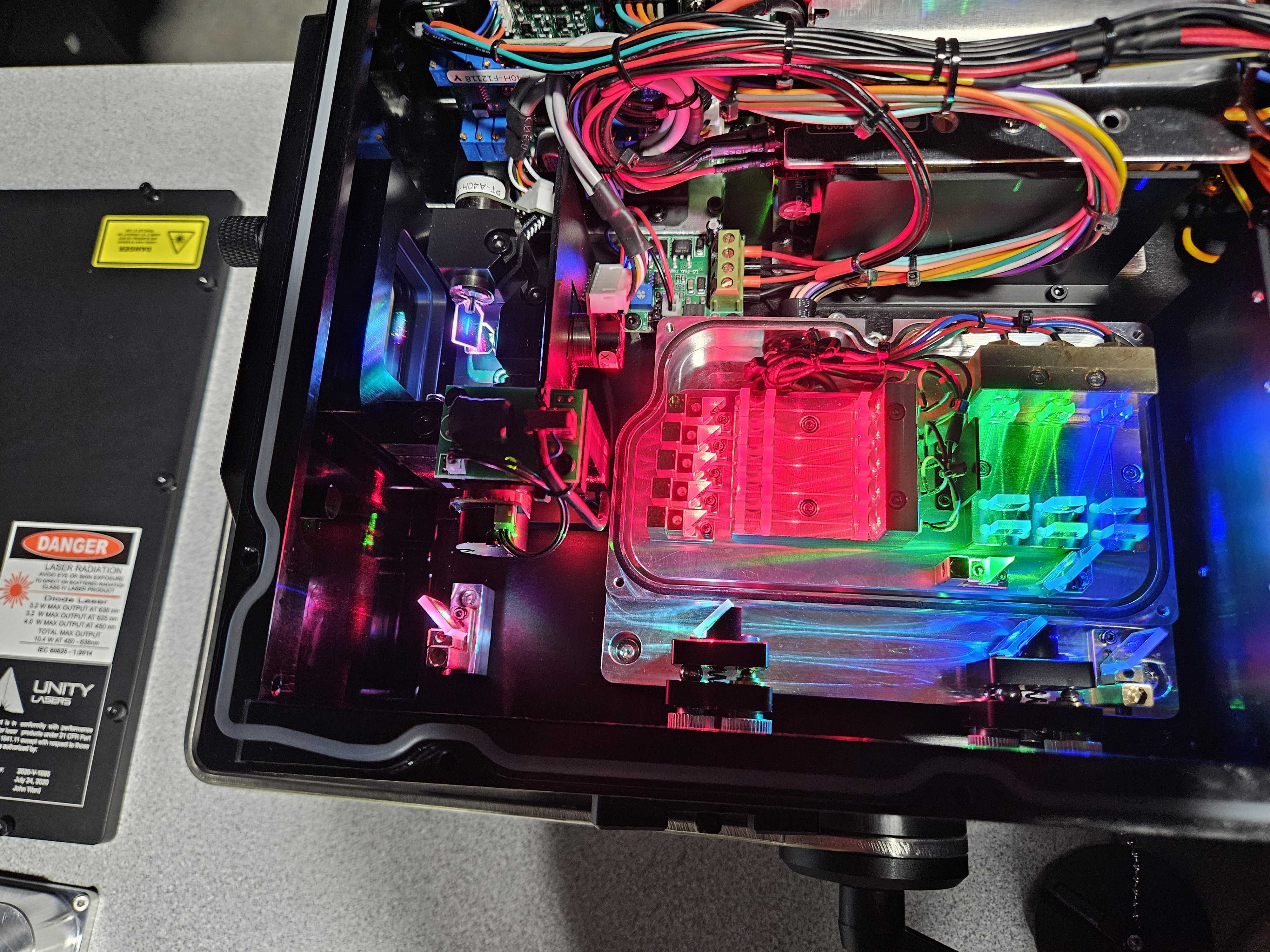
A single line optical train is when all beams combine along the same line towards the scanners regardless if there is a final bounce or not.
Once you have identified the beam that doesn’t move, we will follow the optical train down the line and find the next beam in line. This will generally be the first dichroic the laser passes through.
## 58 Number beams showing the full train ##
Then you will want to turn off the 3rd color and only look at the beam that doesn’t move, and this second one.
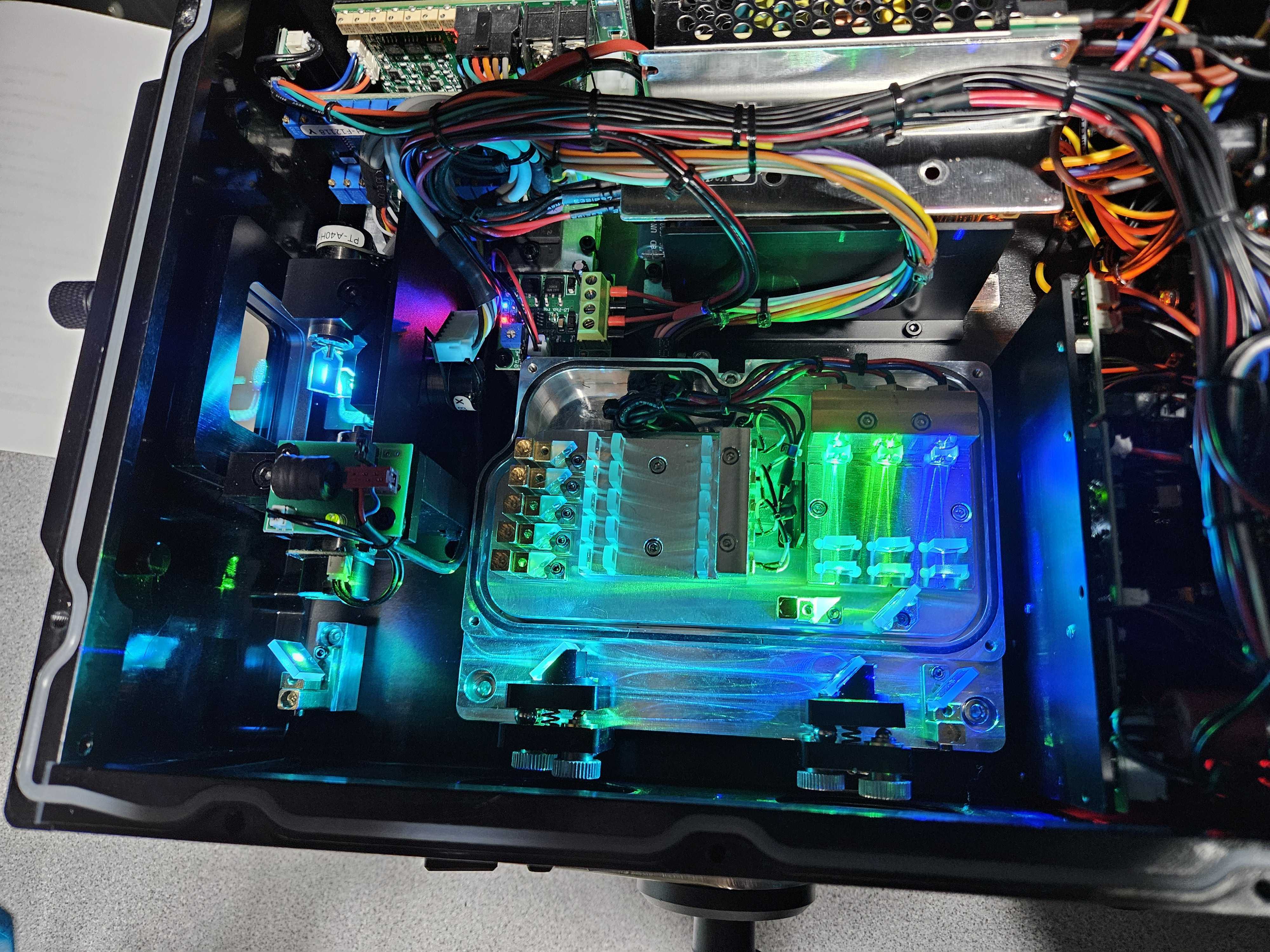
Now look down towards your beam, with your crosshair test pattern enabled, and start by adjusting your mount off from the beam that doesn’t move so you can see the clear shape and size of the beam you are adjusting.
## 60 Video clip of moving a kinematic mount, slowly and beam moving, split screen ##
Now walk the beam you are adjusting back into place by adjusting the X and Y axis into place. Most mounts are not going to get a perfect down and across movement and there will be some shear on both axis of movement. We may need to walk X then Y then X again and Y again and sometimes more to get the beam together. What we want to see is the beam at your target is leveled out and there is no non mixed beam.
## 61 Show a very large movement in video and show that its an angle movement. By drawing on screen ##
Sometimes if a color is substantially a different size than others in the projector. We will want to just center the beam as much as possible and have an even “halo” of the larger color around all sides.
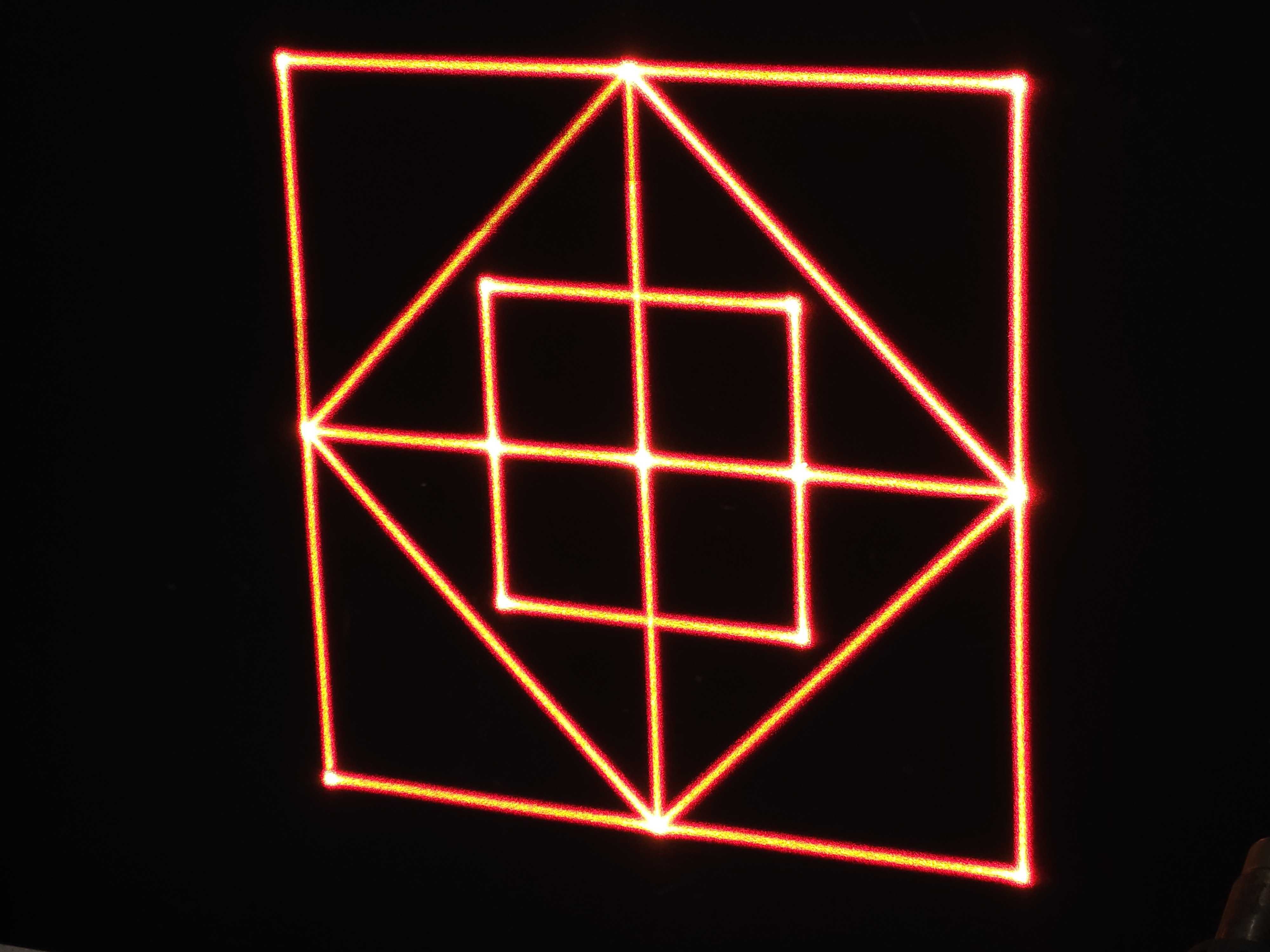
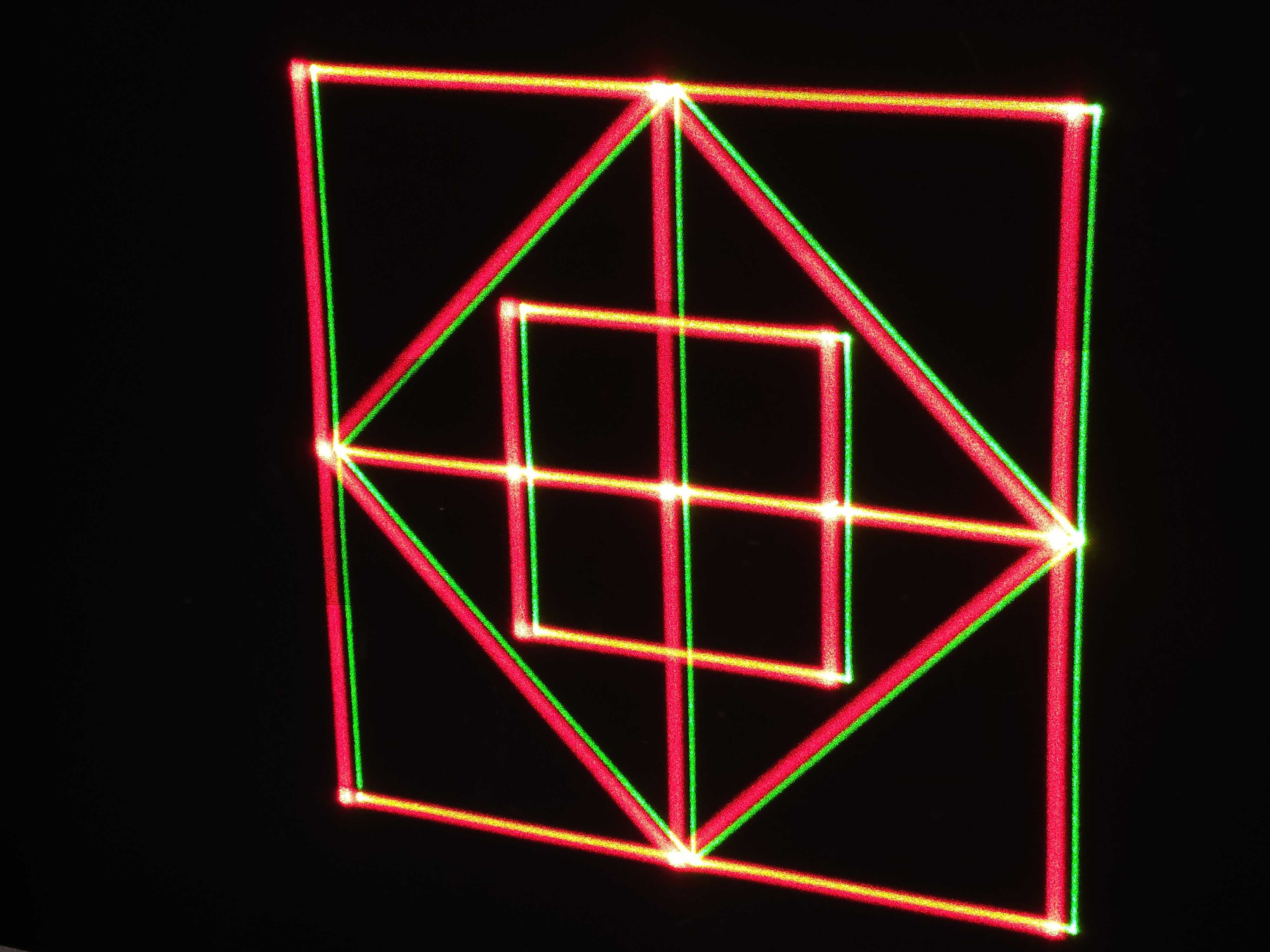
Once you are happy with the centering of the second color, you can move onto the third color. The process will be the same for the third color as the second for a single line optical train arrangement. Turn the beam on, make it worse to get a clear picture of its shape, then walk the beam into place. The result will look something like the following examples
Aligning Colors in a Dual Line Optical Train
Let’s determine if your optical train is a dual line, or nonlinear. This is when the two colors that do move are combined outside the one that doesn’t and then added afterward.
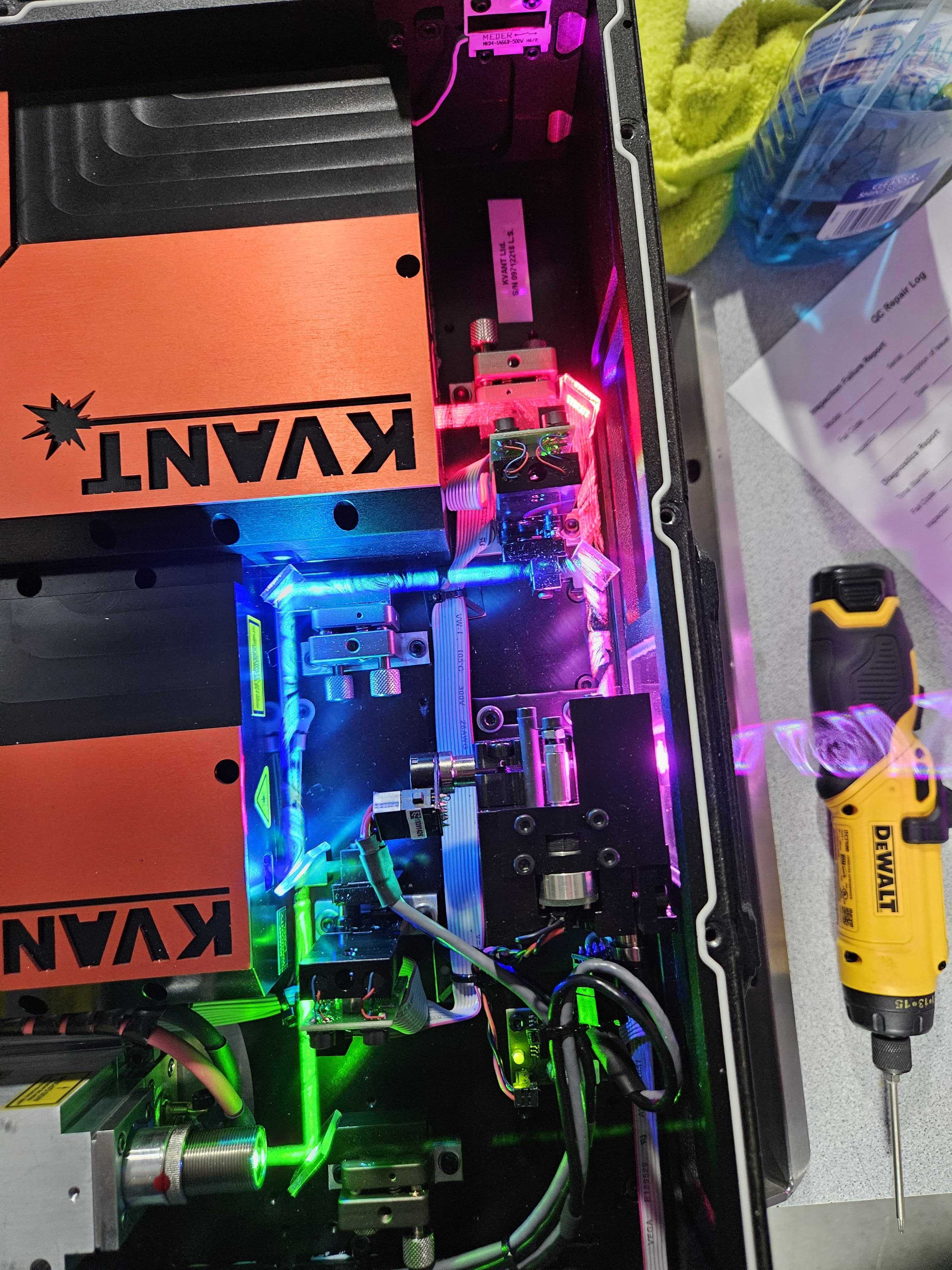
In the case of dual line, we want to combine the two colors that do move together first, then move them together into the beam that doesn’t move.
## 65 Circle the mount that combines green and blue ##
Start by enabling the two colors that do move. We will not move the beam furthest from the scanners and instead move the middle beam onto the furthest beam.
## 66 Show movement of green and blue mount in video ##
Look down towards your test pattern and only use these two colors that move. We will want to first start by making the alignment worse by moving the middle beam out from the first beam.
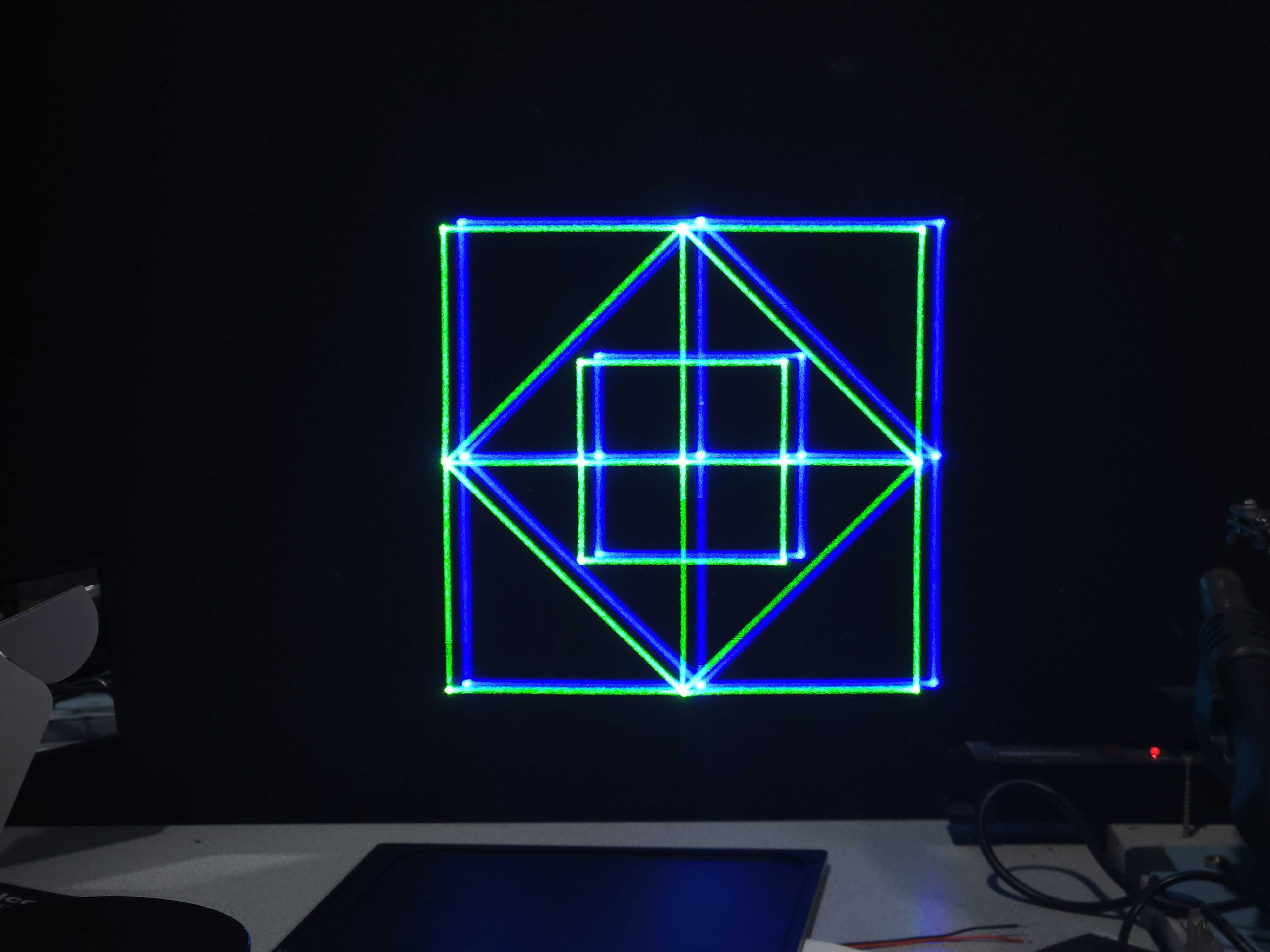 Once you are happy with the centering of these two beams. You will find another dichroic on a mount that combines these two into the third non-moving beam. Follow the same process of combining the previous two, to move them into the third non-moving beam.

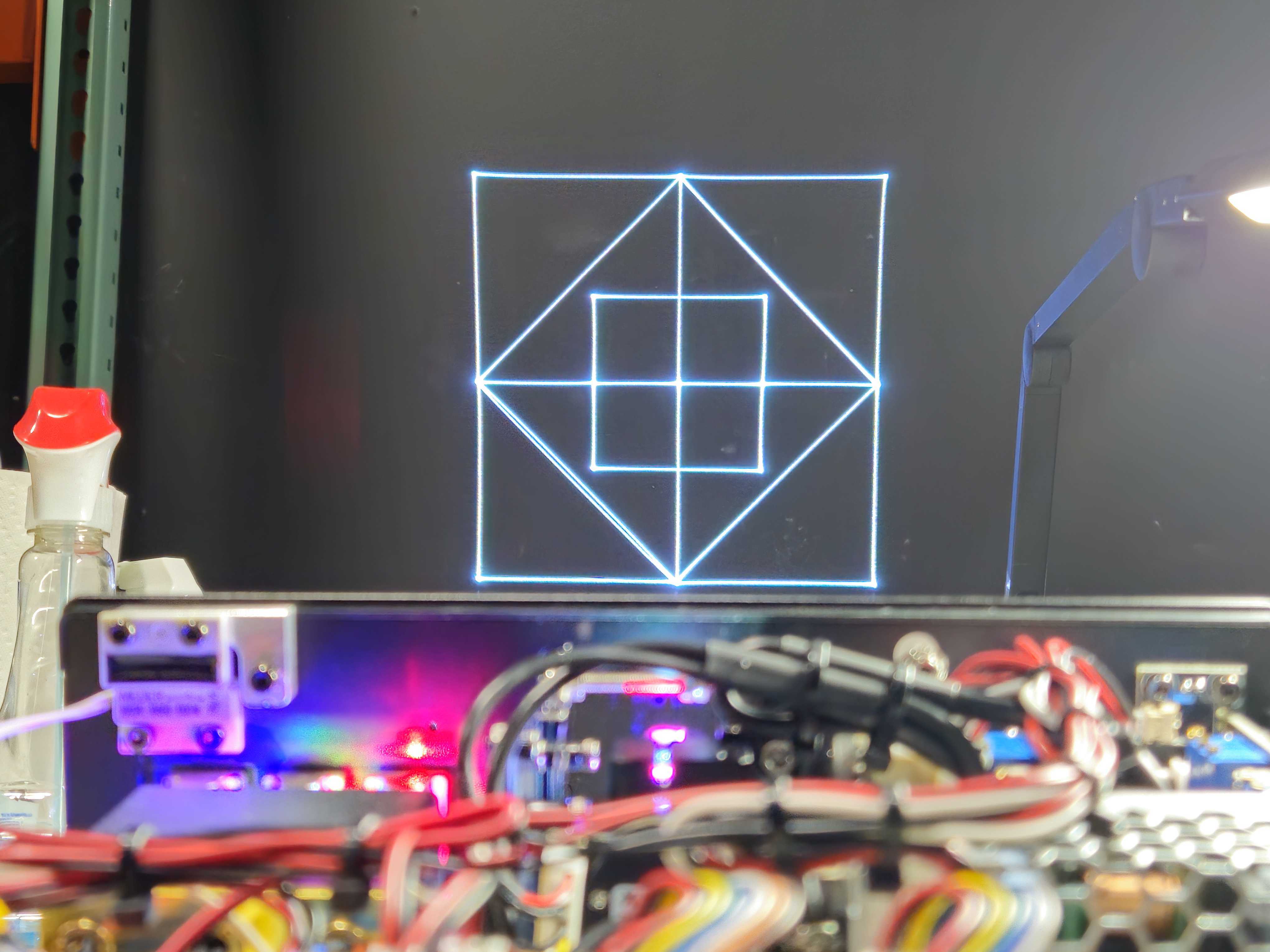
The result will look something like the following examples:
Centering on Scanners
One of the final alignments you may need to check is going to be the centering on the scanners. This is where we will want to change test patterns to use a full size square or grid on the scanners.
## Picture of rgb beam centered on scanners ##
To maximize performance, manufacturers have very tight tolerances to the beam size and the mirrors on the scanners. The larger the scanner mirror, the worse scanner performance is. So, all manufacturers need to play a very delicate game to get the best performance overall.
## picture of RGB beam on scanners, note margin ##
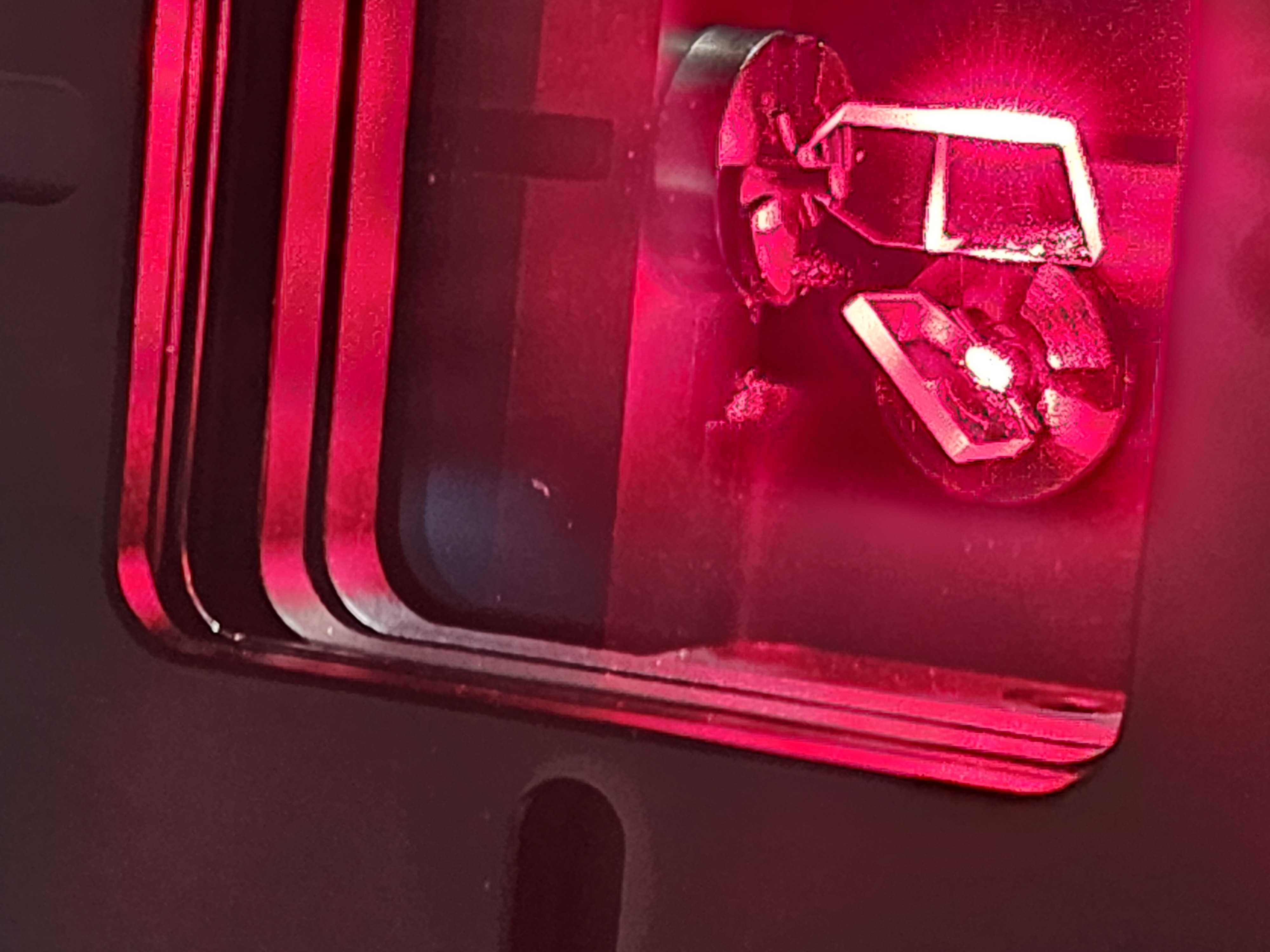
The main goal is for our beam to not “fall off” the mirrors when they are reaching their extreme angles. You can see if the beam is falling off two ways, you will see parts of the beam inside the enclosure or shooting past the mirror onto the scanner mount, or up straight out of the projector (with the top off).
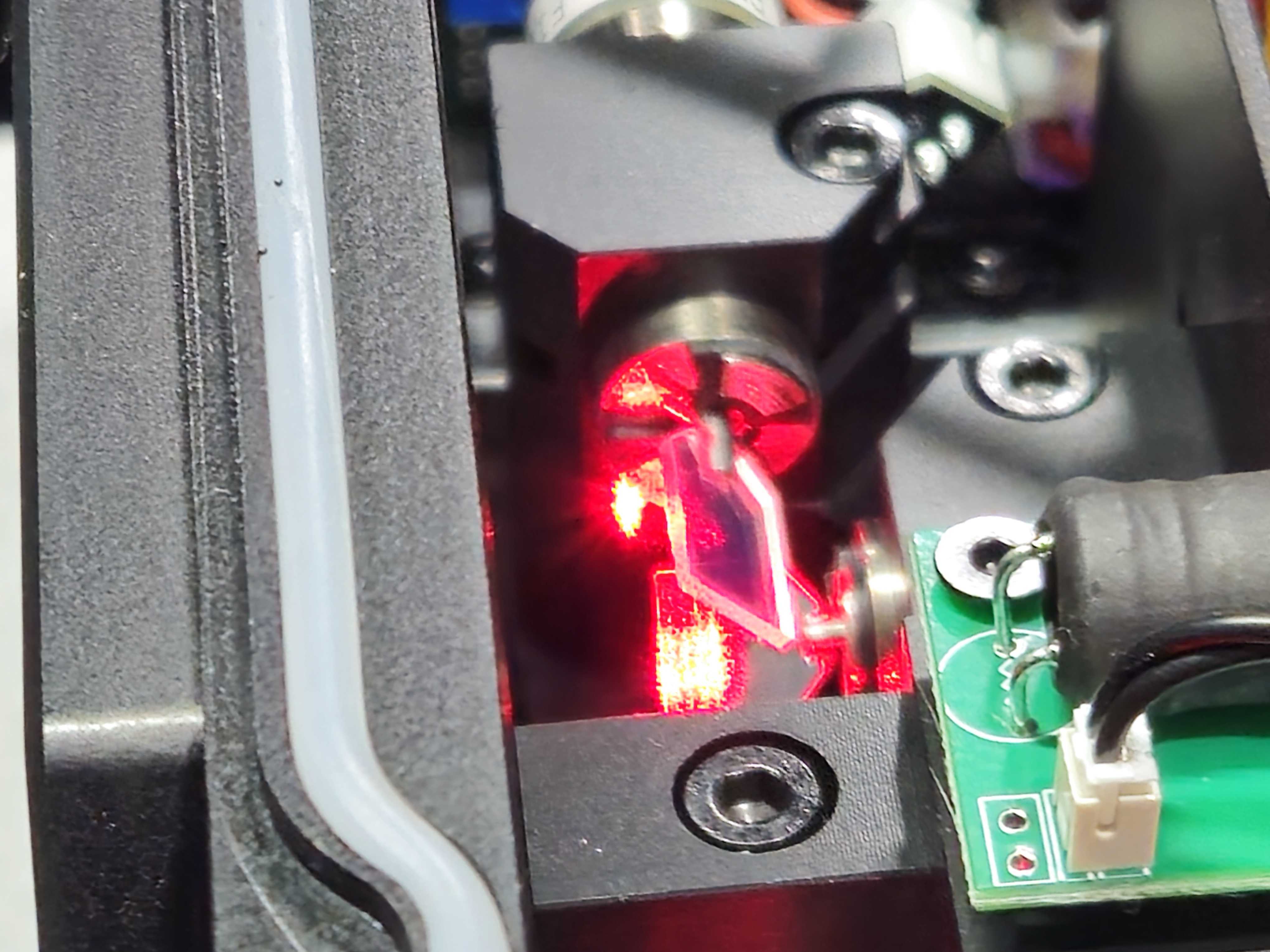
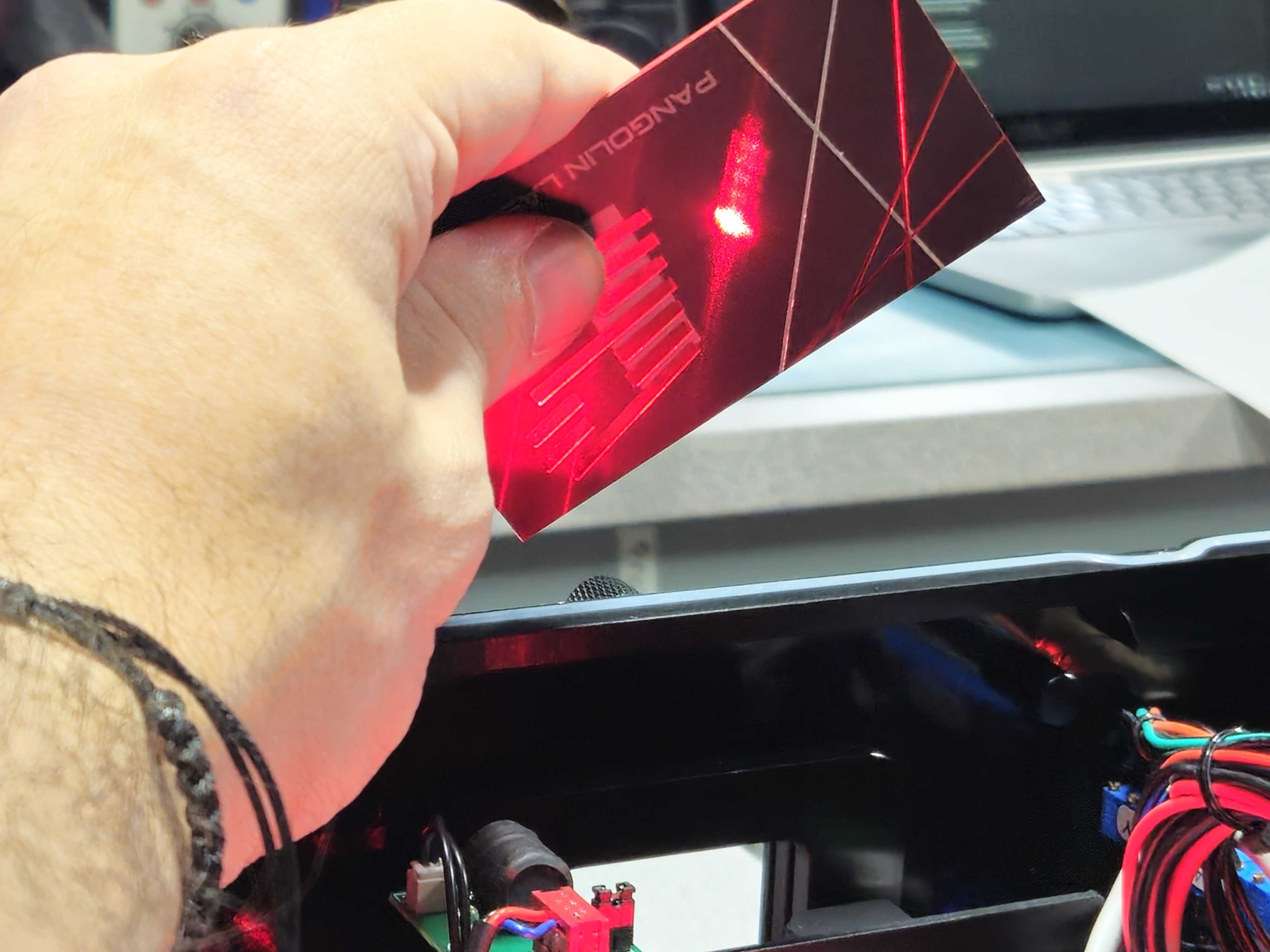 Or, you can also see it when scanning at full size and the color drifts (usually starting to lose red) near the edges of the scan field.
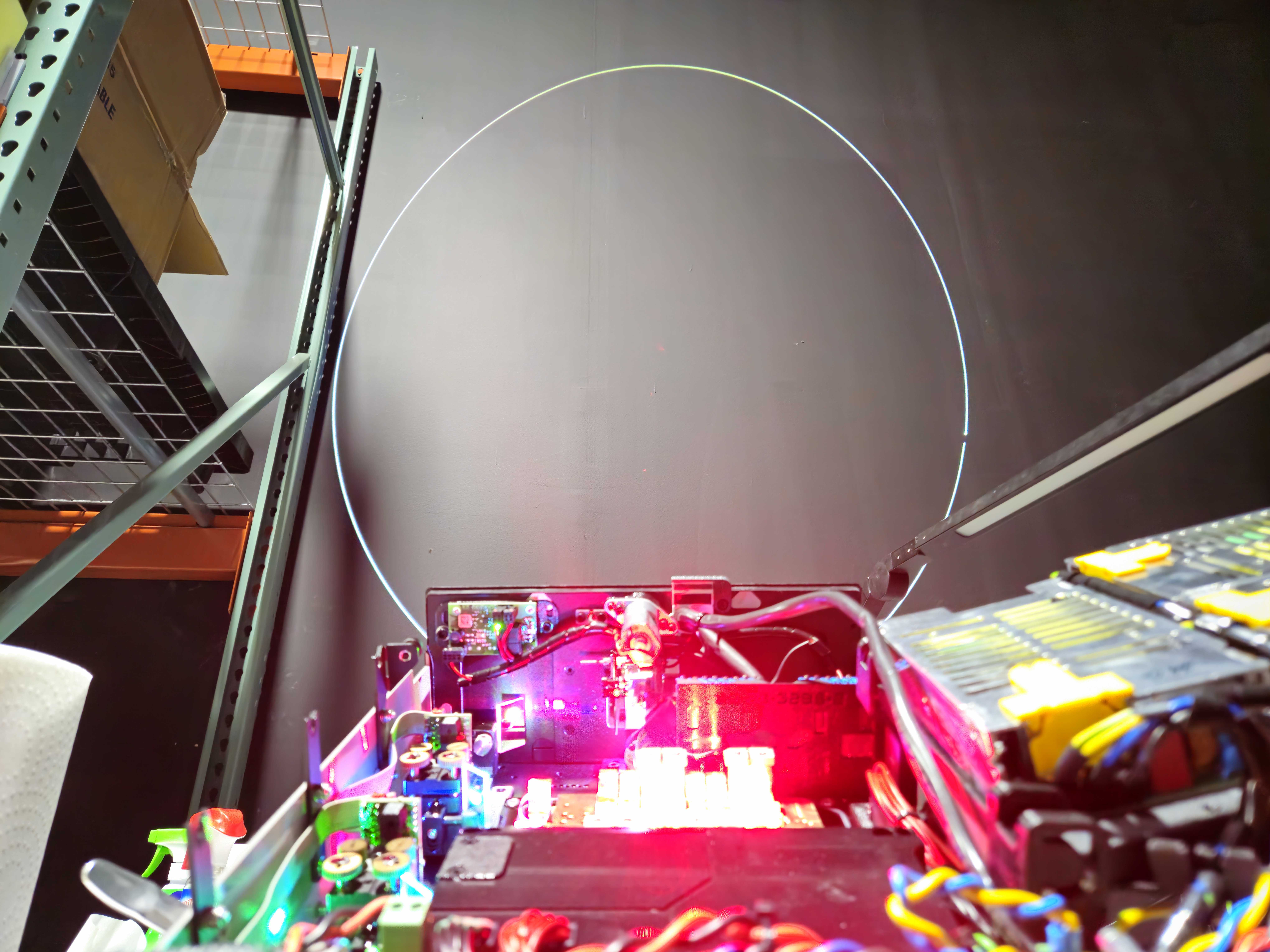
If all corners of your projection are losing color, then the beam is too large for the mirror. And further module alignment may be required.
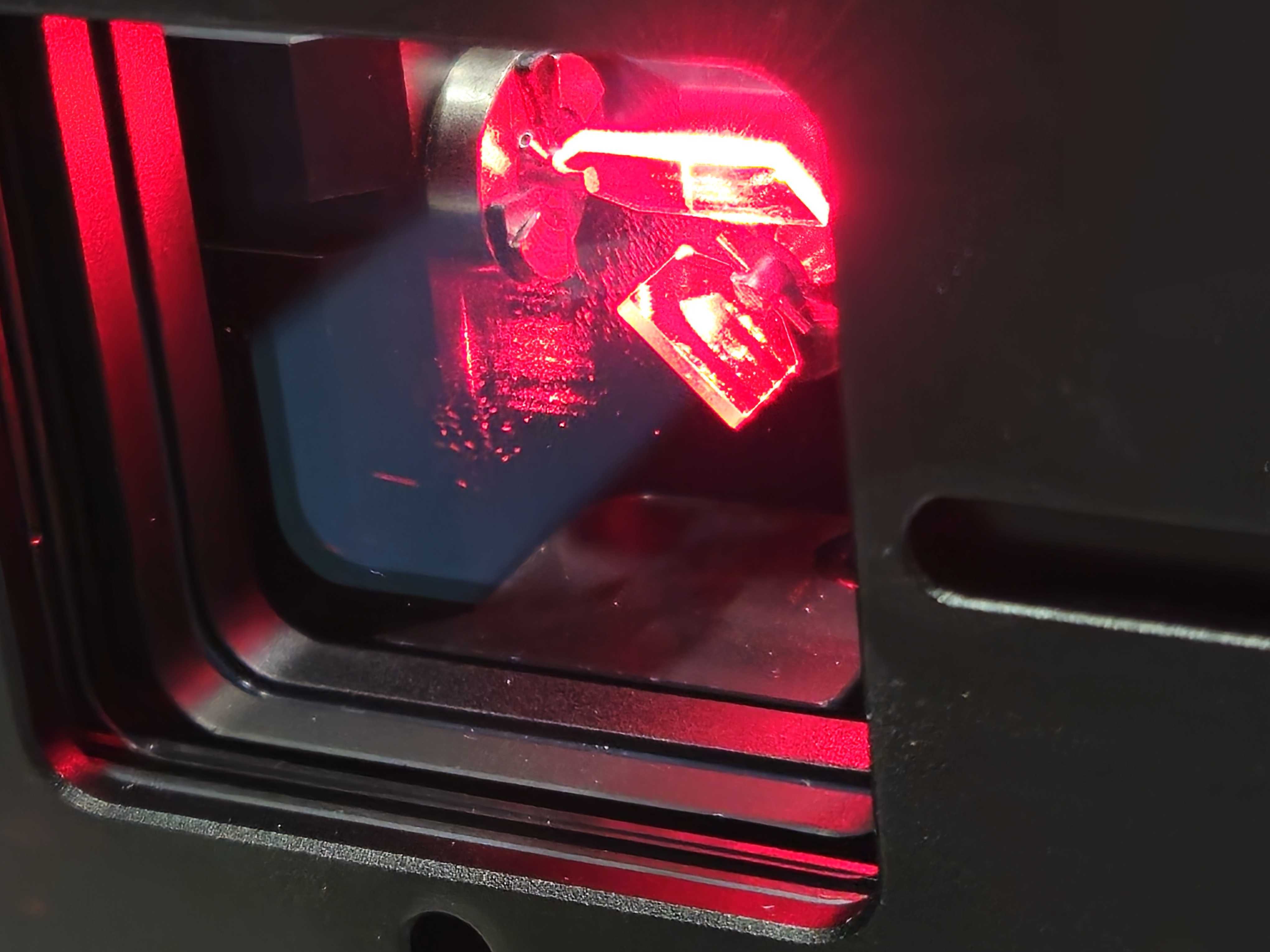
If it’s just showing up on one axis or another, then that can also help identify.
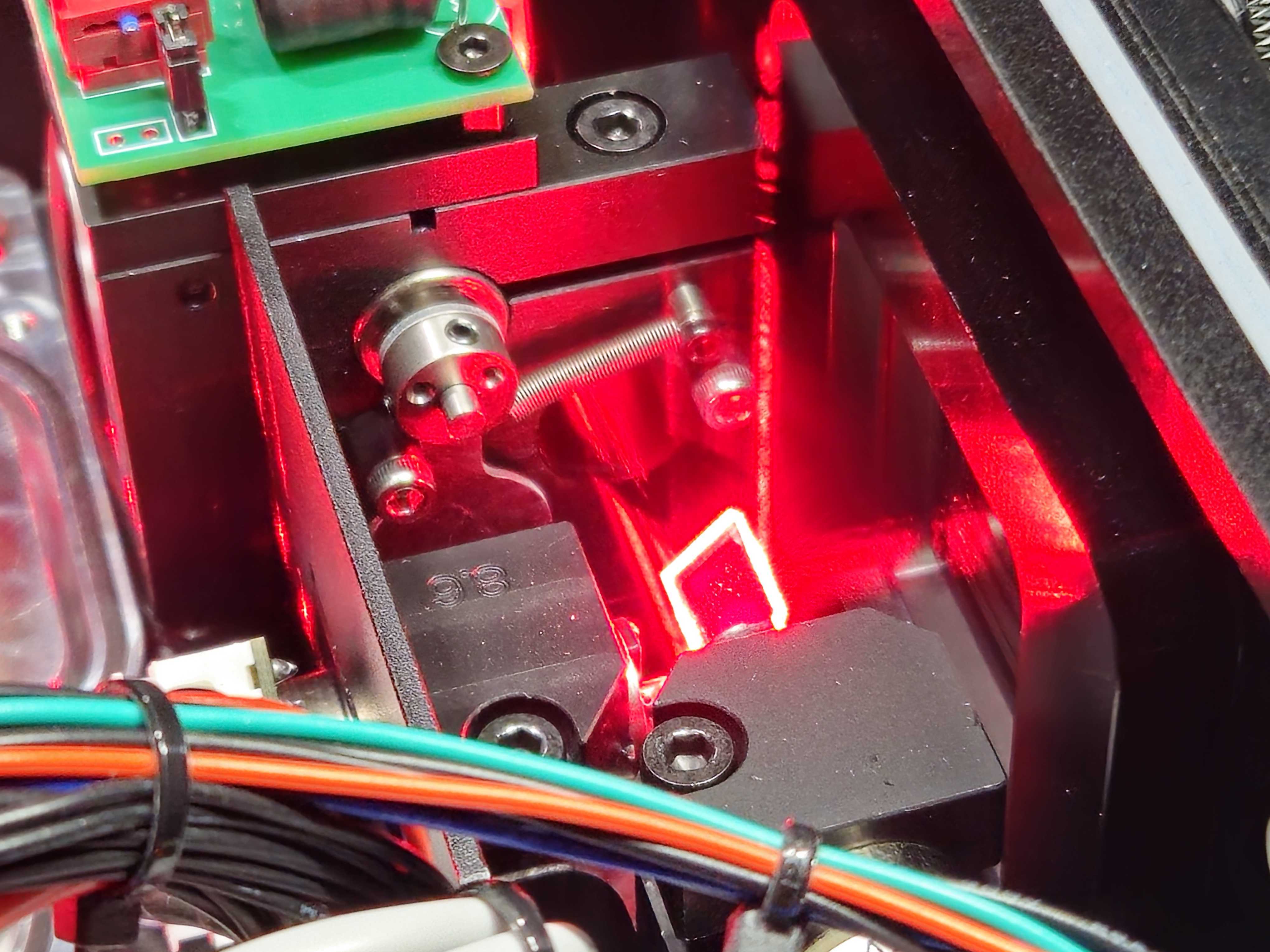
Most projectors have a “final bounce” This is when a mount is holding a mirror and bouncing all combined beams into the scanner. To adjust centering, we will use this mount.
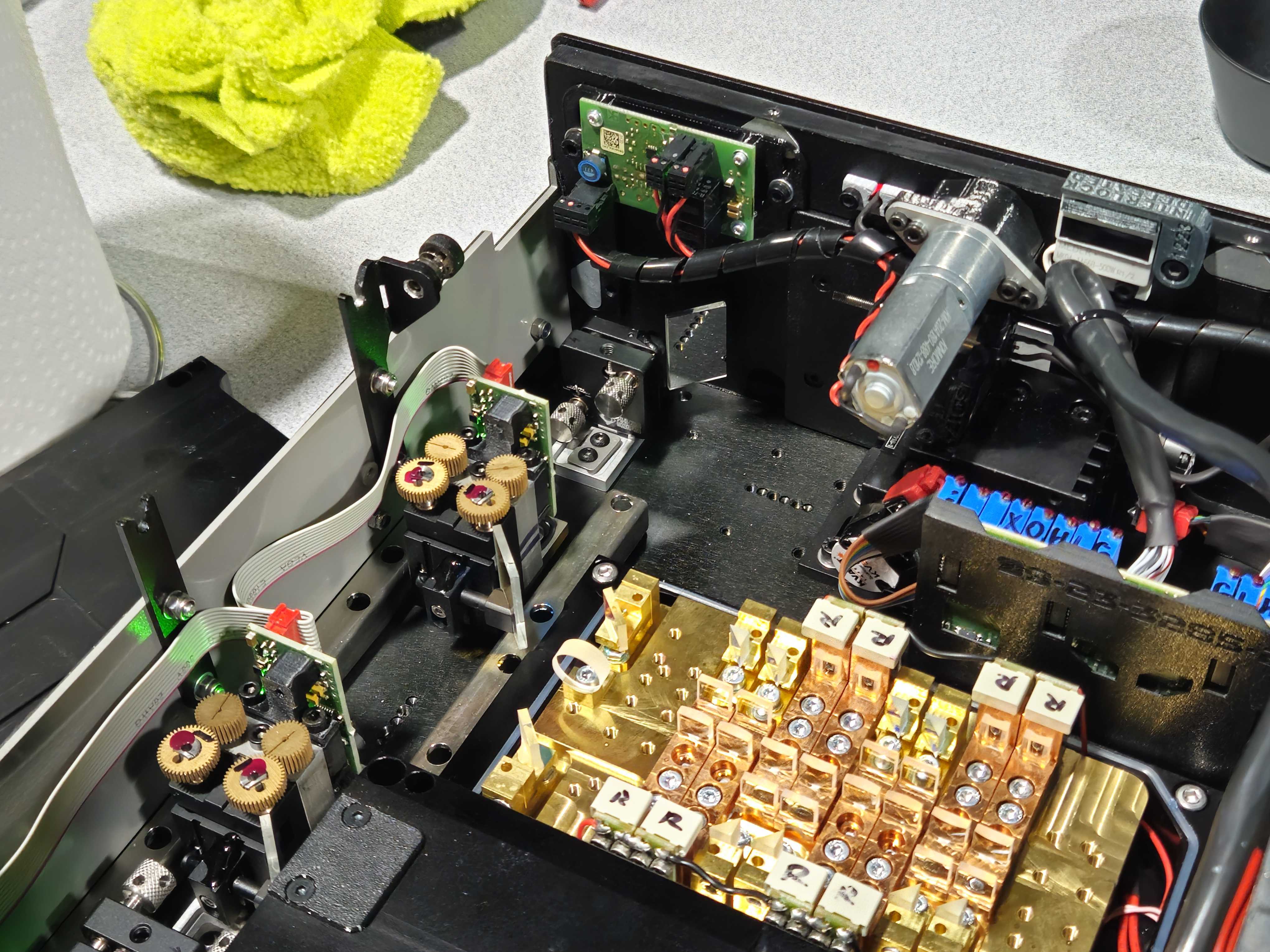
Adjust the mount onto the scanner mirrors searching for the best position which reduces anything falling off the scanners and allows your test pattern to look like a constant color throughout.
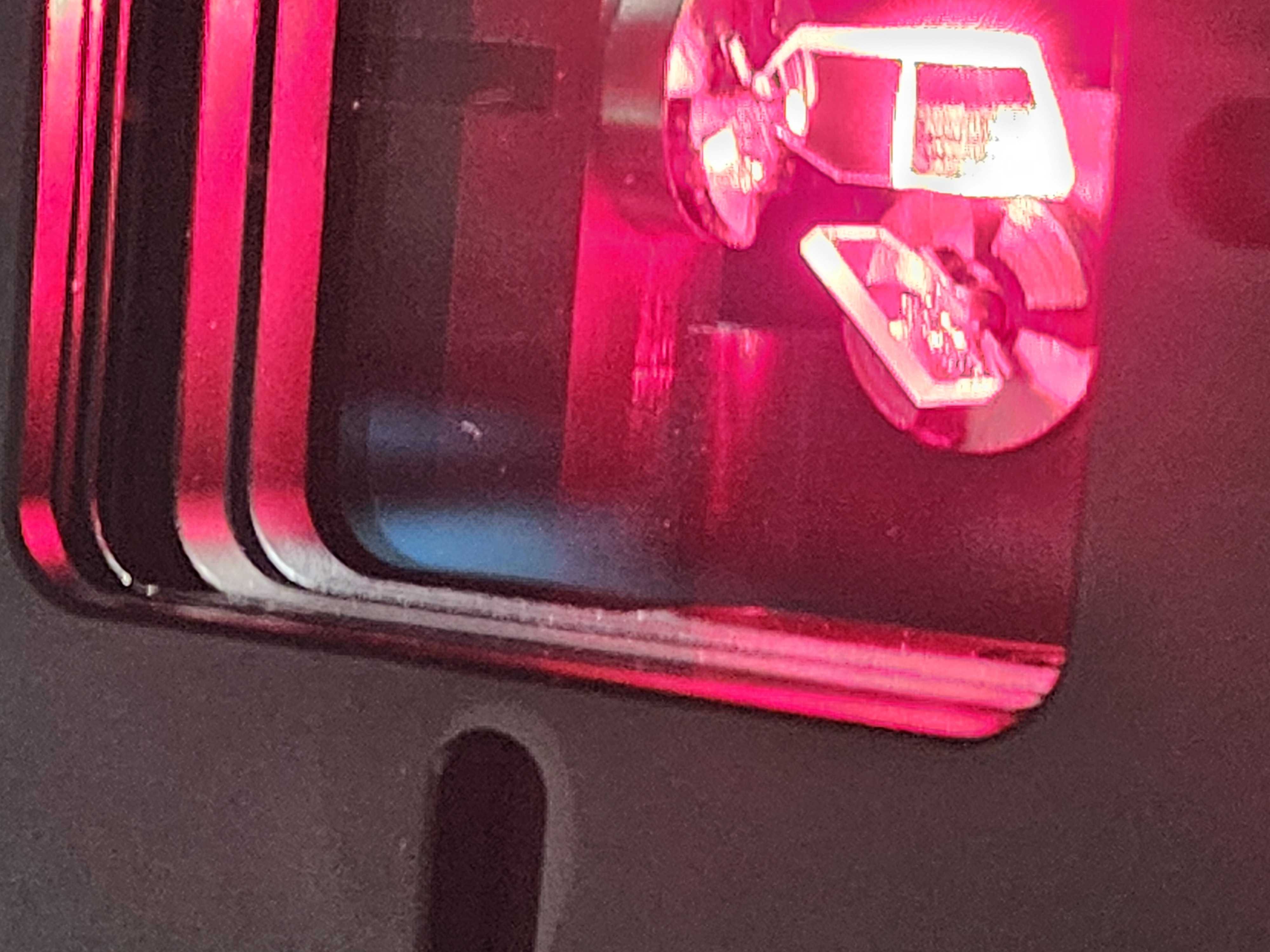
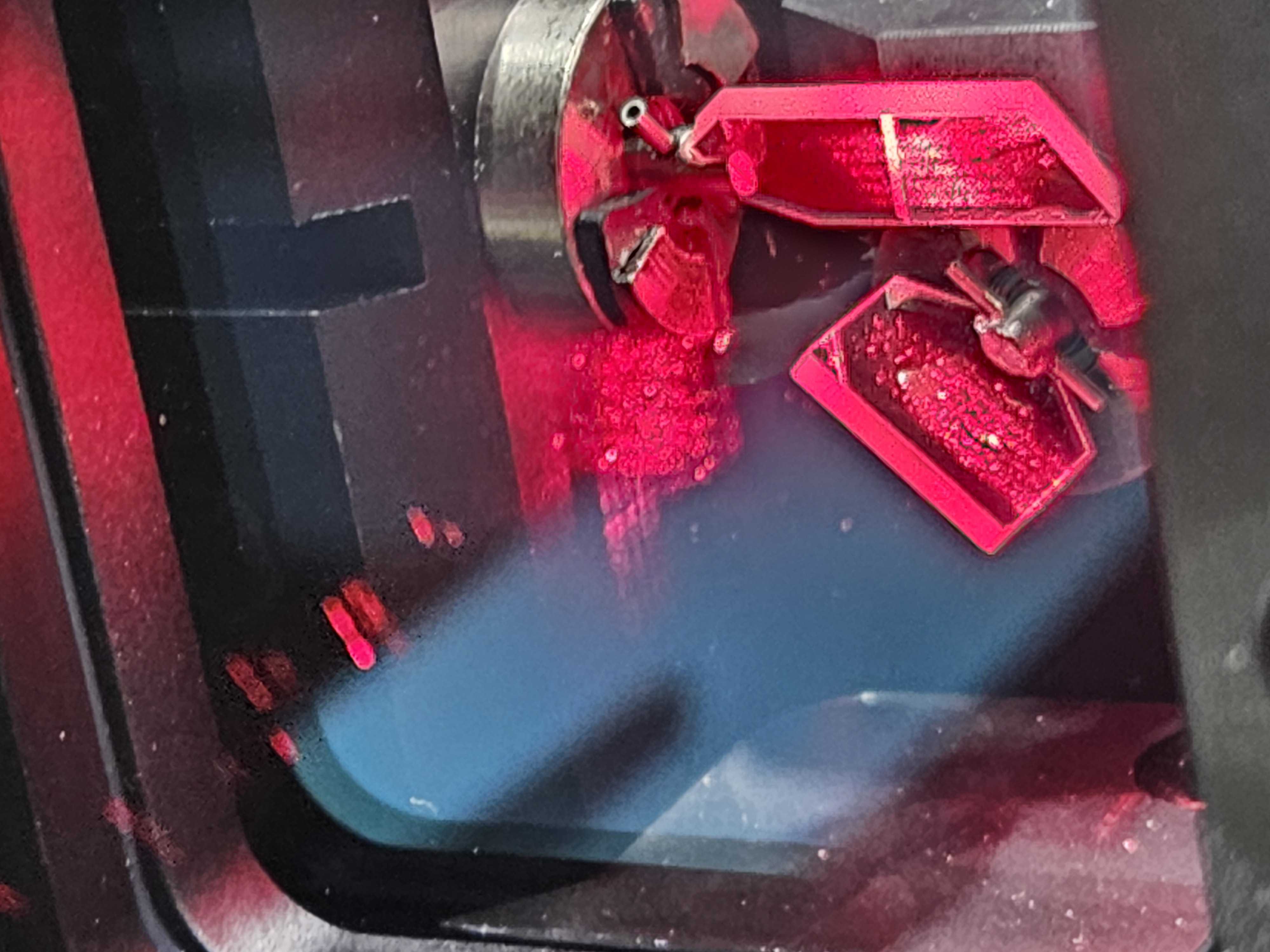
It’s important that the beam DOES NOT touch the scanners’ shaft, this can transfer extreme amounts of heat into the scanner, loosening epoxy, demagnetizing it and causing lots of damage. So, we want the beam to be centered without falling off and without touching the shaft that you will be able to see on the scanners.
Completion, and what to do if you still can’t get it right?
At this point your laser should be aligned! And the project is complete. If you are having trouble getting your alignment right no matter what you do, it's likely the geometry of your optical train is the thing that is messed up. This basically means your optics and mounts are no longer perfectly 90 degrees from each other or centered on each other.

Normally we would recommend sending a fixture with this issue into your manufacturer as getting this right is extremely difficult and technicians at factories train for months to get all this correct. The other issue is if there is more wrong inside your module(s) than you knew before and a full module rebuild may be required to get the size and shape of the beam back to its original spec. If you still need help and are having issues aligning, please email support@pangolin.com and get help!